Manage Subscriptions
This guide covers Manage Subscriptions, where providers grant API access and consumers track their subscriptions.
Use Manage Subscriptions to track subscriptions, view rate plan details, filter the list, manage keys, select the API environment, and view sample requests.
Under Manage Subscriptions, there are two views:
- Provider View: Create subscriptions with Create Subscription, enable or stop the application, edit custom plans, and attach or detach gateway policies.
- Consumer View: See subscription status, rate APIs, copy keys, view sample requests, and download documentation.
Provider view
Create subscription
- Go to Manage Subscriptions.
- Open the Provider View tab.
- Click Create Subscription.
That creates a subscription with the rate plan chosen at create time. For the full create steps and what to do after you create a subscription, see Create Subscriptions.
After you create a subscription, open Subscription details with the eye icon to manage it (Enable Application, Stop Subscription, and edit custom plans).
View Subscriptions
You can view API subscriptions across organizations you belong to and have access to.
Search using Search for Consumer or Subscribe To.
You can filter subscriptions by:
- Subscription Type:
- All: API and API Group subscriptions.
- API: Subscriptions for individual APIs.
- API Group: Subscriptions for API groups.
- Subscription plan Status:
- All
- Subscribed
- Unsubscribed
- Status:
- All
- Accepted
- Rejected
Subscription details
- Click the eye icon to open Subscription details.
- Use the Subscription tab to view the plan and manage the application.
- Under Application Status, turn Enable Application on or off, then confirm Enable Application or Disable Application.
- If the selected API or API Group requires approval, the subscription may show that it is awaiting approval. After an approver approves it, the subscription is activated.
- If the approval is rejected, create a new subscription.
- Click Stop Subscription to stop an active subscription.
- Click Edit only if you used Create Custom Rate Plans, then click Save Plan.
Key and Environment
When the subscription is active:
- Click the eye icon to open Subscription details.
- Open the Key and Environment tab.
- View the subscription keys.
- Choose Select Environment.
- Click Update.
Attach/Detach Gateway Policies
Step 1: Open the Attach or Detach policy dialog
- From the subscription list, click Attach or Detach for the subscription you want to manage.
- A dialog named Attach or Detach policy will open.
- Choose either:
- Attach Policy
- Detach Policy
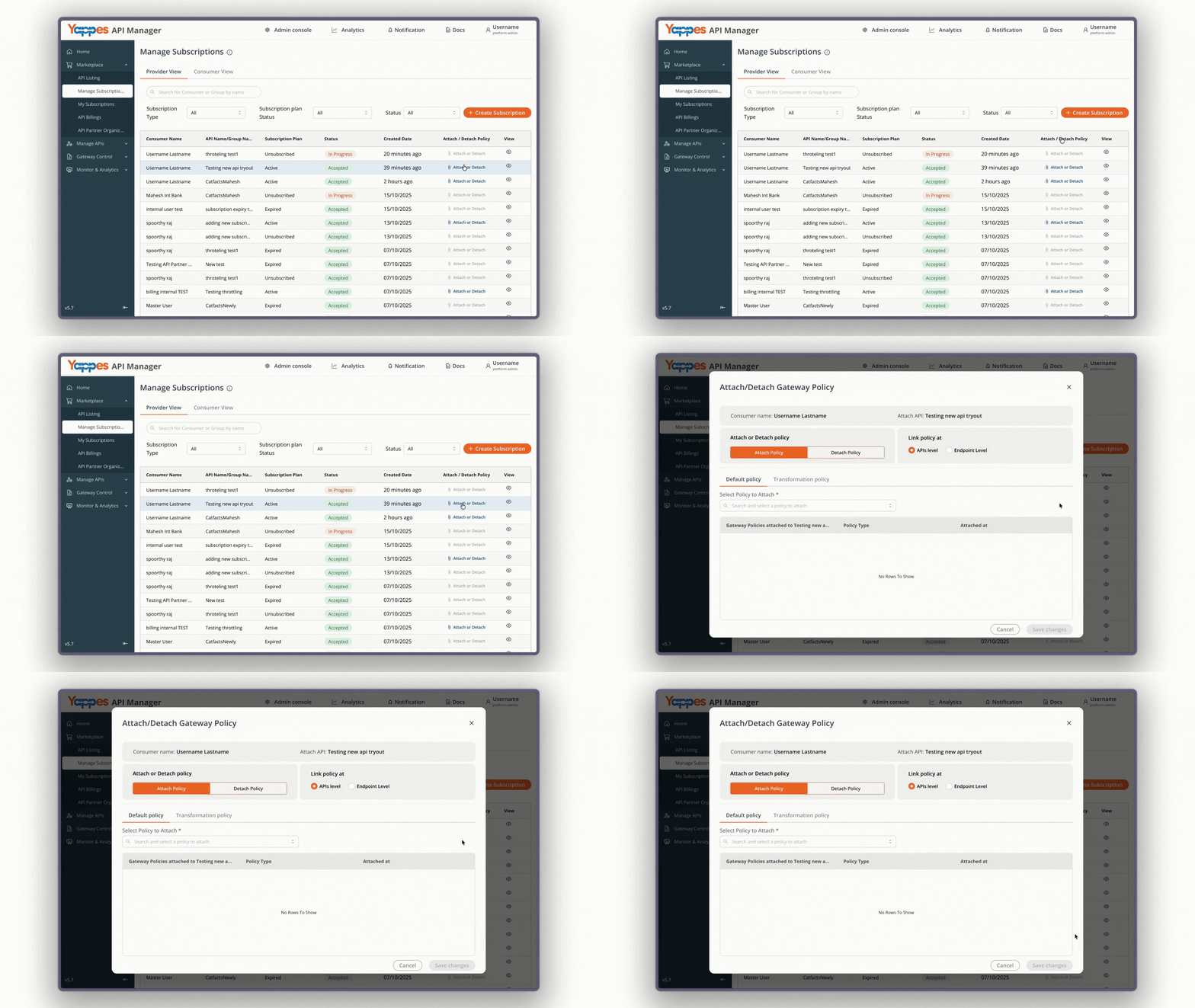
Attaching Policies
Step 2: Select Policy Scope (Attach Tab)
- In the Attach Policy tab, select where to link the policy:
- APIs level → Applies the policy to all endpoints of the API.
- Endpoint Level → Applies the policy only to selected endpoints.
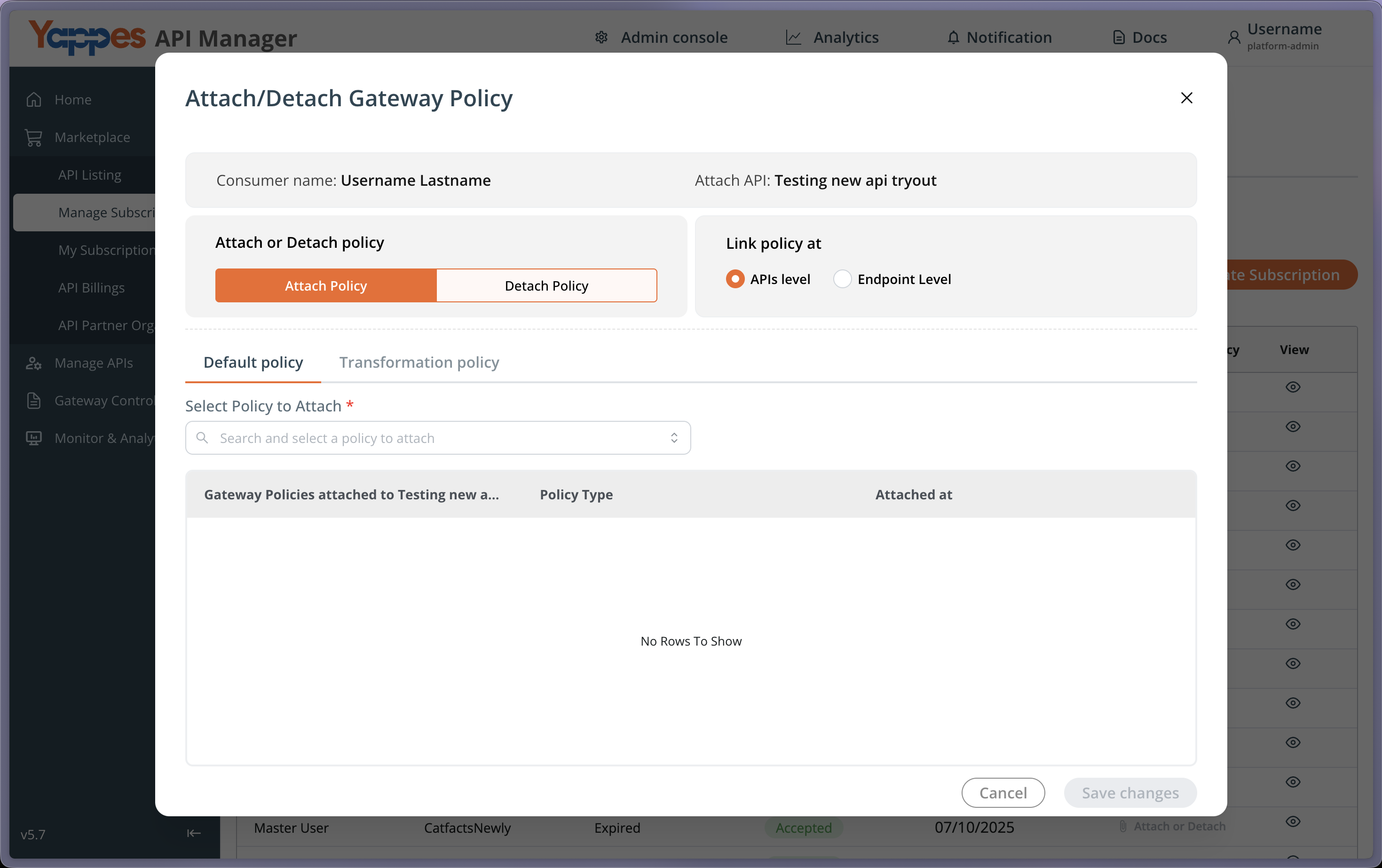
Note
For API Group subscriptions, only APIs level is available.
Step 3: Select Policy Type
- Choose the appropriate tab for the policy you want to attach:
- Default policy → Includes available policies such as:
- Blacklist IP Address
- Whitelist IP Address
- Throttling
- Message Signature
- mTLS Configuration
- Encryption & Decryption
- Verify Headers
- Custom Plugin
- Monetization Limit Check
- JSON Threat Protection
- XML Threat Protection
- Regex Threat Protection
- Raise Fault
- Transformation policy → Used to configure transformation rules. (Only available for API subscriptions — disabled for API Group subscriptions).
- Default policy → Includes available policies such as:
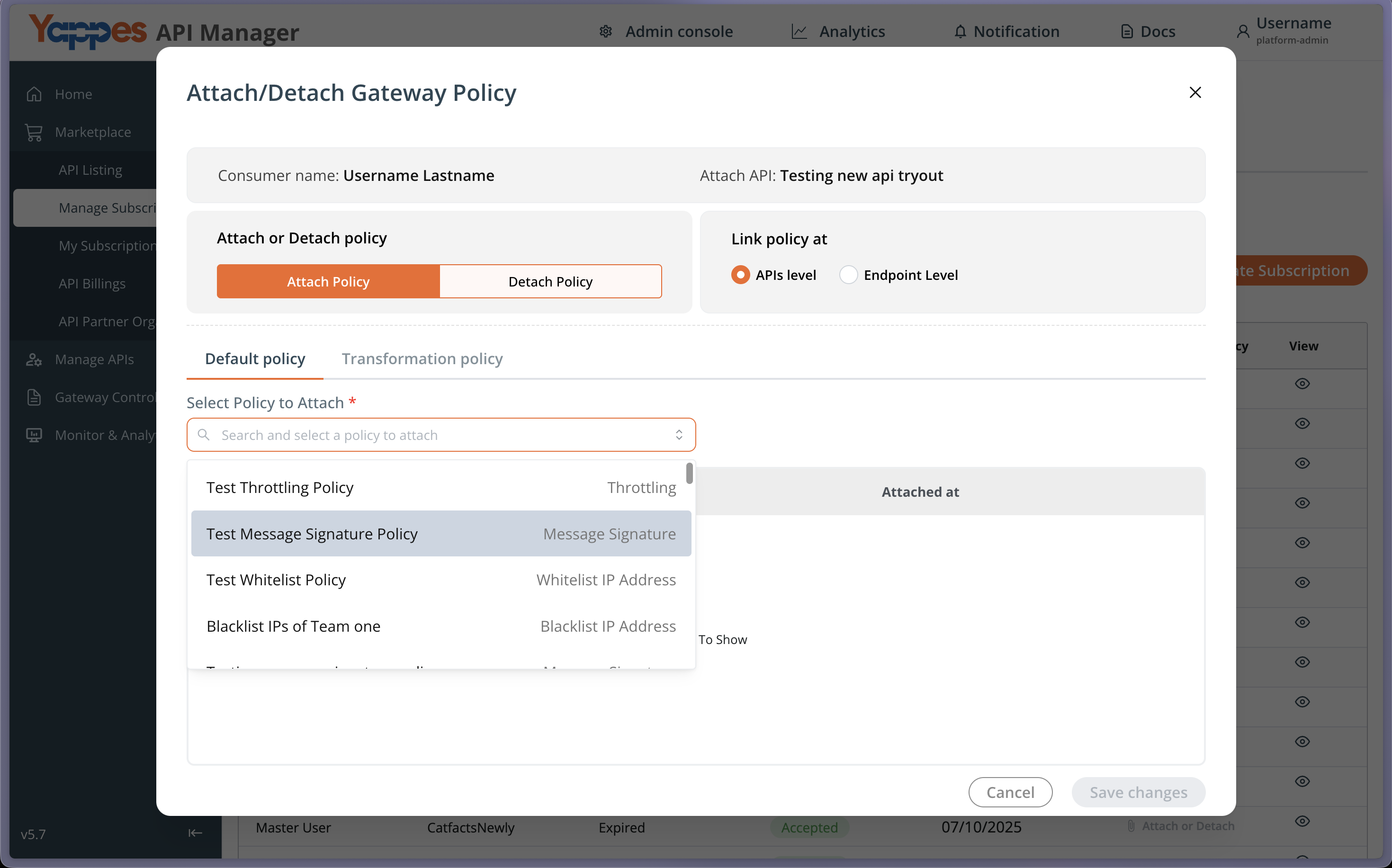
Step 4: Select Endpoints (if Endpoint Level)
- If you selected Endpoint Level in Step 2:
- Select one or more endpoints from the endpoint list in the chosen tab (Default or Transformation).
- After selecting endpoints, click Next to continue.
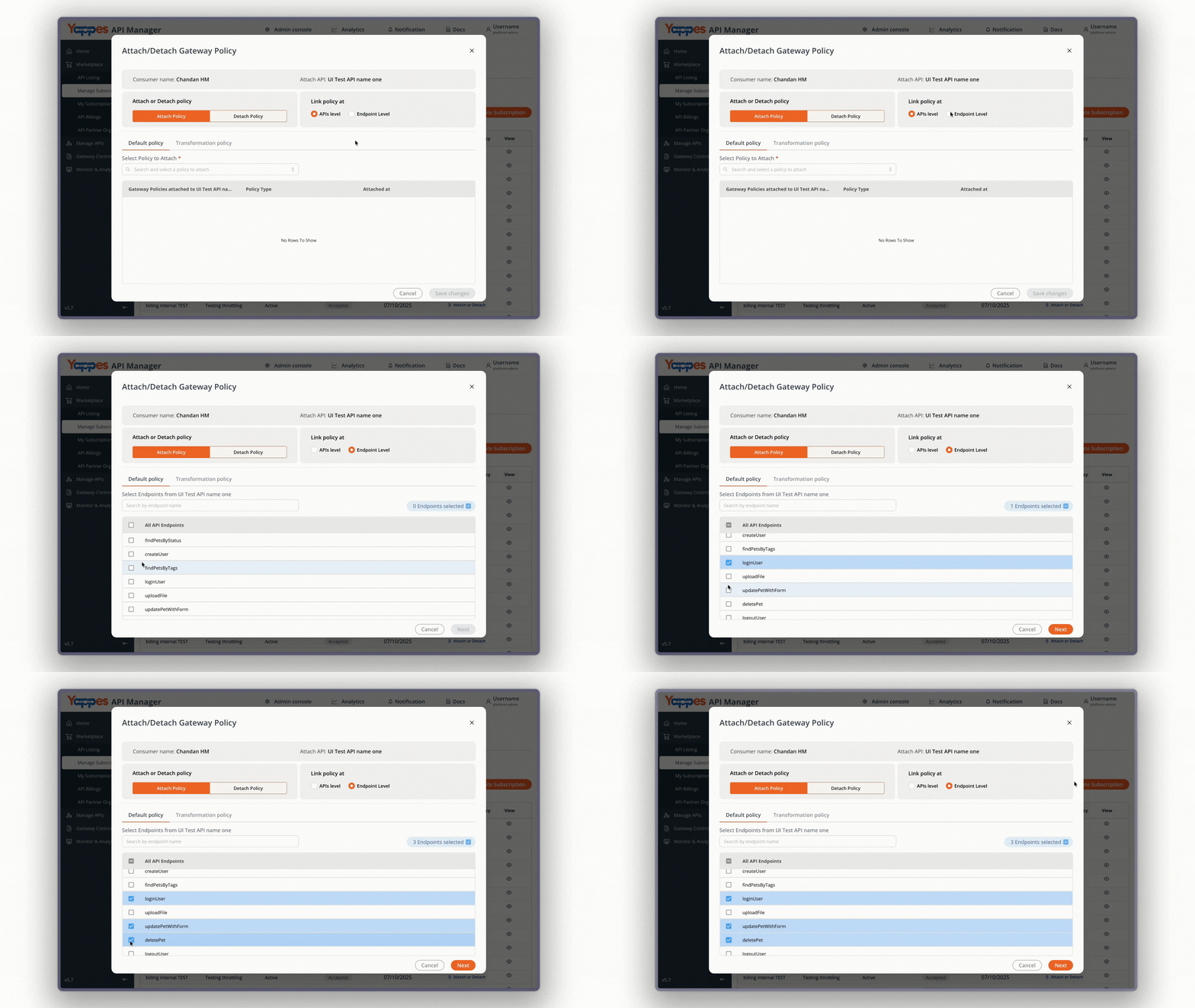
Step 5: Attach Default Policies
- If selecting from Default policy:
- Use the search bar to find the policy you want to attach.
- Select one or more policies.
- Click Save changes to complete the attachment.
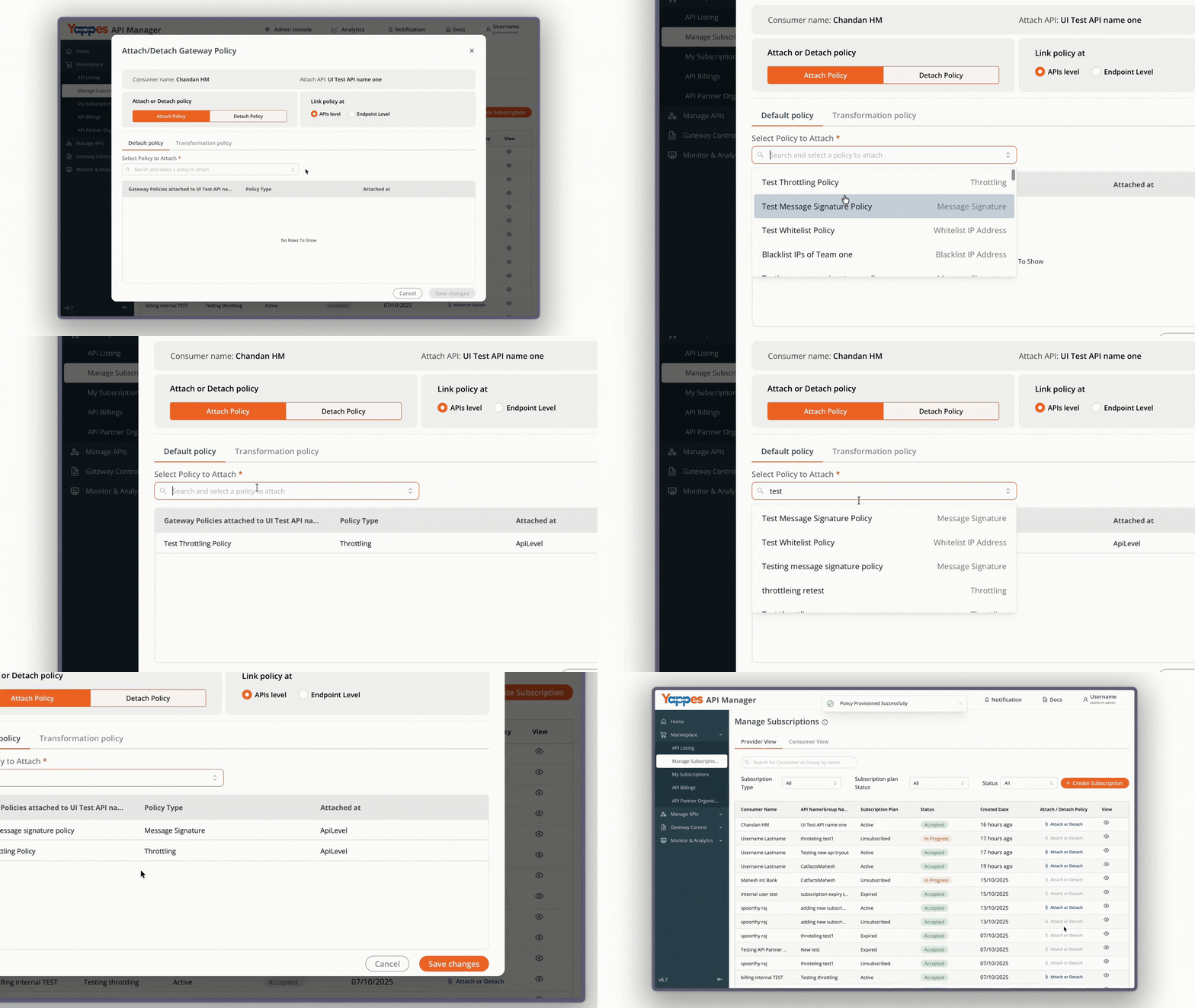
Step 6: Attach Transformation Policies
- If selecting from Transformation policy (API subscriptions only):
- Select the Transformation policy tab.
- A list of available transformation policies is displayed.
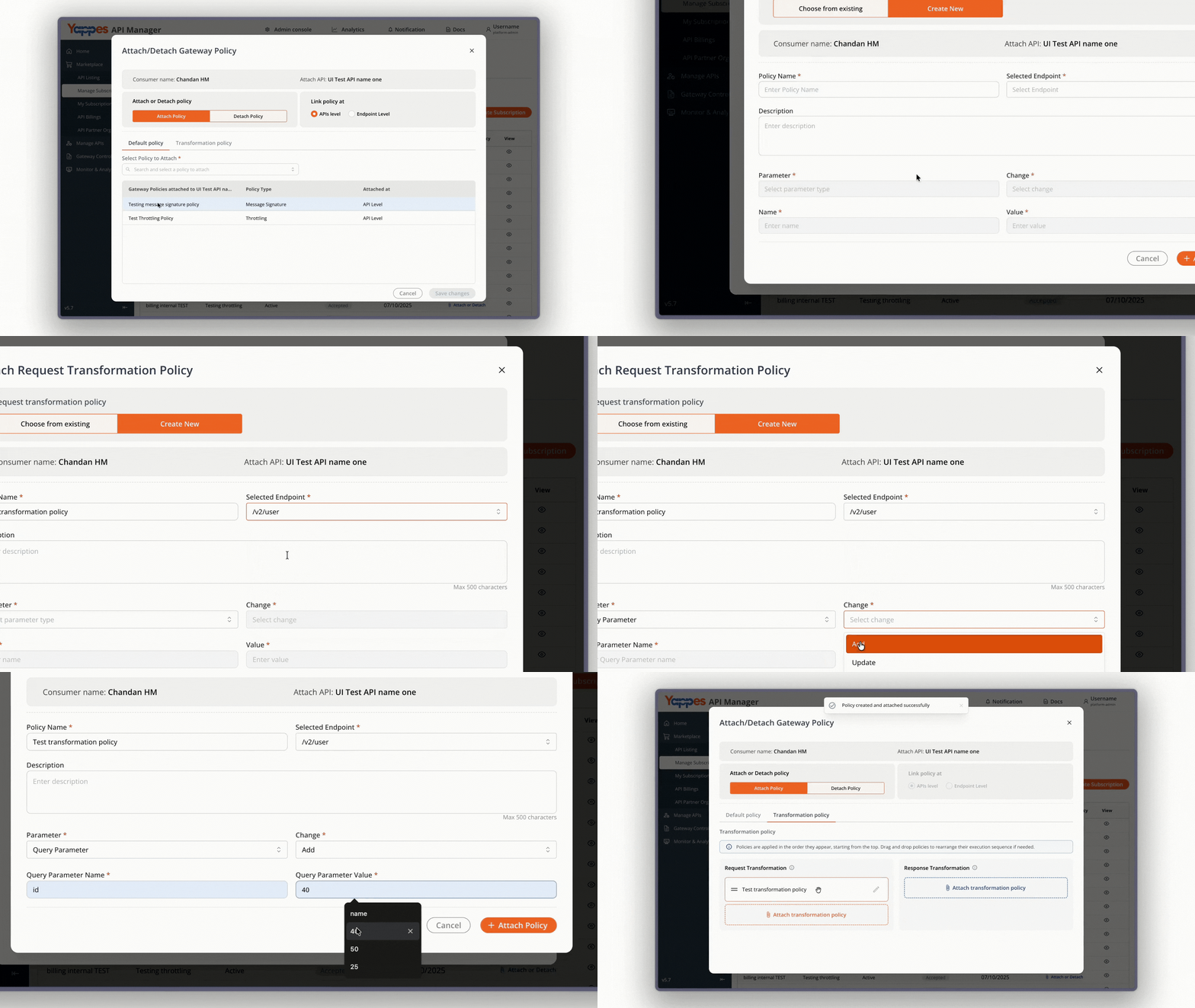
Detaching Policies
Step 7: View Attached Policies
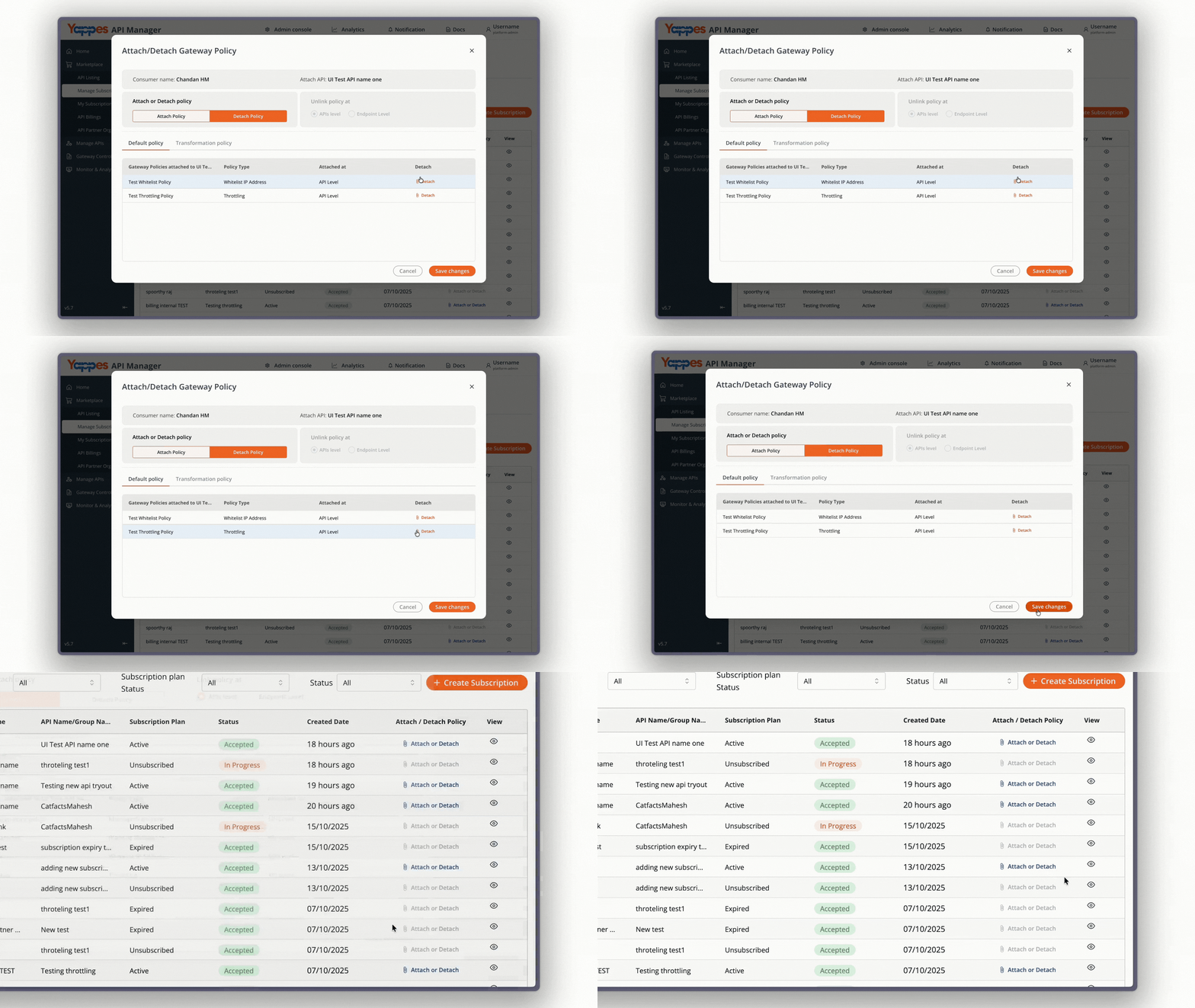
- In the dialog, switch to the Detach Policy tab.
- A table will list all policies currently attached to the subscription.
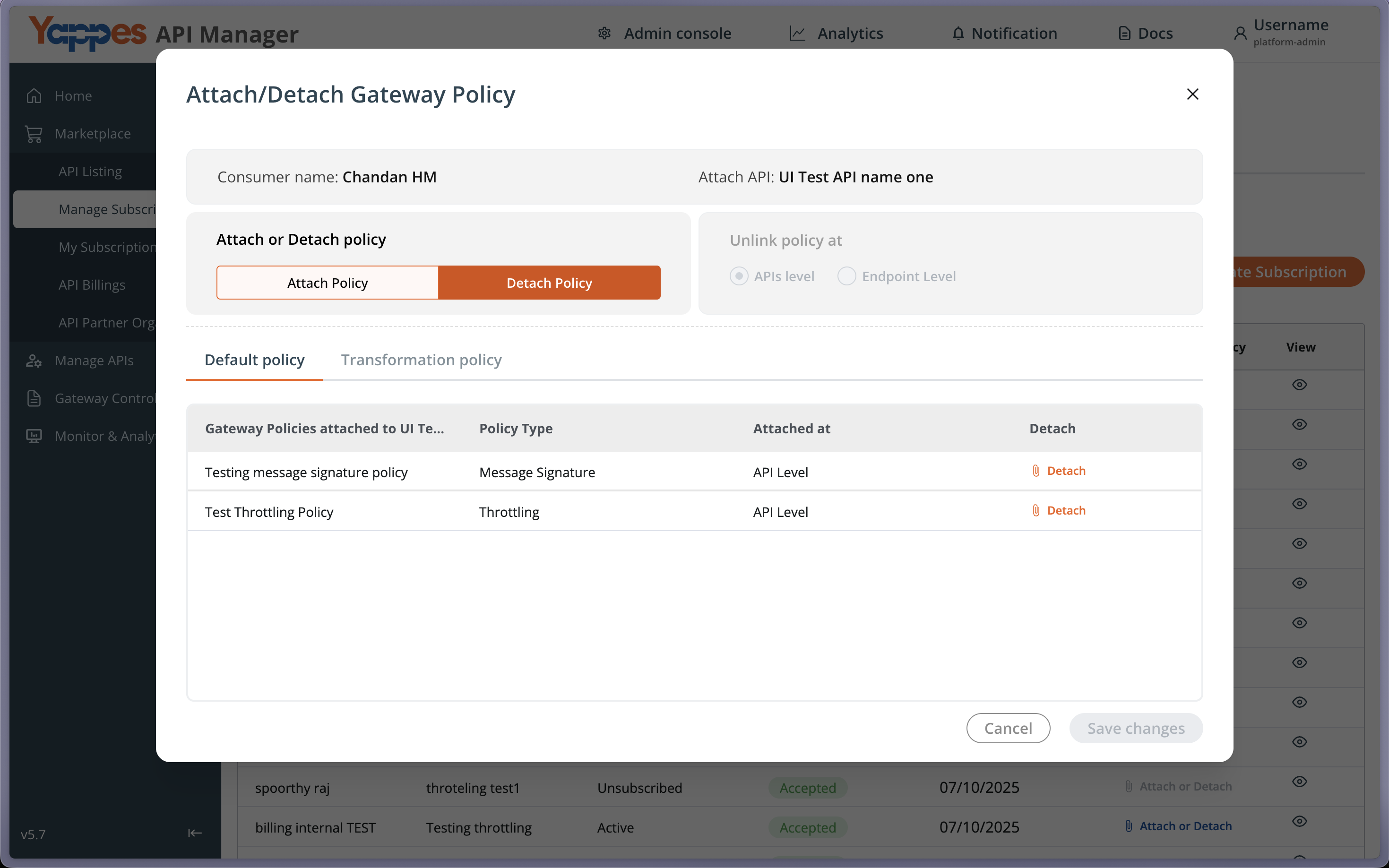
Detaching Default Gateway Policies
Step 8: Detach Default Policies
- For each default policy you want to remove, click the Detach button in its row.
- Repeat this process for all policies you wish to detach.
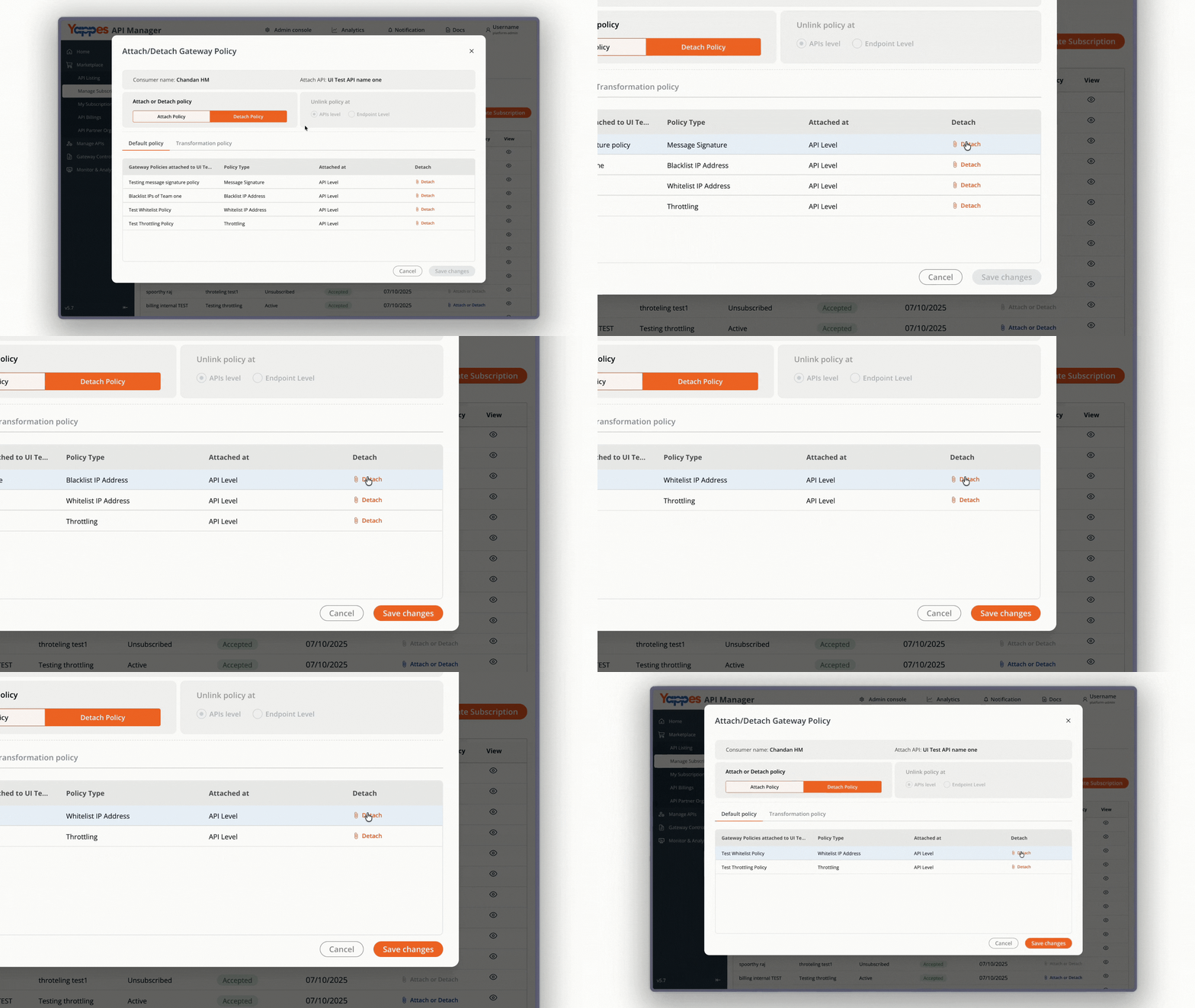
Step 9: Finalize Default Policy Detach
- After detaching the required policies, click Save changes to apply.
Detaching Transformation Policies
Step 10: View Attached Transformation Policies
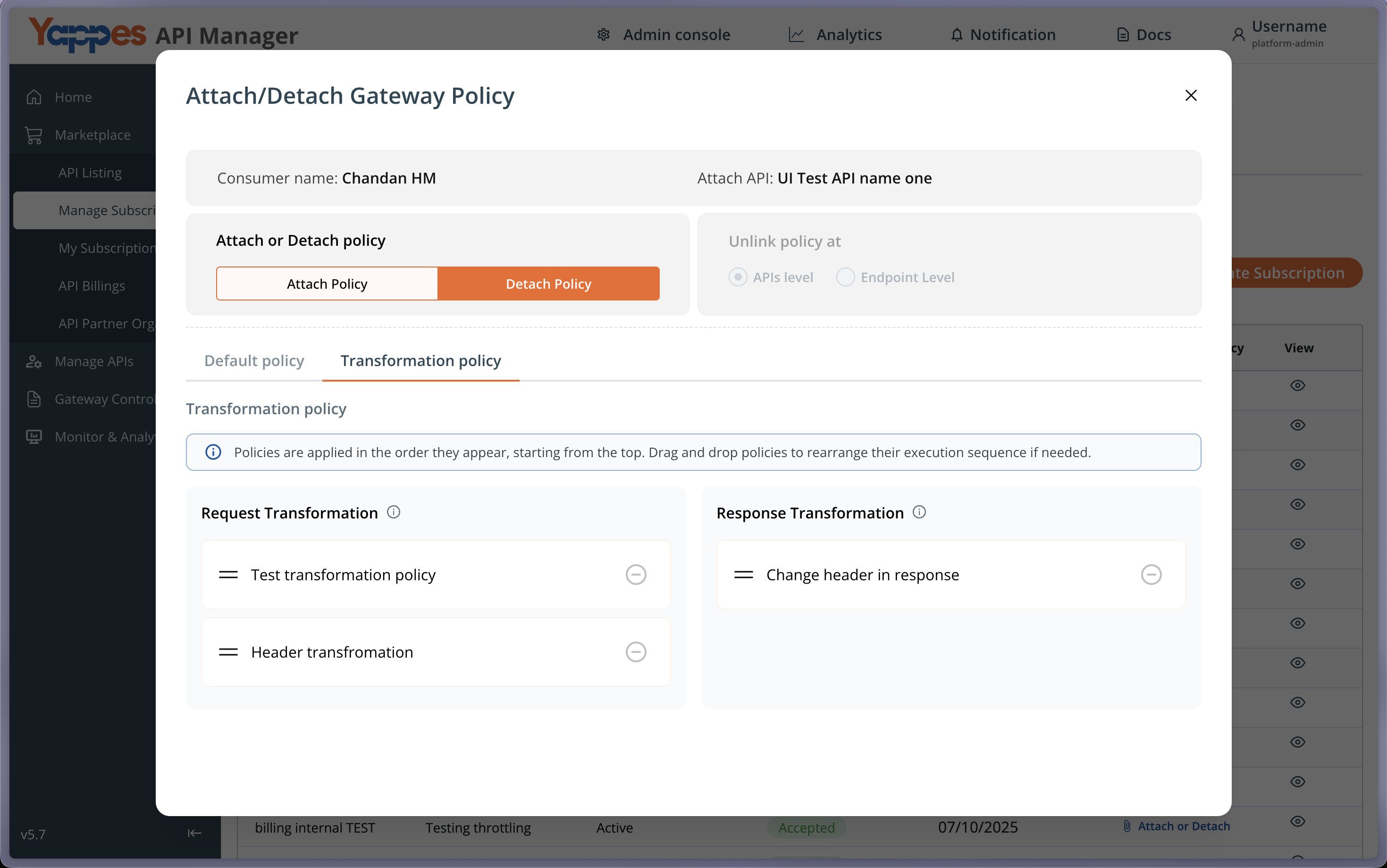
- Still in the Detach Policy tab, open the Transformation policy section.
- Only available for API subscriptions (disabled for API Group subscriptions).
- A table will list the transformation policies currently attached.
Step 11: Detach Transformation Policies
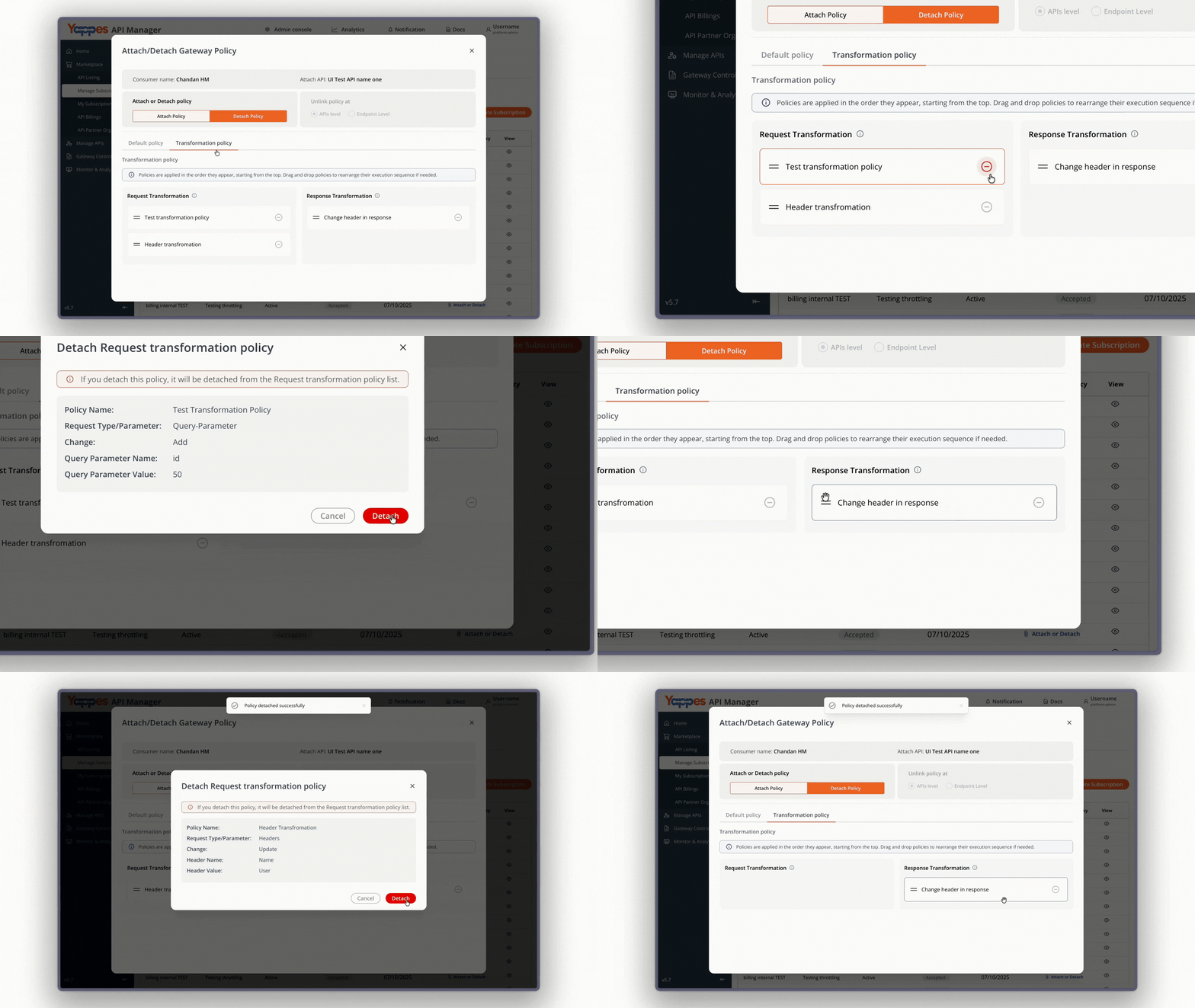
- Locate the transformation policy you want to remove.
- Click the Detach icon next to it.
- A confirmation dialog will open → click Detach to confirm.
Consumer view
Use Consumer View to see your subscriptions, rate APIs, manage keys, view sample requests, and download documentation.
Search using Search for Provider or Subscribe To.
You can filter subscriptions by:
- Subscription Type:
- All
- API
- API Group
- Subscription plan Status:
- All
- Subscribed
- Unsubscribed
- Status:
- All
- Accepted
- Rejected
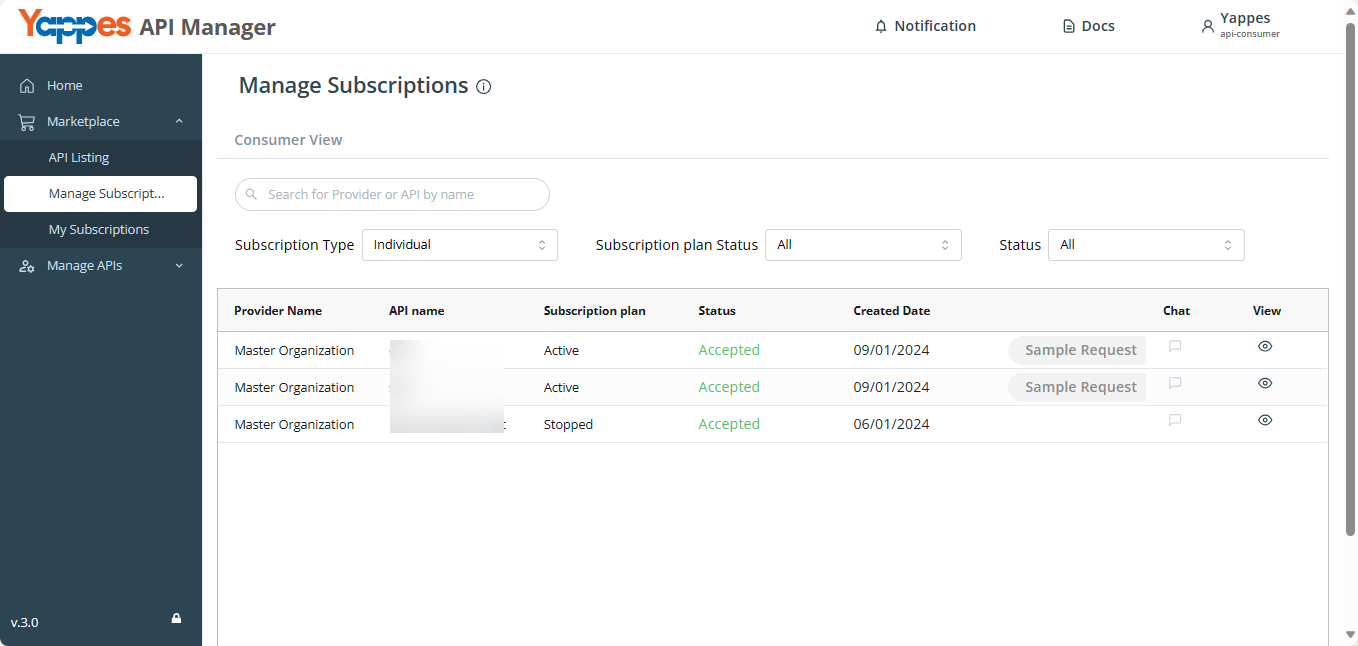
- Click the eye icon (View) to open Subscription details.
- For organization filters and broader subscription management, see My Subscriptions.
Subscription details
Subscription details has these tabs:
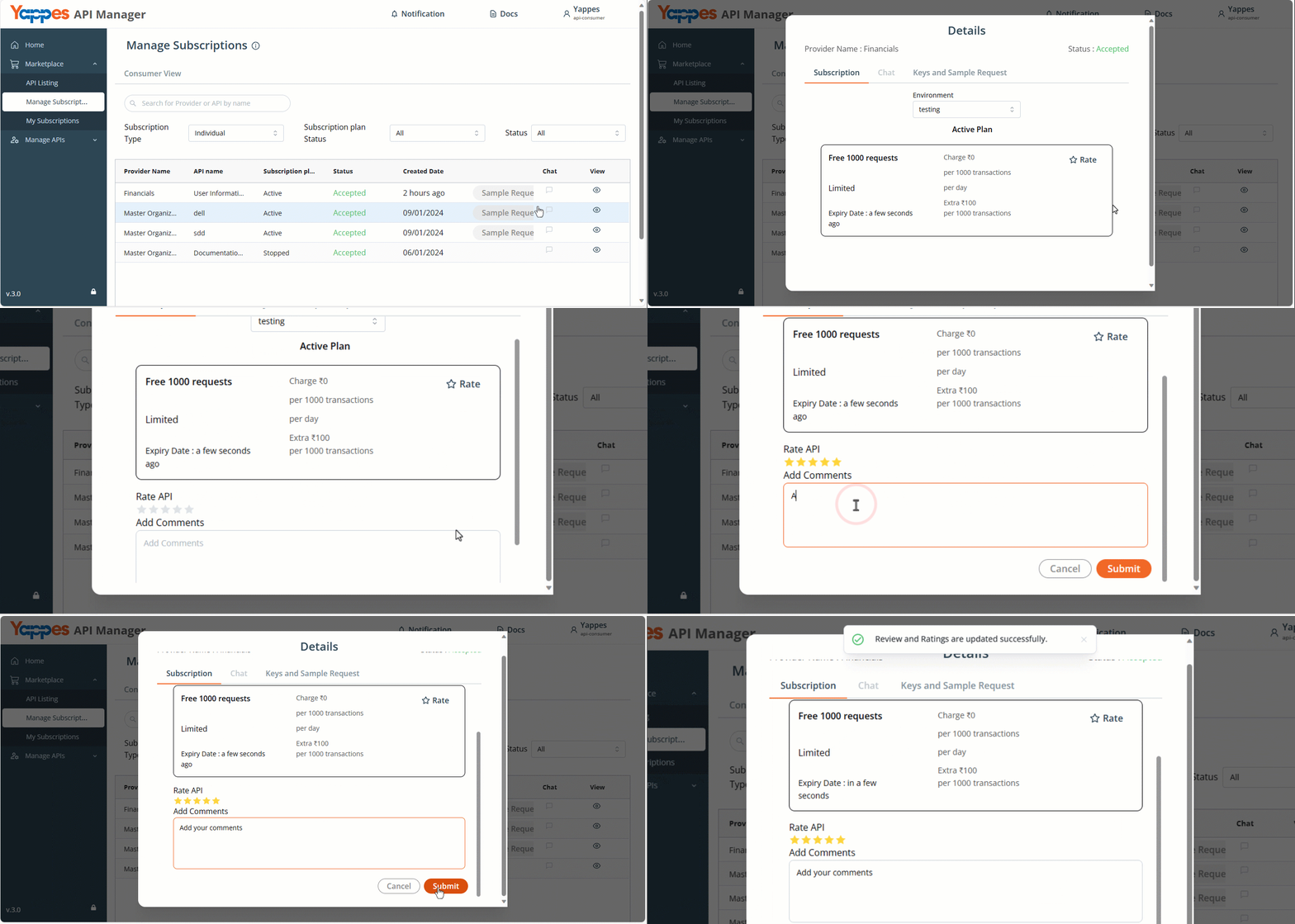
Subscription
- View the rate plan and subscription details.
- Use Rate to rate the API out of 5 stars and add comments (not available for API Group subscriptions).
Keys
- View Public Key and Private Key.
- Copy the keys as needed.
- Regenerate the keys if required.
Sample Request
- View a sample request for the subscription.
- If the subscription has multiple APIs or endpoints, switch between them here.
- Click Download File to download documentation:
- For REST APIs: JSON format, supporting Swagger 2.0 and YappesDef.
- For SOAP APIs: WSDL format.
