Payload Capture Policy
Overview
Payload Capture in Yappes captures request, response, or both payloads at the API Gateway for troubleshooting and analytics. Captured data helps teams debug integration issues, analyze authentication flows, and investigate error scenarios without modifying backend services.
Payloads are captured exclusively for authentication requests and error scenarios, with data automatically purged once the maximum retention period configured in the Admin Console is exceeded.
This feature helps organizations to:
- Debug failed API integrations quickly
- Inspect request and response bodies at the gateway
- Mask sensitive fields before payloads are stored
- Analyze auth and error traffic centrally via the Payload dashboard
When to Use Payload Capture
Use Payload Capture when:
- You need to troubleshoot authentication or error responses on specific endpoints
- Backend logging is insufficient or unavailable for gateway-level inspection
- You want masked payload logs without changing backend code
- Support teams need visibility into request/response bodies for specific APIs
When Not to Use Payload Capture
Avoid using Payload Capture in the following scenarios:
- You need to capture all traffic continuously (only auth and error scenarios are captured)
- Payloads contain sensitive data that cannot be adequately masked
- Retention and size limits have not been reviewed with your compliance team
Prerequisites
Before configuring Payload Capture policies, ensure the following requirements are met.
Required Access and Permissions
- Active Yappes platform account
API Manageraccess- Permission to create and manage Gateway Policies
- At least one API with endpoints configured
Platform Requirements
- Global Payload Capture must be enabled in the Admin Console (
Enable Payloadis on)
Payload Capture Policy Configuration
This section explains the fields available when creating or editing a Payload Capture policy.
Capture Context
| Value | Label | Description |
|---|---|---|
request |
Request | Captures the request body |
response |
Response | Captures the response body |
both |
Both | Captures both request and response bodies |
Select Context is required before saving a policy.
Masked Fields
Masked Fields lets you specify JSON field names or paths to mask in captured payloads (e.g. email, password, cardNumber).
- Type a field name and press Enter to add it as a tag
- Platform default masking fields appear as pre-filled tags and are managed by administrators — they are not re-saved as user tags
- Each tag: no spaces, maximum 64 characters
Note
Payloads will be captured exclusively for authentication requests and error scenarios, with data being automatically purged once the maximum retention period is exceeded.
Custom error and message
For error scenarios, you can override the default HTTP status code, error code, and message. See Custom Error and Message.
Step-by-Step Implementation
Method 1: Creating Payload Capture from the Endpoint Tab
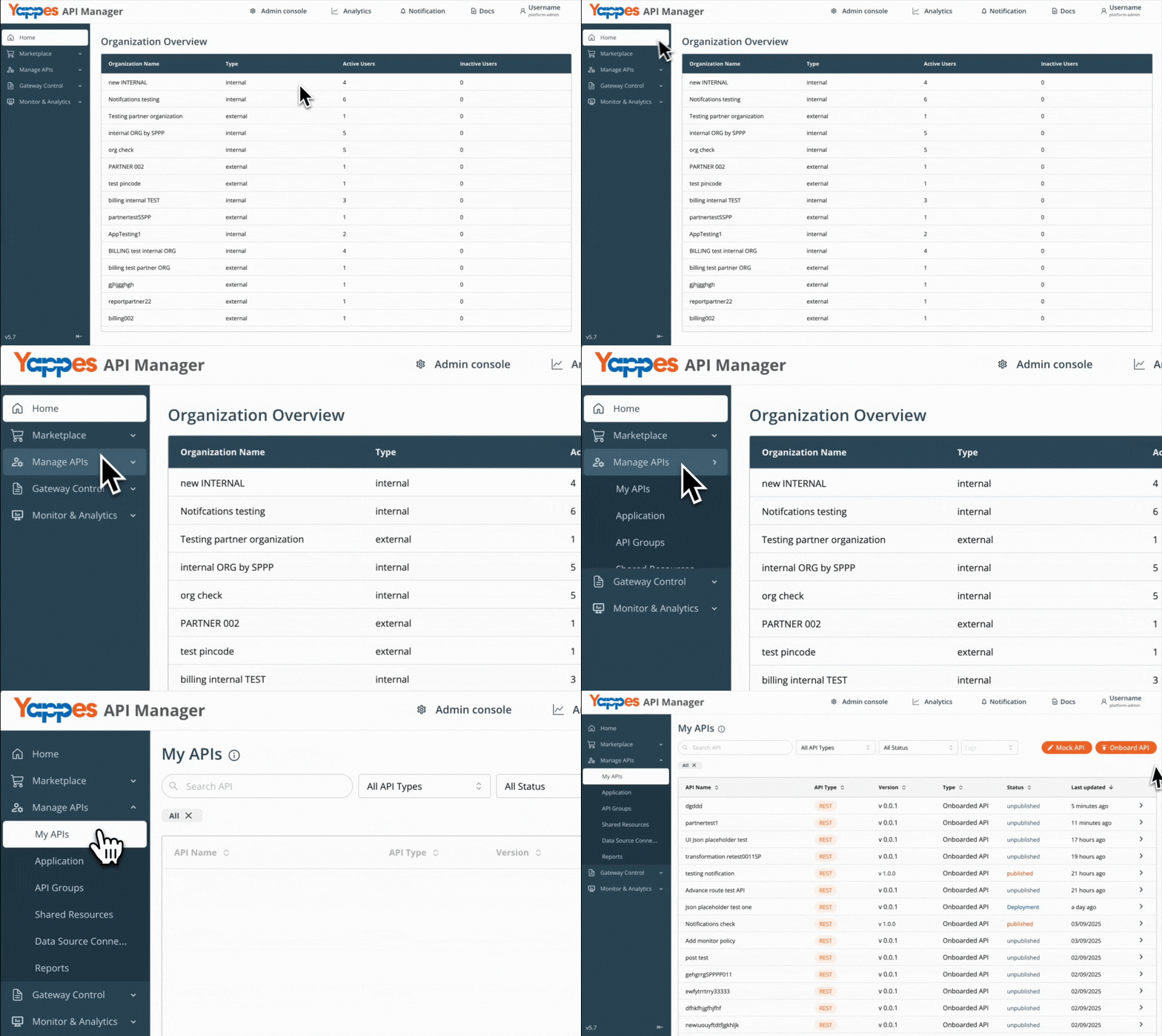
Step 1: Navigate to API Manager
- Click on
Manage APIsin the main dashboard. - Select
My APIsfrom the submenu.
Step 2: Open Your API and Select an Endpoint
- For a new API, onboard from My APIs using the guide for your API type, then open the endpoint details.
- For an existing API, select it from
My APIsand click the target endpoint. - The endpoint details panel will open.
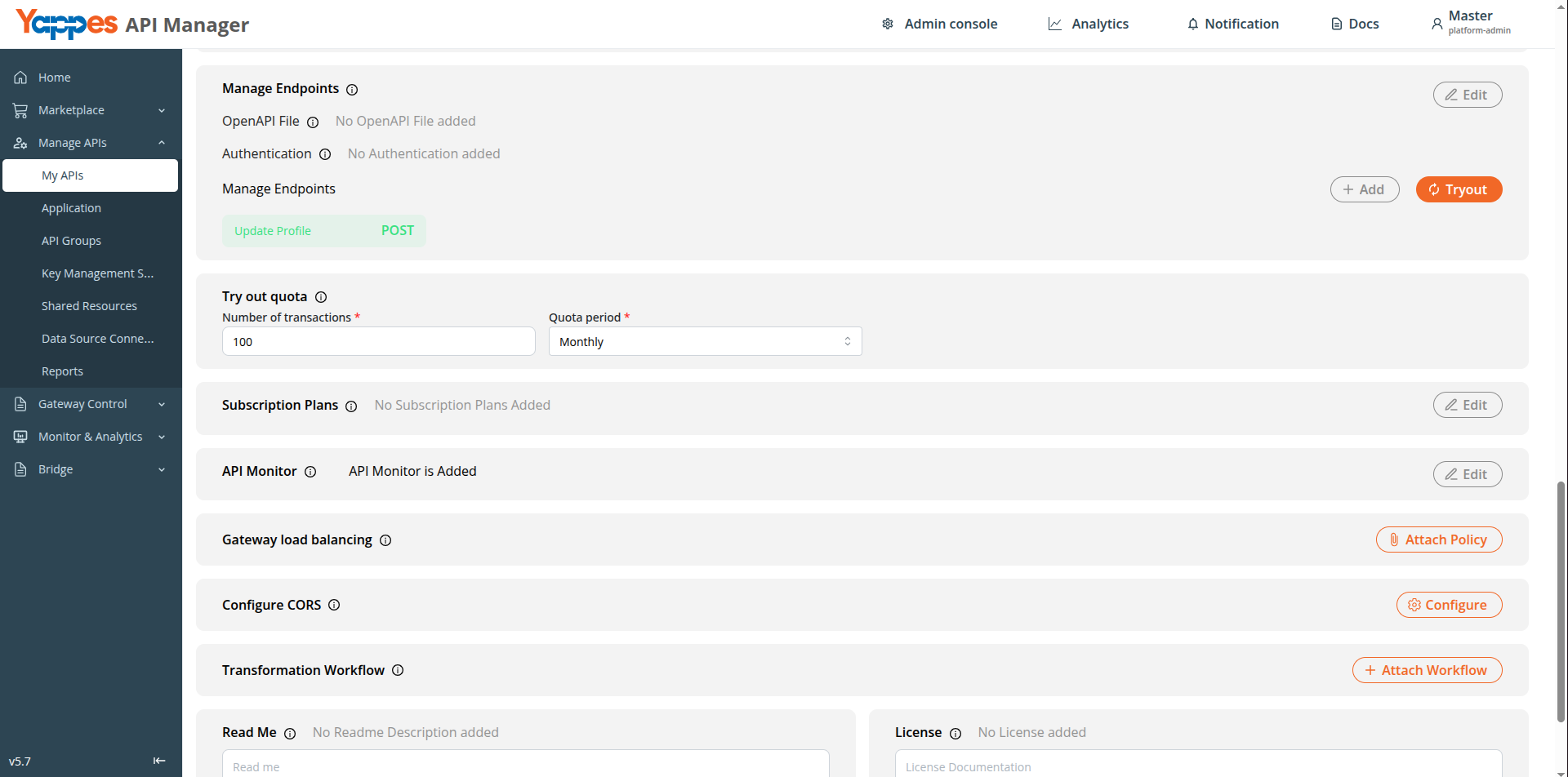
Step 3: Open the Payload Capture Tab
- Click the
Payload Capturetab on the endpoint details panel. - If no policy exists, click the
Payload Capturebutton to create one. - If a policy exists, use
Edit,Delete, orViewas needed.
Step 4: Create the Policy
- The
Create Payload Capture policymodal opens. - Enter a descriptive
Policy name(e.g.OrderEndpointCapture). - Add a
Description(max 500 characters). Select APIand endpoint fields are read-only (pre-filled for the current endpoint).
Step 5: Configure Capture Settings
- Select
Select Context— Request, Response, or Both. - Add
Masked Fieldsfor any endpoint-specific sensitive data (optional; platform defaults apply automatically). - Review the retention information banner.
Step 6: Save the Policy
- Click
Create policy. Expected Result: The policy is attached to the endpoint and appears underAttached Payload Capture policy.
Step 7: Enable or Disable Capture (Optional)
- Use the
Payload Capture Enabled / Disabledswitch to toggle capture without deleting the policy. - When disabled, the attached policy remains but no payloads are collected.
Method 2: Creating Payload Capture from Gateway Policies Page
Step 1: Navigate to Gateway Policies
- Locate
Gateway Control → Gateway Policiesin the main navigation menu. - The policies management interface will display.
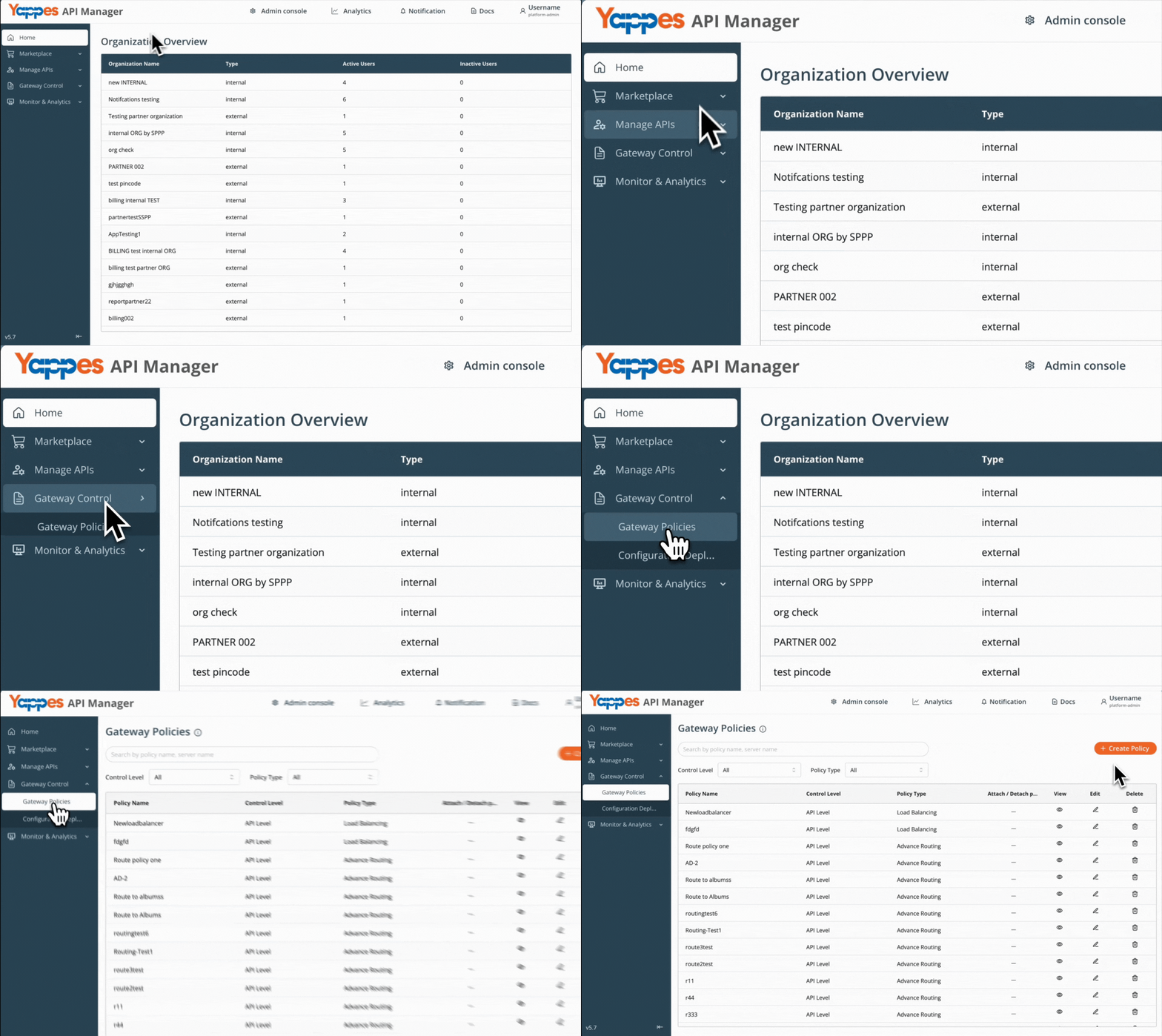
Step 2: Initialize New Policy Creation
- Click the
Create Policybutton. - Set the
Control LeveltoAPI Level. - In the
Policy Typedropdown, selectPayload Capture.
For general policy creation guidance, see Creating a policy (w/edit and delete).
Step 3: Define Policy Details
- Enter a descriptive
Policy Name. - Add a
Descriptionto document the policy purpose.
Step 4: Select Target API and Endpoint
- Select the target
APIfrom the dropdown. - Select the
Source endpointfor the policy. - If a Payload Capture policy already exists for that endpoint, you will see:
"Payload capture policy is already attached to this endpoint. Only one payload capture policy is allowed per endpoint. Please select a different endpoint to attach a new policy."
Step 5: Configure Capture Settings
- Select
Select Context— Request, Response, or Both. - Add
Masked Fieldsas needed.
Step 6: Create the Policy
- Review all settings.
- Click
Create Policy. Expected Result: Payload Capture policy is created at the API level for the selected endpoint.
Success
View captured payloads on the Payload dashboard after auth or error traffic occurs on the endpoint.
Understanding the Interface
The Payload Capture interface consists of the following components:
| Component | Description |
|---|---|
| Policy Name | Identifies the Payload Capture policy |
| Description | Documents the capture purpose |
| Select Context | Defines whether request, response, or both are captured |
| Masked Fields | Field names/paths to mask in stored payloads |
| Enable toggle | Onboarding only — enables or disables capture without deleting the policy |
| Attached Payload Capture policy | Read-only summary of the configured policy on the endpoint tab |
Configuration and Settings
Required Configuration Fields
| Field | Requirement | Description |
|---|---|---|
| Policy Name | Mandatory | Min 3 characters; must start with a letter |
| Description | Optional | Max 500 characters |
| Control Level | Mandatory | Must be set to API Level |
| API Selection | Mandatory | Target API for the policy |
| Endpoint Selection | Mandatory | Specific endpoint where capture applies |
| Select Context | Mandatory | Request, Response, or Both |
Field Validation Rules
| Field | Rules |
|---|---|
| Policy name | Required; min 3 characters; must start with a letter |
| Description | Maximum 500 characters |
| Select Context | Required — must not be empty |
| Masked Fields (per tag) | No spaces; max 64 characters; variable-style names (e.g. emailId, user_name) |
Platform Gate Behavior
When Enable Payload is off in the Admin Console:
- New policies cannot be created.
- Existing policies can still be edited (context and masked fields).
Best Practices for Configuration
| Best Practice | Benefit |
|---|---|
| Add sensitive field names to Masked Fields before turning capture on | Keeps passwords, tokens, and personal data hidden in the Payload dashboard |
| Choose Select Context as Request, Response, or Both based on what you need to debug | Avoids storing bodies you do not need — the platform already captures auth and error traffic only |
| Use the enable/disable toggle to pause capture | Preserves policy configuration without deleting |
| Configure default masking in Admin Console | Platform-wide protection for common sensitive fields |
| Review the Payload dashboard after enabling | Confirms capture is working as expected |
Verification and Testing
After configuring a Payload Capture policy:
- Confirm the policy appears under Attached Payload Capture policy on the endpoint tab, or in the Gateway Policies list with API Level control.
- Ensure the Payload Capture Enabled switch is on (endpoint tab).
- Send test requests that trigger authentication or error responses on the endpoint.
- Open Monitor & Analytics → Payload and verify captured entries appear.
- Open View payload and confirm masked fields are hidden in the displayed bodies.
Troubleshooting
| Issue | Possible Cause | Resolution |
|---|---|---|
| Cannot create policy | Platform Enable Payload is off |
Enable Payload Capture in Admin Console |
| Duplicate policy error | Endpoint already has a capture policy | Edit the existing policy or select a different endpoint |
| Create button disabled | API is published (endpoint tab) | Use Gateway Policies page or adjust API publish state |
| No logs in Payload dashboard | Policy disabled or no matching traffic | Enable the toggle; trigger auth/error requests |
| Context validation error | Select Context not chosen | Select Request, Response, or Both |
| Red banner on endpoint tab | Platform feature disabled | Contact administrator to re-enable in Admin Console |
Impact of Policy Changes
- Updating Select Context changes what is captured going forward.
- Adding Masked Fields hides those values in future captured payloads.
- Disabling the platform feature stops all capture but preserves existing policy configurations.
- Disabling the endpoint toggle pauses capture without deleting the policy.
❓ Frequently Asked Questions
Can I attach more than one Payload Capture policy to the same endpoint?
No. Only one Payload Capture policy is allowed per endpoint. Edit the existing policy or select a different endpoint.
Is Payload Capture available at subscription level?
No. Payload Capture is available only at API Level and is attached to a specific endpoint.
Can Payload Capture be applied through API Groups?
No. Payload Capture must be configured per endpoint and is not applicable through API Groups.
What traffic is captured?
Payloads are captured exclusively for authentication requests and error scenarios, as described in the platform retention information banner.
Can I pause capture without deleting the policy?
Yes. On the endpoint Payload Capture tab, use the Payload Capture Enabled / Disabled switch.
What is the difference between platform default masked fields and policy masked fields?
Default masking fields are set by administrators and apply platform-wide. Masked Fields on the endpoint policy add endpoint-specific fields on top of the defaults.
Where do I view captured payloads?
Open Monitor & Analytics → Payload in API Manager.
Pro Tip
Enable Payload Capture selectively on endpoints where you need debugging visibility. Configure default masking in the Admin Console first, then attach per-endpoint policies and review captured data on the Payload dashboard.