Generate a report
In this tutorial, you'll learn how to generate an API report. An API report allows you to consolidate all the essential API-related information in a single document. To learn more about Report, visit Reports.
Note
Reports are currently only available for REST APIs.
In order to generate an API report, do the following:
- Go to
Manage APIs→ selectReports.
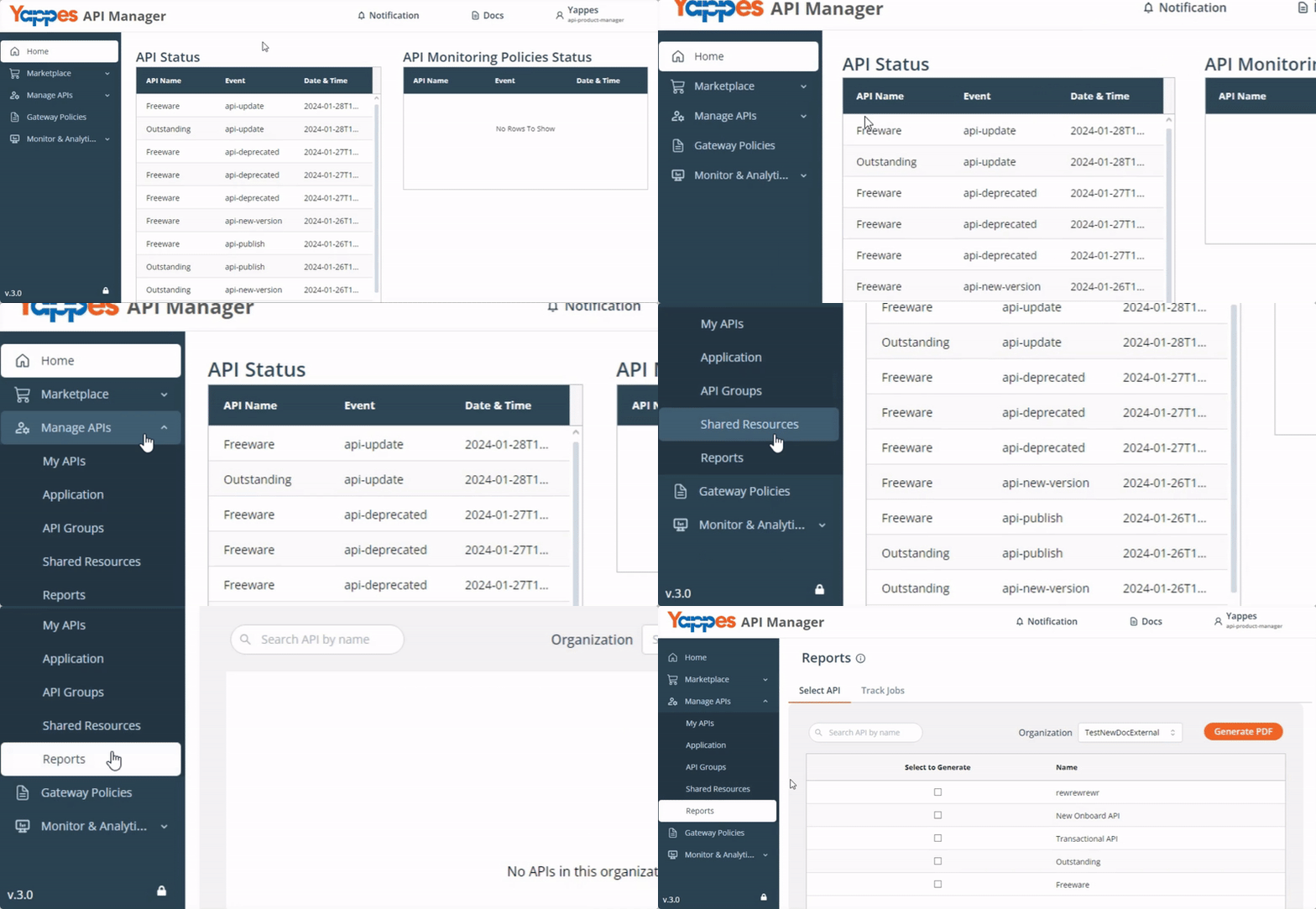
- The Reports window will open with the following options:
- List of APIs
- Search bar
- Organization filter
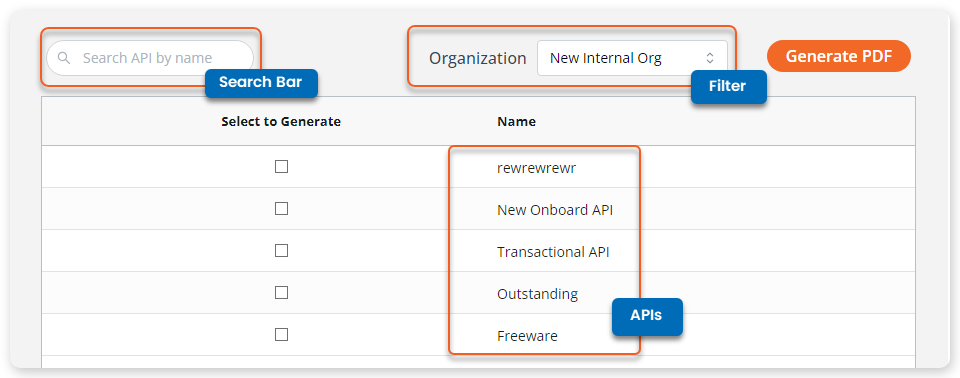
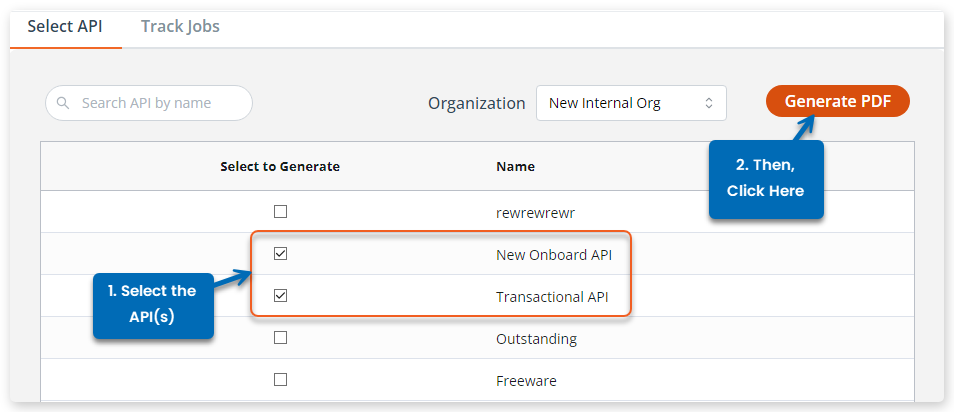
By default, you’d see all the APIs present in the master organization if you’re also part of the master organization with the platform-admin role. Therefore, using the filter option, you can list the APIs according to the organization for whose APIs you need to generate the report. To generate the API report:
- Select the API(s).
- Then, click
Generate PDF.
- A dialog will open with the report generation job id.

- Save the id and click
Done.
Check the status and download the report
By following the previous steps, you can initiate the process to generate a report. Now to download it:
- First, you need to switch to
Track Jobs. - Then, look for the job ID you received.
- Once found, check whether the status is Failed | Success | In Progress
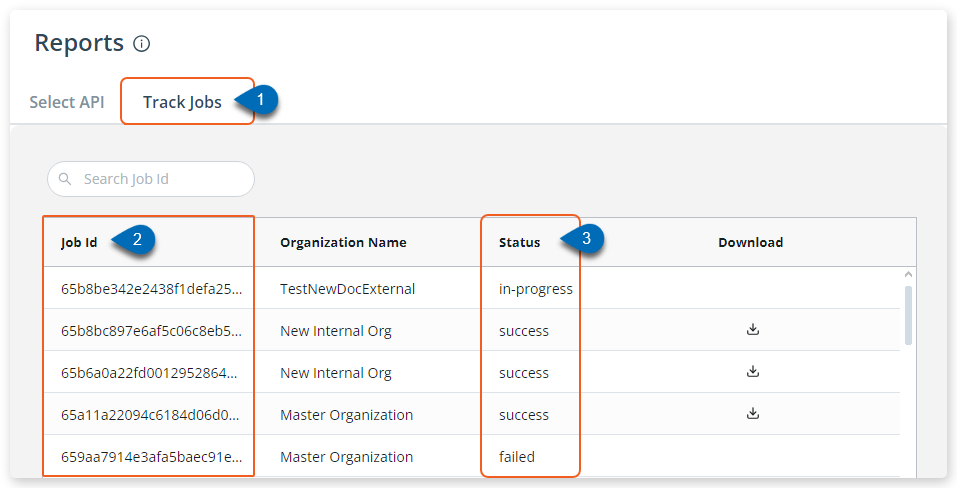
- If it’s
In Progress- you need to wait for the task to be completed. - If it is
Failed- you need to generate the report again. - If it’s a
Success- the report is available for download.
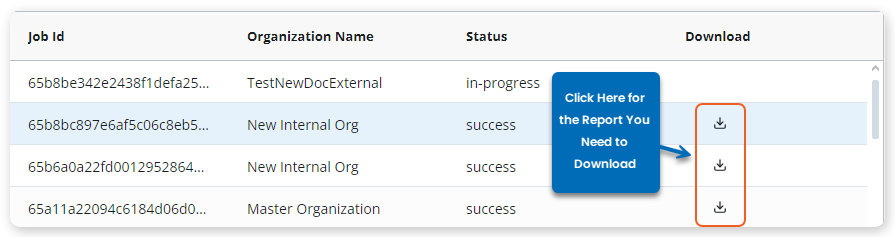
- Simply go to the
Downloadsection and click
The report will be downloaded or open in a new tab.