Change details and subscription status, and delete a group
In this guide, you’ll learn how to update an API group’s details, remove APIs and policies, and delete the group.
Note
Before you proceed, ensure you’re a user with the platform-admin or api-product-manager role.
Open a group
- Go to
Manage APIs→ selectAPI Groups. - In the
Editcolumn, click for the group you want to change.

The group editor opens with tabs: APIs, Gateway Policies, Monitor Policies, and Group Details.
Update Group Details
- Select
Group Details.

- Update any of the following as needed:
Group NameDescription(max 500 characters)Subscription Status(EnabledorDisabled)Group Priority(High priority enabledorHigh priority disabled)
- Click
Update.
Note
If you enable high priority and some APIs in this group also belong to other groups, an Update Group Priority confirmation appears. Confirming with Update sets this group as high priority and disables priority on the other groups.
The API group is successfully updated.
Remove APIs or policies
- To remove APIs: on the
APIstab, uncheck the APIs in theAdd to groupcolumn, then clickUpdate. - To remove policies: switch to
Gateway PoliciesorMonitor Policies, uncheck the policies in theAttach to groupcolumn, then clickUpdate.

The APIs or policies are successfully removed from the group.
Delete the group
- Select
Group Details. - Click
Delete Group.
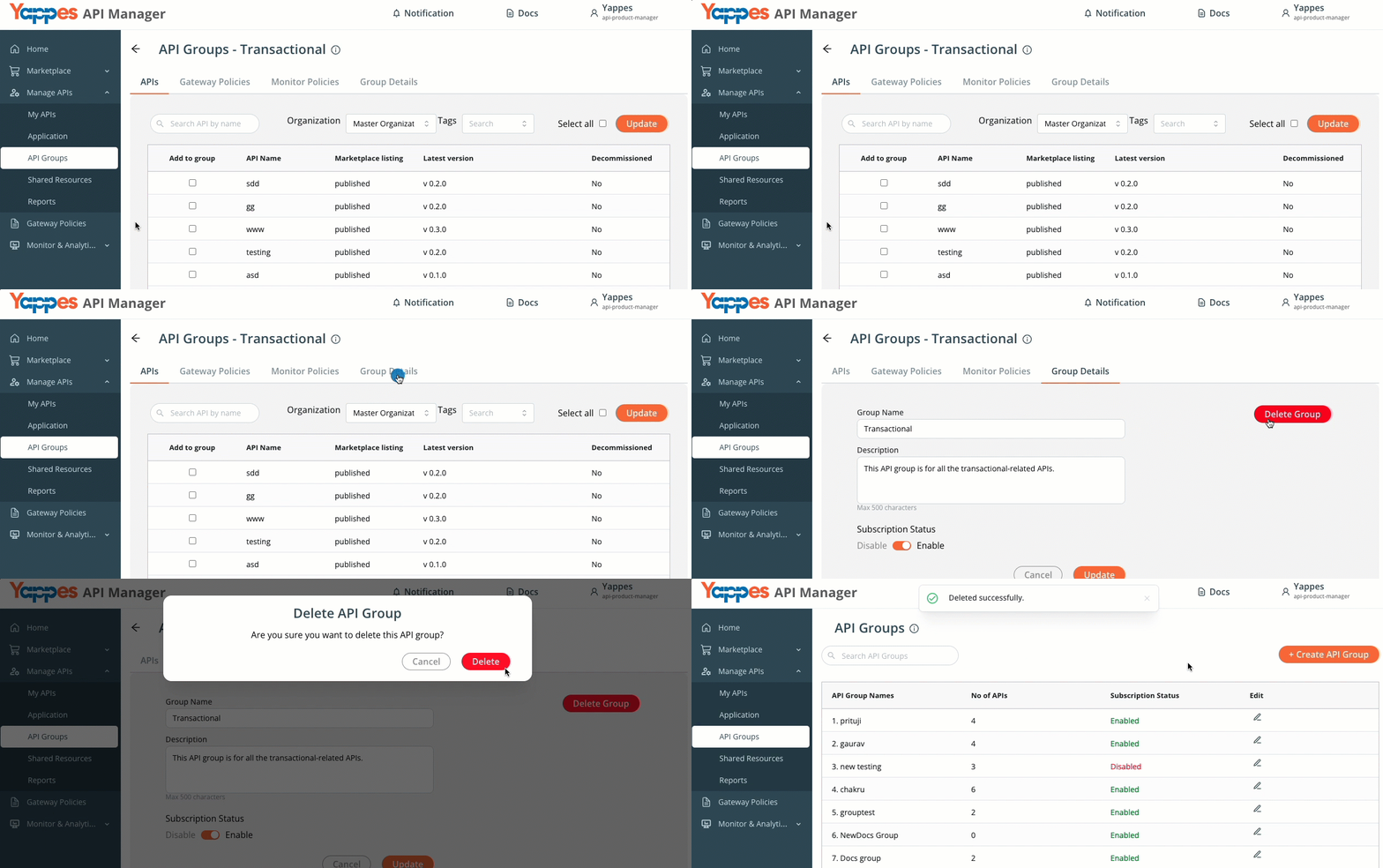
- In the
Delete API Groupwindow, clickDeleteto confirm.
The API group is successfully deleted.