API Endpoints
Endpoints define the routes clients use to interact with an API. Each endpoint represents a resource or operation, with a path, method, and content type.
Manage Endpoints
While onboarding an API—or later from My APIs—you can add endpoints and configure custom headers, query parameters, response schema, and form data / body.
Supported methods:
GETPUTPOSTPATCHDELETE
Supported content types when adding an endpoint:
application/jsonapplication/x-www-form-encodedmultipart/form-dataapplication/xml
Note
The user role required to manage endpoints is platform-admin, api-product-manager, or api-developer.
Open Manage Endpoints
- Go to
Manage APIs→ selectMy APIs.
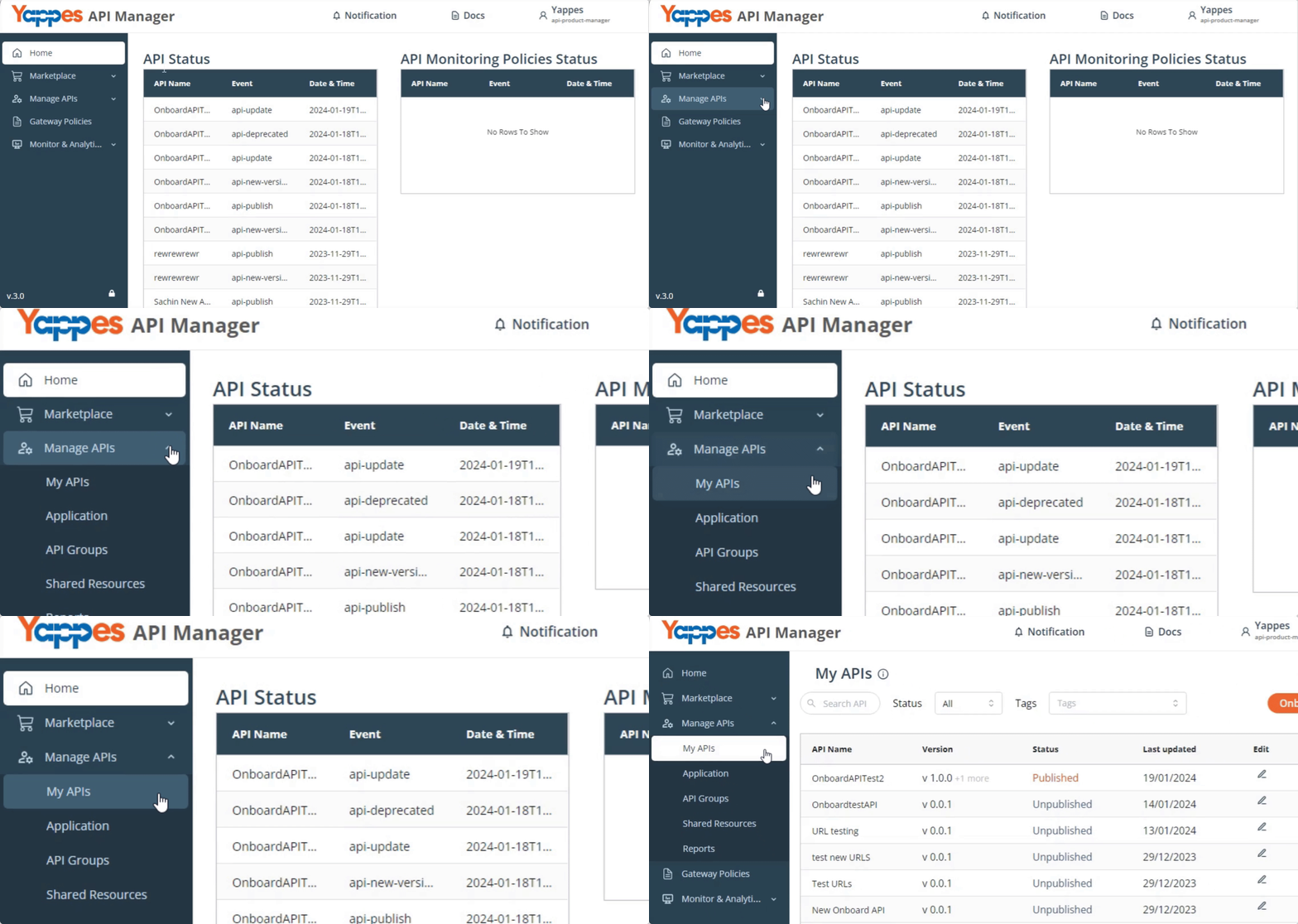
- Click for the API whose endpoints you need to manage.
Note
If the API is published, unpublish it before adding or changing endpoints. Visit Unpublish API. Published APIs remain viewable, but endpoint edits are locked.
- Scroll to
Manage Endpointsand click Edit.
Add endpoints
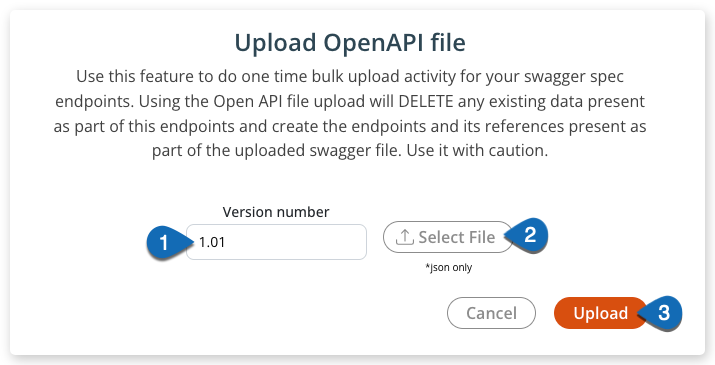
Upload OpenAPI file
To register multiple endpoints at once:
- In the
OpenAPI Filesection, clickUpload.

- In the
Upload OpenAPI filewindow:- Enter the
Version number - Click
Select File, then choose a Swagger 2.0 or OpenAPI 3.0.0 / 3.1.0 JSON specification - Click
Upload
- Enter the
Note
Uploading an OpenAPI file deletes any existing endpoint data for this API and replaces it with the file contents.
Register endpoints manually
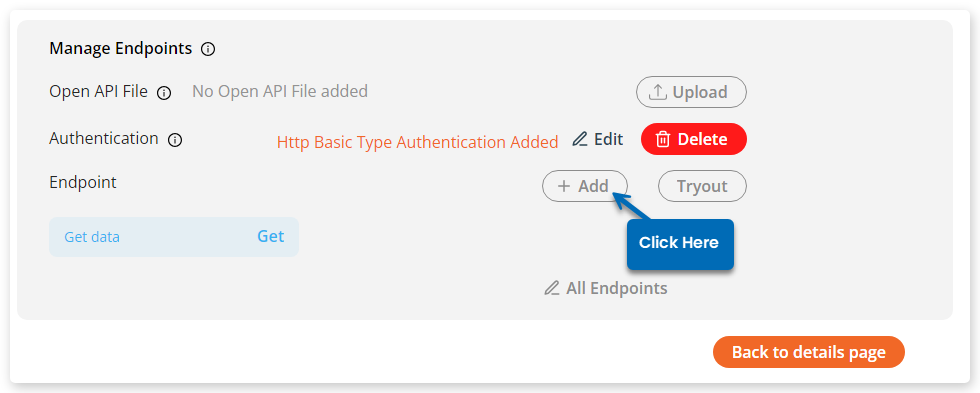
- On
Manage Endpoints, clickAddnext to the endpoints list (from endpoint details, useAdd Endpoint).
- In the add window, enter:
Endpoint NameEndpoint PathMethod—GET|PUT|POST|DELETE|PATCHContent Type—application/json|application/x-www-form-encoded|multipart/form-data|application/xmlDescription(max 500 characters)Base Pathappears when already set for the API (read-only)
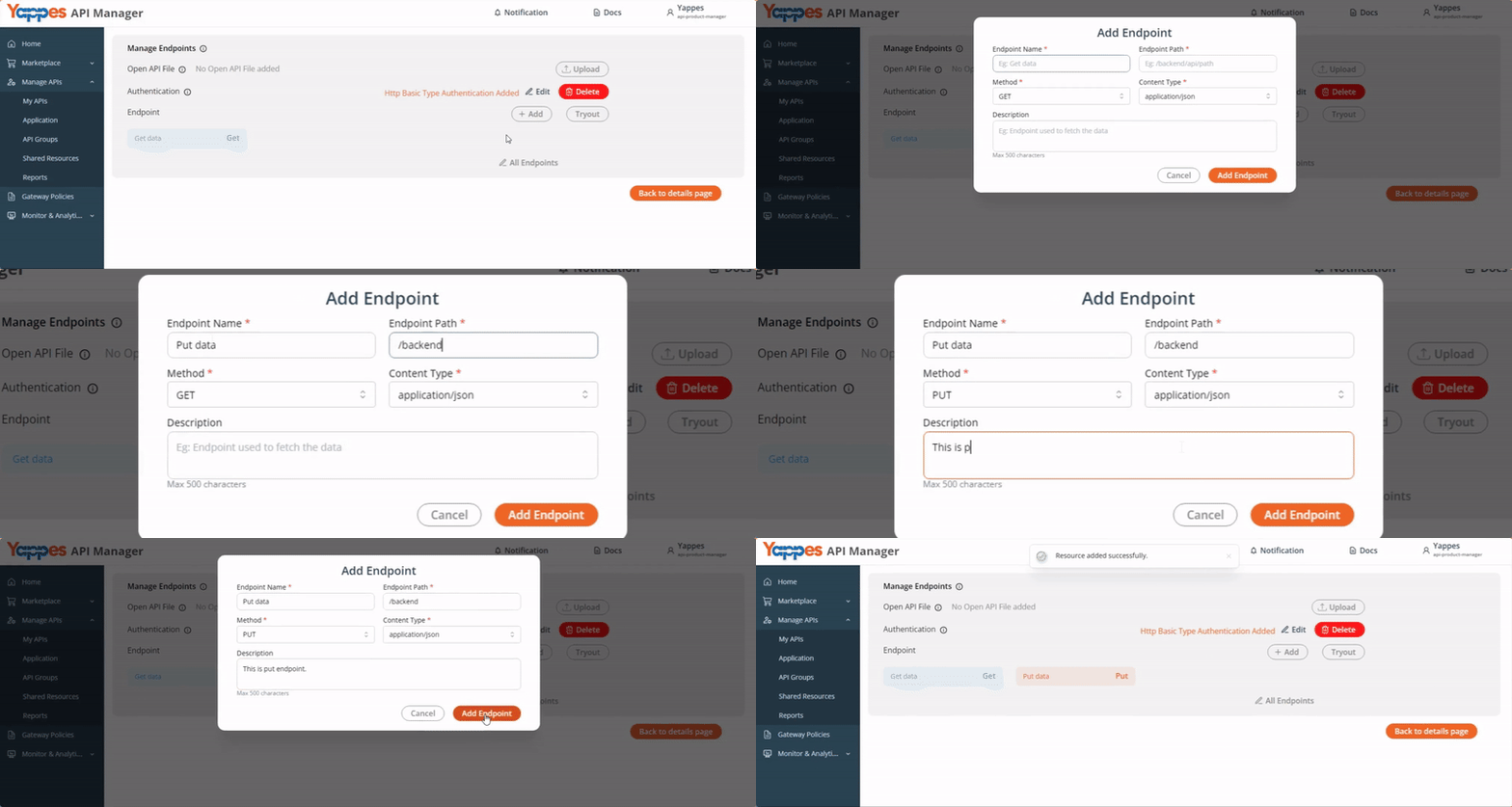
- Click
Add Endpoints.
The endpoint is successfully added. Repeat to add more endpoints with different methods or content types as needed.
Edit an endpoint
- Open
Manage Endpointsfor the API (see Open Manage Endpoints). - Select the endpoint.
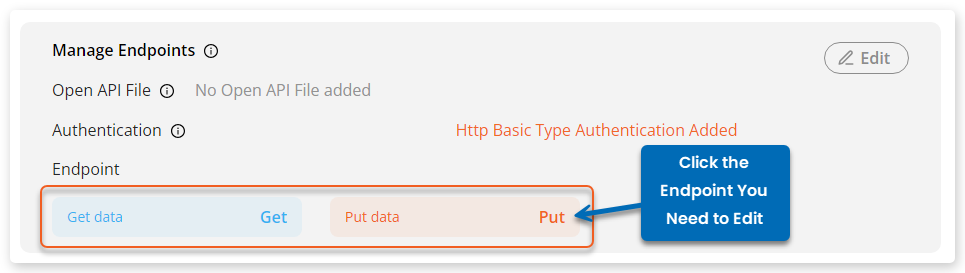
- Update the endpoint fields as needed.
Info
Fields with asterisk (*) are mandatory.
Note
When editing an endpoint, Content Type options are application/json, application/x-www-form-encoded, and application/xml (multipart/form-data is available when adding, not when editing).
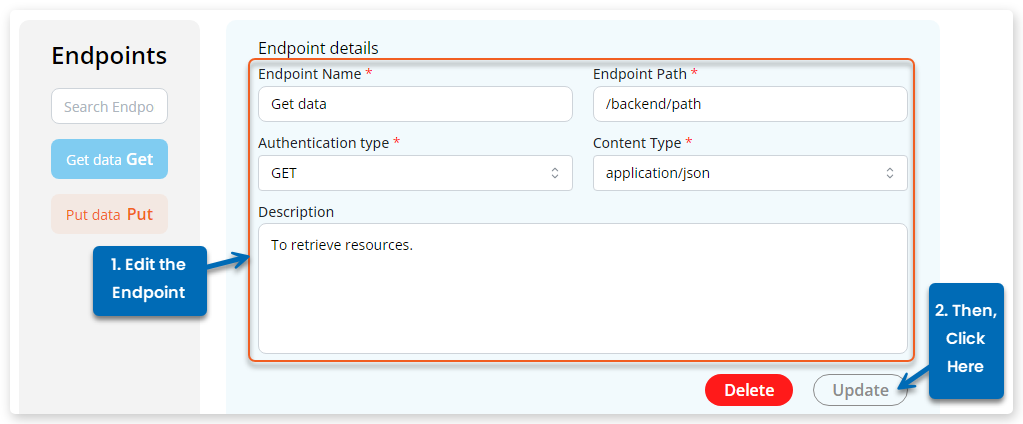
- Click
Update.
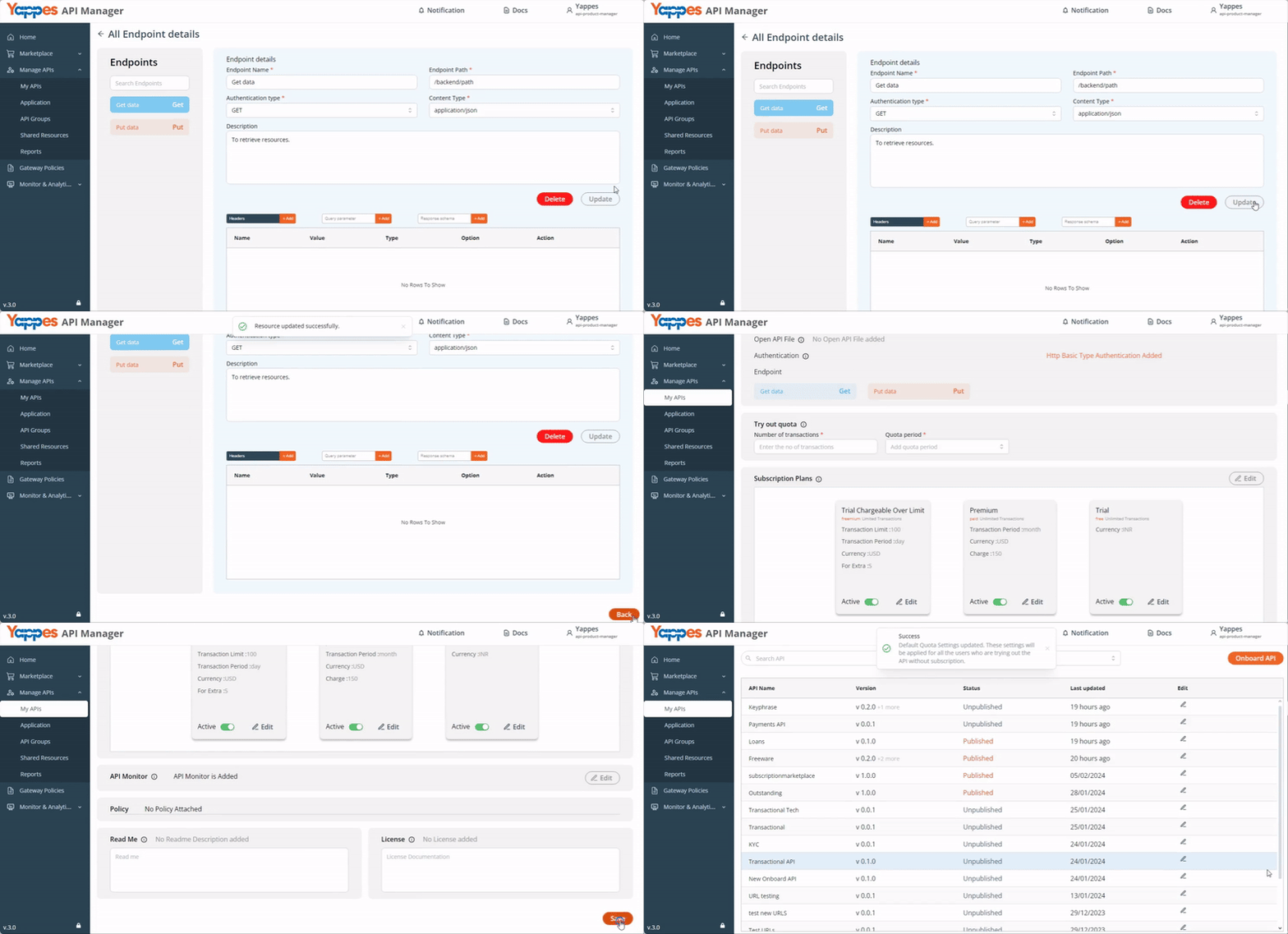
- Click
Back, then save the API edit if prompted.
Delete an endpoint
- Open
Manage Endpointsfor the API. - Select the endpoint.

- Click
Delete.
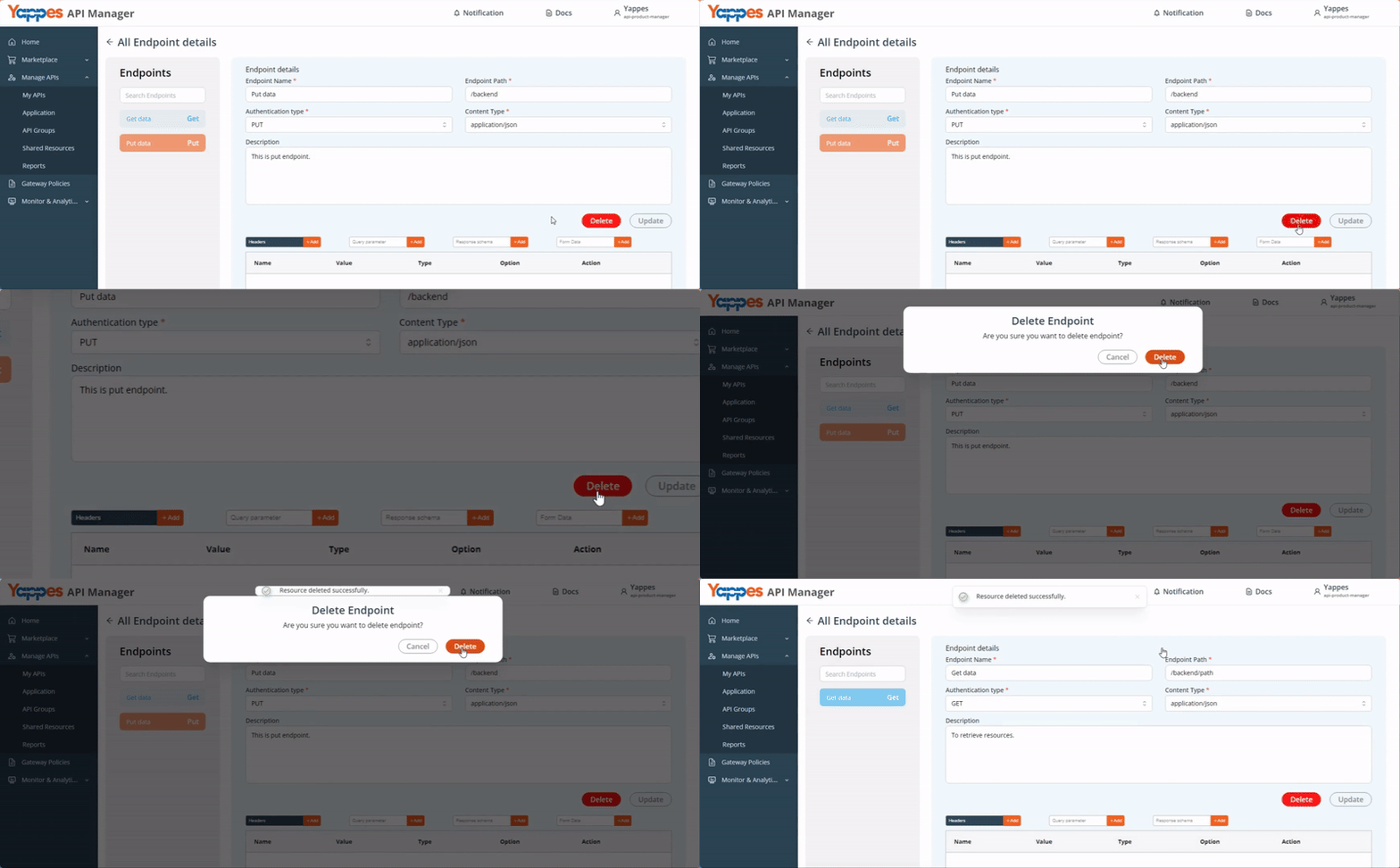
- Click
Deletein the confirmation window.
The endpoint is successfully deleted.
Custom headers, query parameters, response schema, and form data
Endpoints support custom headers, query parameters, response schema, and form data / body so you can document request and response details for consumers.
Add Headers
- Open
Manage Endpoints, select the endpoint, then open theHeaderstab. - Click
Add Header.
- In the
Add Headerwindow:- Enter
NameandDescription - Select
Type—String|Number|Boolean - For
StringorNumber, enterValue - For
Boolean, selectTrueorFalse - Select
MandatoryorOptional - Click
Add
- Enter
Info
Fields with asterisk (*) are mandatory.
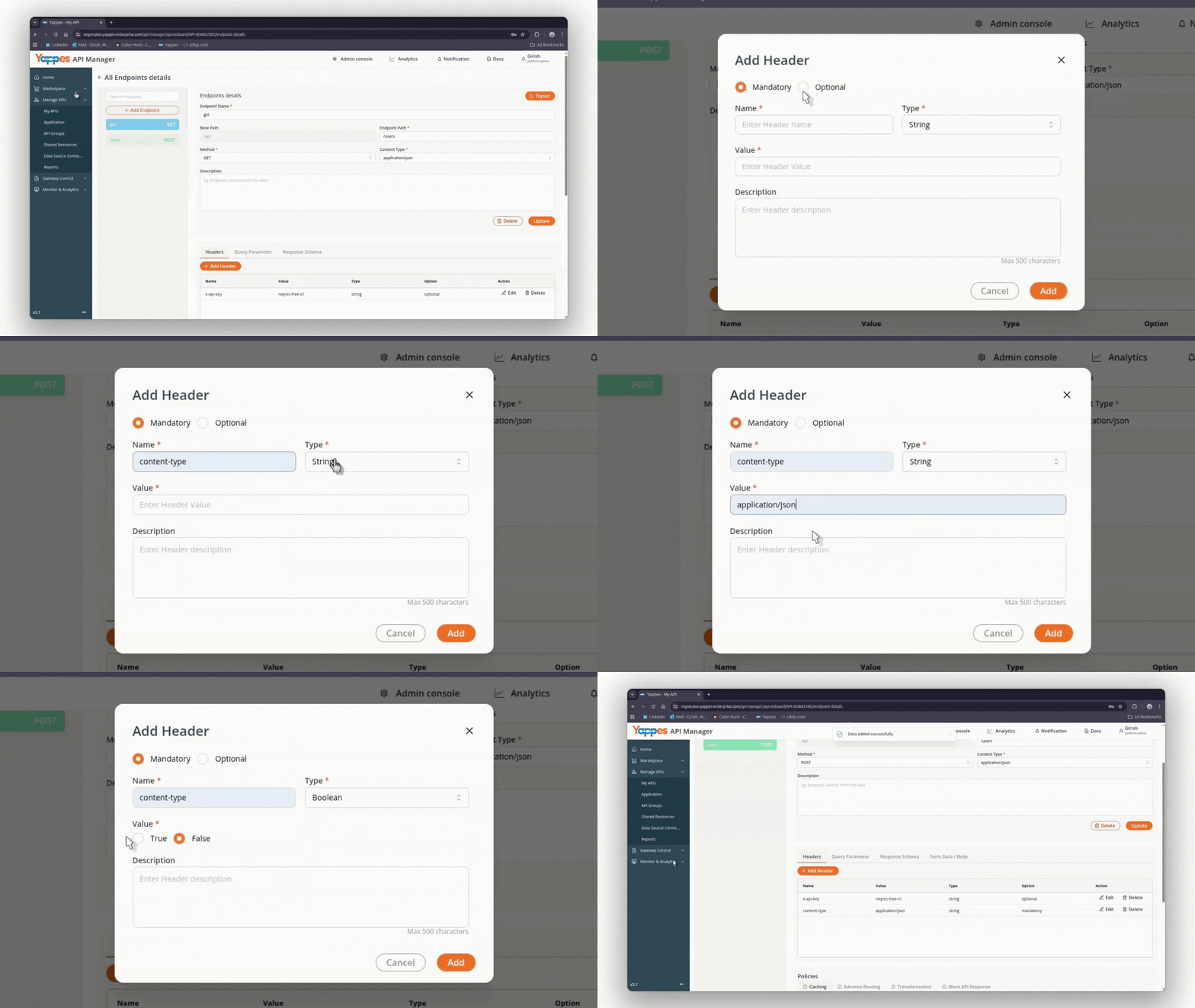


The header is successfully added. Select another endpoint and repeat as needed.
Add Query Parameters
- Open
Manage Endpoints, select the endpoint, then open theQuery Parametertab. -
Click
Add Query Parameter. -
In the
Add Query Parameterswindow:- Enter
NameandDescription - Select
Type—String|Number|Boolean - For
StringorNumber, enterValue - For
Boolean, selectTrueorFalse - Select
MandatoryorOptional - Click
Add
- Enter
Info
Fields with asterisk (*) are mandatory.
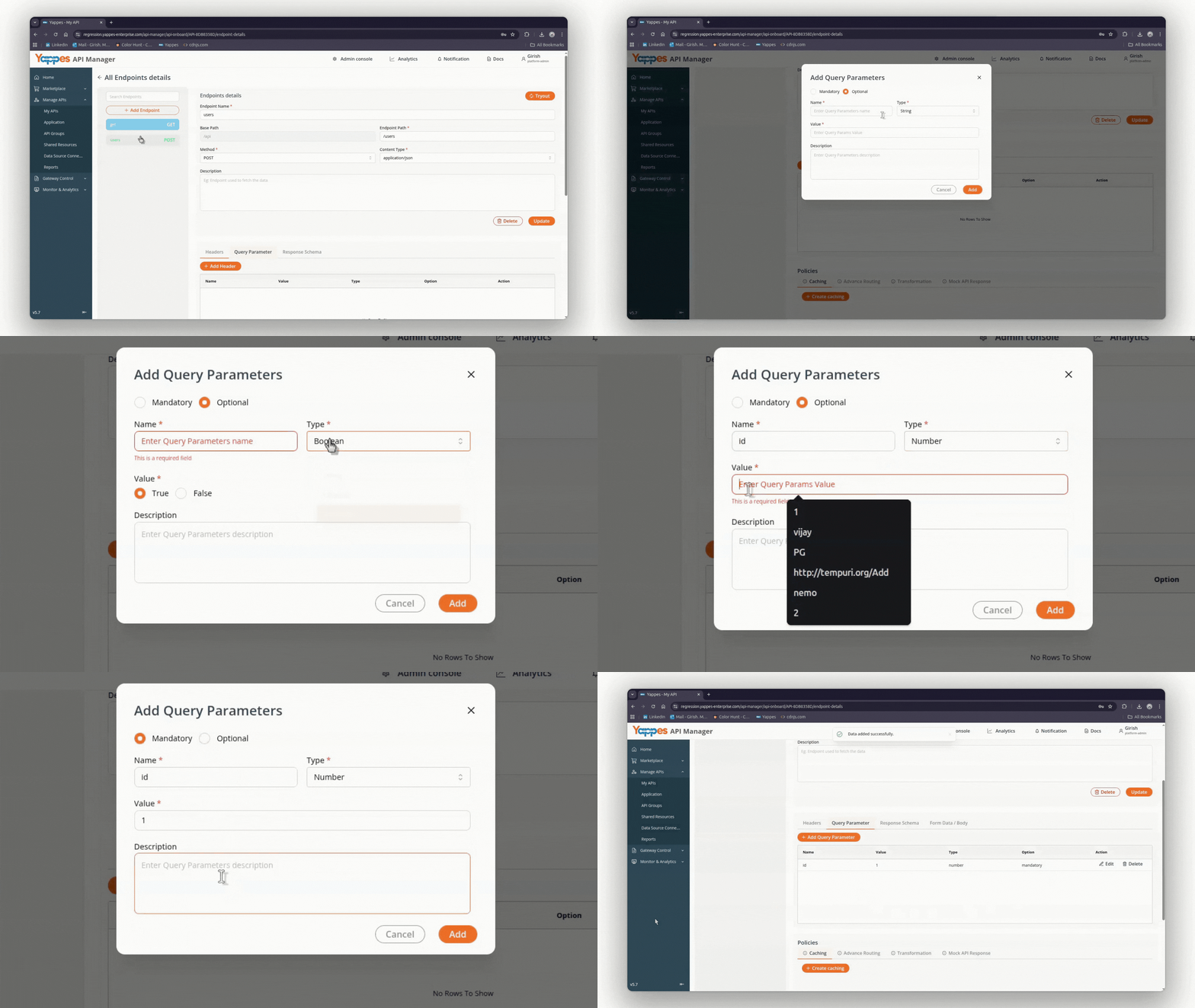
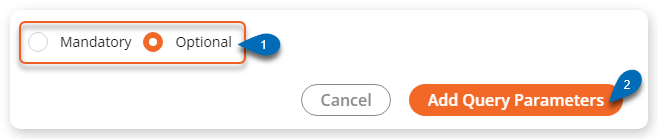
The query parameter is successfully added.
Add Response Schema
- Open
Manage Endpoints, select the endpoint, then open theResponse Schematab. -
Click
Add Response Schema. -
In the
Add Response Schemawindow:- Enter
NameandDescription - Select
Type—String|Number|Boolean|Array|Modal - For
String,Number,Array, orModal: enterStatus CodeandValue - For
Boolean: selectTrueorFalse, then enterStatus Code - Click
Add
- Enter
Info
Fields with asterisk (*) are mandatory.
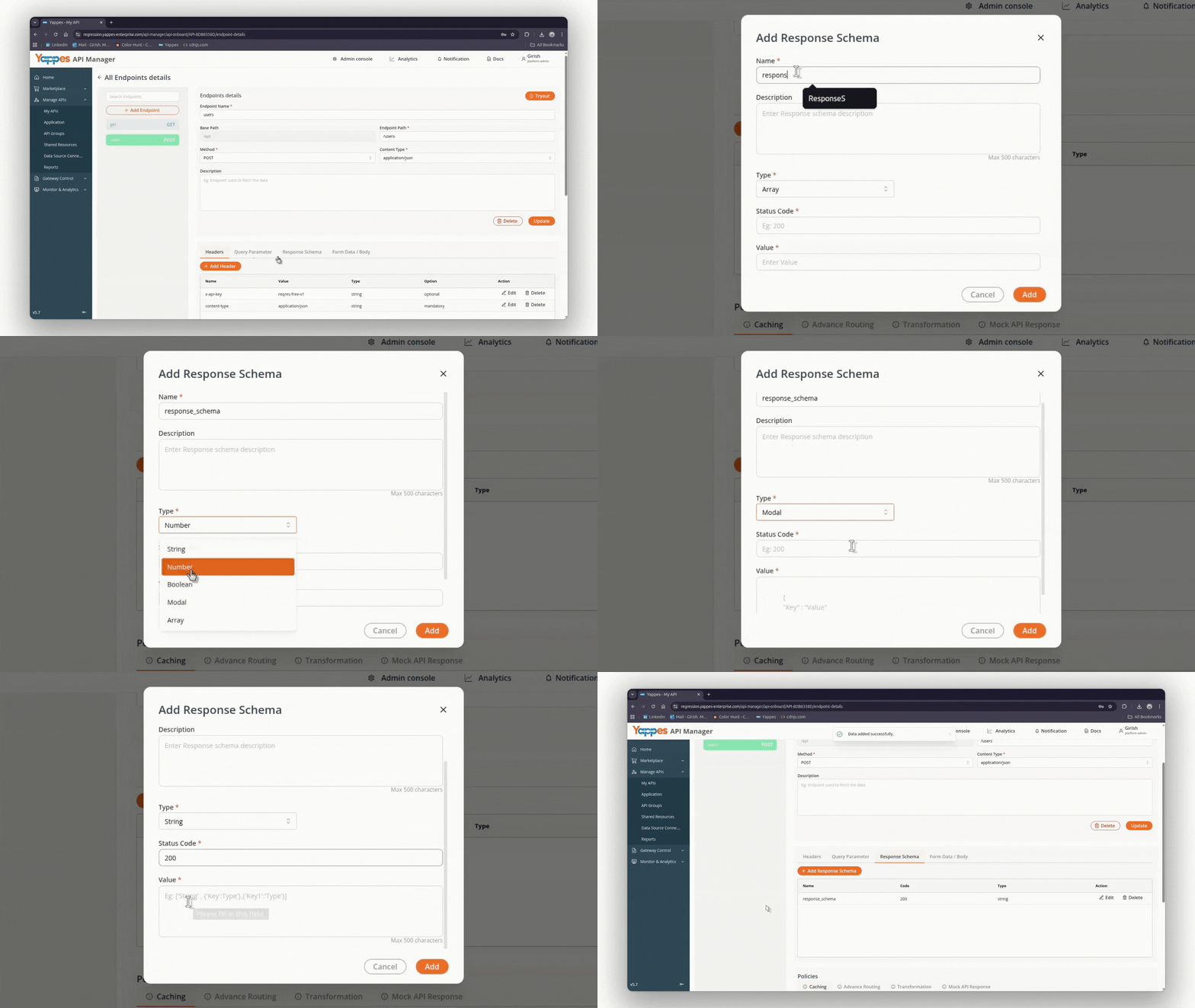
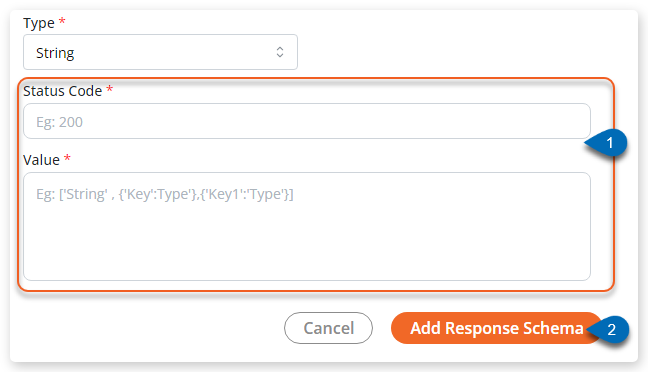
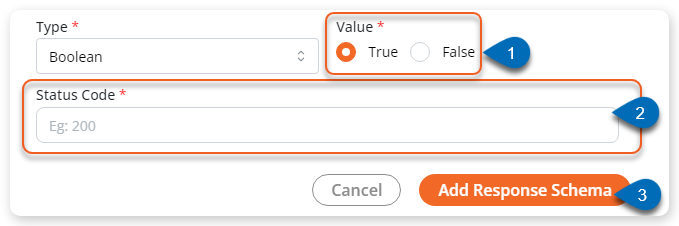
The response schema is successfully added.
Add Form Data / Body
The Form Data / Body tab is available for PUT, POST, PATCH, and DELETE endpoints (not for GET).
- Open
Manage Endpoints, select the endpoint, then open theForm Data / Bodytab. -
Click
Add Form Data / Body. -
In the
Add Form Data / Payload / Bodywindow:- Enter
NameandDescription - Select
Type—String|Number|Boolean|Modal|Xml - For
StringorNumber, enterValue - For
Boolean, selectTrueorFalse - For
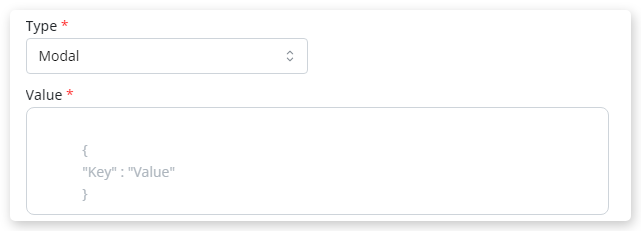
ModalorXml, enter the correspondingValue - Select
MandatoryorOptional - Click
Add
- Enter
Info
Fields with asterisk (*) are mandatory.
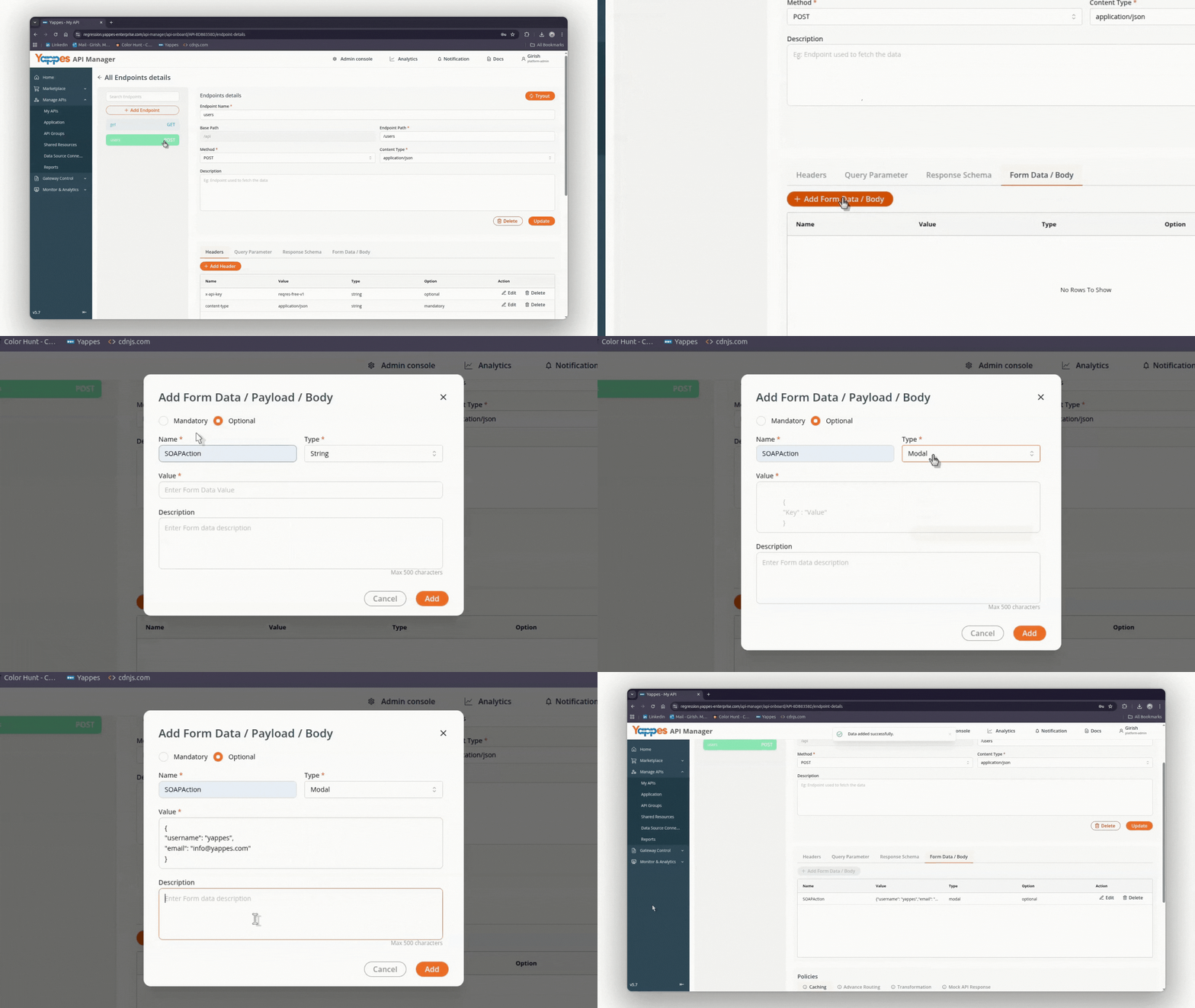


The form data / body field is successfully added.
Edit or delete headers, query parameters, response schema, or form data
- Open
Manage Endpointsand select the endpoint. - Open the relevant tab (
Headers,Query Parameter,Response Schema, orForm Data / Body). - Select the row, then click
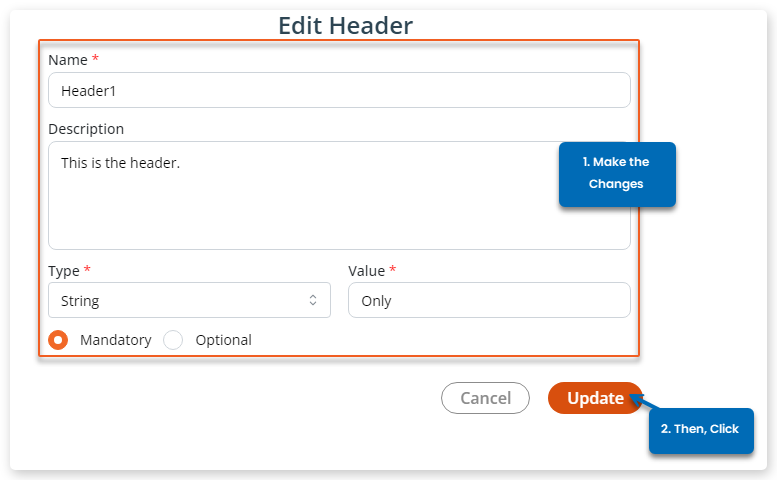
EditorDelete. - For edit: update fields in the popup, then click
Update.
- For delete: confirm with
Deletein the confirmation window.
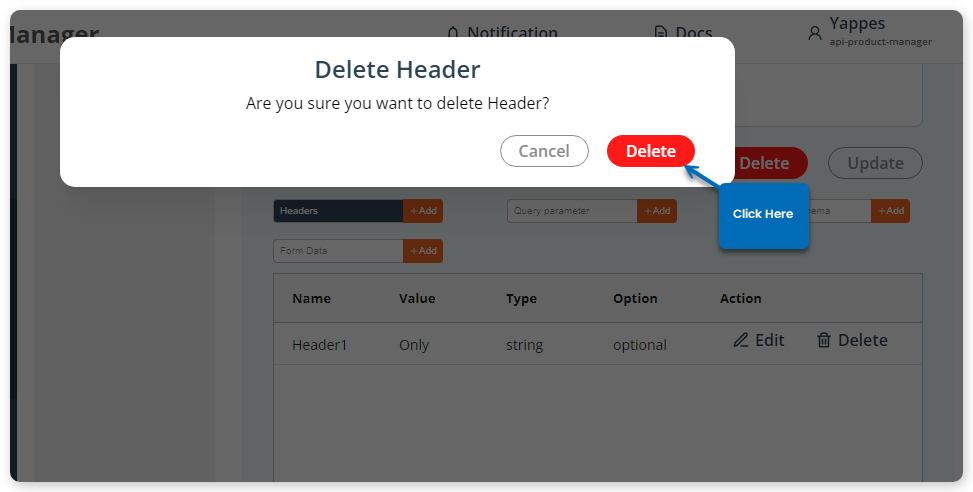
The parameter is successfully updated or deleted.
Tryout
You can try an endpoint from Manage Endpoints or from endpoint details.
- On
Manage Endpoints, clickTryout, or open an endpoint and clickTryout. - Select the endpoint (and application keys as required), then run the tryout.
Note
Tryout on endpoint details is hidden when the API is published. For tryout with applications, see also How to use an application.
Policies
Endpoint details include a Policies section where you attach and configure gateway policies for that endpoint.
Available policy types grow over time; this page does not list them individually. To create and manage gateway policies, see Gateway Policies.