Application Details (Keys, Details & Usage)
In this tutorial, you’ll learn how to view and update an Application: keys, subscription configuration, and usage.
Open an application
- From the API Manager home screen, go to
Manage APIs→ selectApplication.
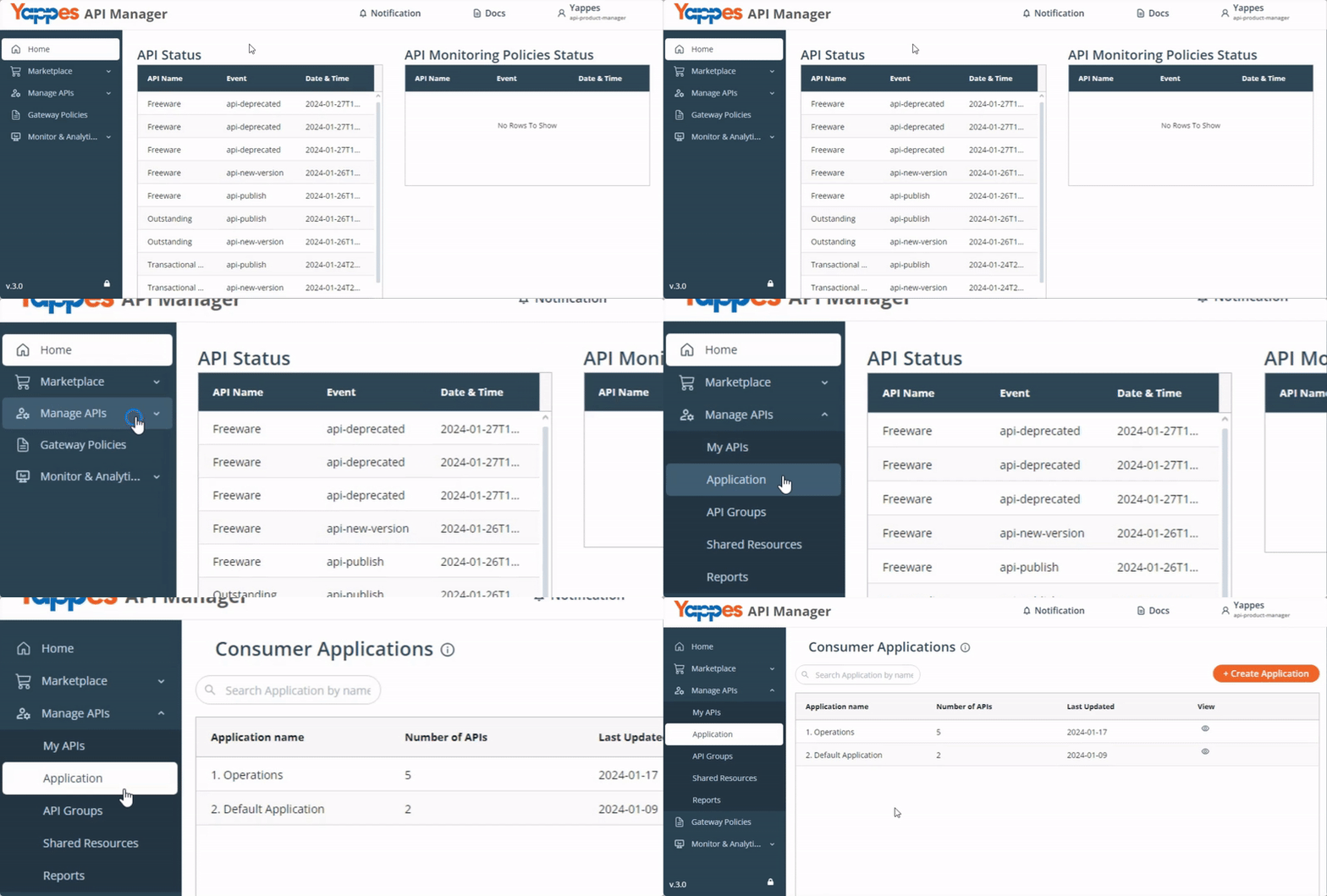
- In the
Viewcolumn, click for the application.
The application opens with tabs: Keys, Details, and Usage.
Keys
- Select the
Keystab.
The Keys tab provides:
X-Yappes-Key— required to validate requests entering the Yappes Platform (Applications Keys)Public Key (X-Yappes-Subkey)— subscription tryout key passed as thex-yappes-subkeyheaderPrivate Key— for Message Signature policy- Use
Copy/Copiedon a key field to copy its value.
Regenerate X-Yappes-Key
Regenerate when you need to invalidate the current application key without deleting the application.
- On the
Keystab, under Applications Keys →X-Yappes-Key, click the regenerate icon. - In the
Regenerate Keywindow, confirm that regenerating replaces the current key and cannot be undone, then clickRegenerate.
The key is successfully regenerated.
Details (subscription and OAuth scopes)
The Details tab is where you edit an application's subscription configuration, including rate plans, Yappes OAuth scopes, and custom attributes.
Path: Manage APIs → Application → View → Details
- Select the
Detailstab.
Editable fields
| Field | Editable on update |
|---|---|
| Application Name | No (disabled) |
| Description | Yes |
| Select Environment | Yes |
| Attach to | No (disabled) |
| Select APIs / Select API Group | Yes |
| Rate plans | Yes (same UI as create) |
| OAuth scopes | Yes (via API pills and scope modal) |
| Custom Attributes | Yes (optional; Add Attributes) |
- To change which APIs or API groups are attached, update
Select APIsorSelect API Group, adjust rate plans and scopes as needed, then clickUpdate.
Update OAuth scopes
When the application includes Yappes OAuth-enabled APIs:
- OAuth-enabled APIs appear as pills under
OAuth enabled API (Click API to view the Scopes). - Click an API pill to open the
Api Scope Detailsmodal. - Check or uncheck scopes, then click
Save. - Click
Updateto save all changes to the application.
The scope selection UI matches Creating an application. For API Group subscriptions, pills list individual OAuth-enabled APIs within each group.
Note
OAuth client credentials are not shown on the Details tab. After subscription is active, view credentials in My Subscriptions.
Actions
Update— save description, environment, API/group selections, rate plans, custom attributes, and scope changesDelete Application— remove the application (see Deleting an application)
The application is successfully updated.
For the full Yappes OAuth flow, see Yappes OAuth.
Usage
- Select the
Usagetab. - Select an API under
Api Name:. - Select a quota filter:
All Quota Type,Tryout, orSubscription. - Select the date range. By default, the last month is selected. You can view up to the previous six months of usage data.