Encryption and Decryption Policy
Overview
Encryption & Decryption in Yappes provides payload-level security using hybrid encryption to protect sensitive API data beyond standard TLS.
Yappes uses:
- RSA-2048 for secure session key exchange
- AES-256-GCM for payload encryption and integrity validation
This ensures payloads remain encrypted:
- Client → Gateway
- Gateway → Backend Services
- Backend Services → Gateway
- Gateway → Client
Payloads are securely decrypted on return paths.
This feature is designed for regulated industries such as finance and healthcare where payload confidentiality, integrity, and zero-trust principles are required.
When to Use Encryption & Decryption
Use this feature when:
- APIs handle PII, financial, or healthcare data.
- Payload encryption is required independent of TLS.
- Zero-trust architecture principles are mandated.
- Regulatory standards such as PCI DSS, HIPAA, NIST, or OWASP apply.
- End-to-end payload protection across multiple hops is required.
When Not to Use Encryption & Decryption
Do not use this feature when:
- APIs handle only non-sensitive data.
- TLS encryption alone is sufficient for your security requirements.
- Backend services cannot decrypt encrypted payloads.
- Latency-sensitive APIs cannot tolerate encryption overhead.
Prerequisites
Before configuring Encryption & Decryption policies, ensure the following requirements are met.
Required Access and Permissions
Common Requirements
- Active Yappes platform account.
API Manageraccess.- Permission to create and manage Gateway Policies.
- Permission to attach
Encryption & Decryptionpolicies to subscriptions.
System / Technical Requirements
Supported Cryptography
RSA-2048(key exchange)AES-256-GCM(payload encryption)
Supported Browsers
ChromeEdgeFirefox
Key Management Service
The Key Management Service (KMS) allows you to generate and manage cryptographic keys used for Encryption & Decryption policies. For the full KMS reference (generate, upload, filters, and policy linkage), see Key Management System.
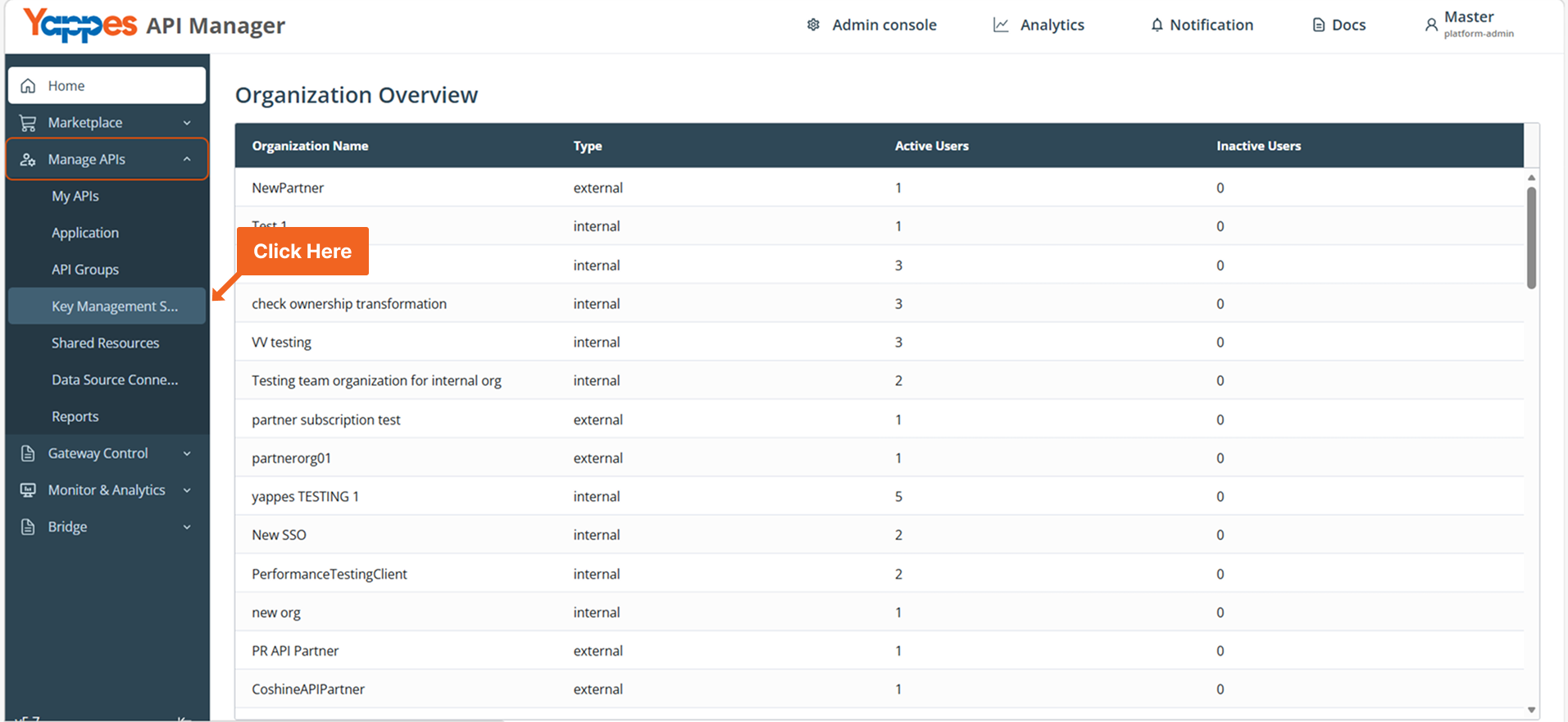
Common Step: Access Key Management Service
- From the main navigation menu, select
Key Management Service.
Method 1: Generate RSA Key Pair
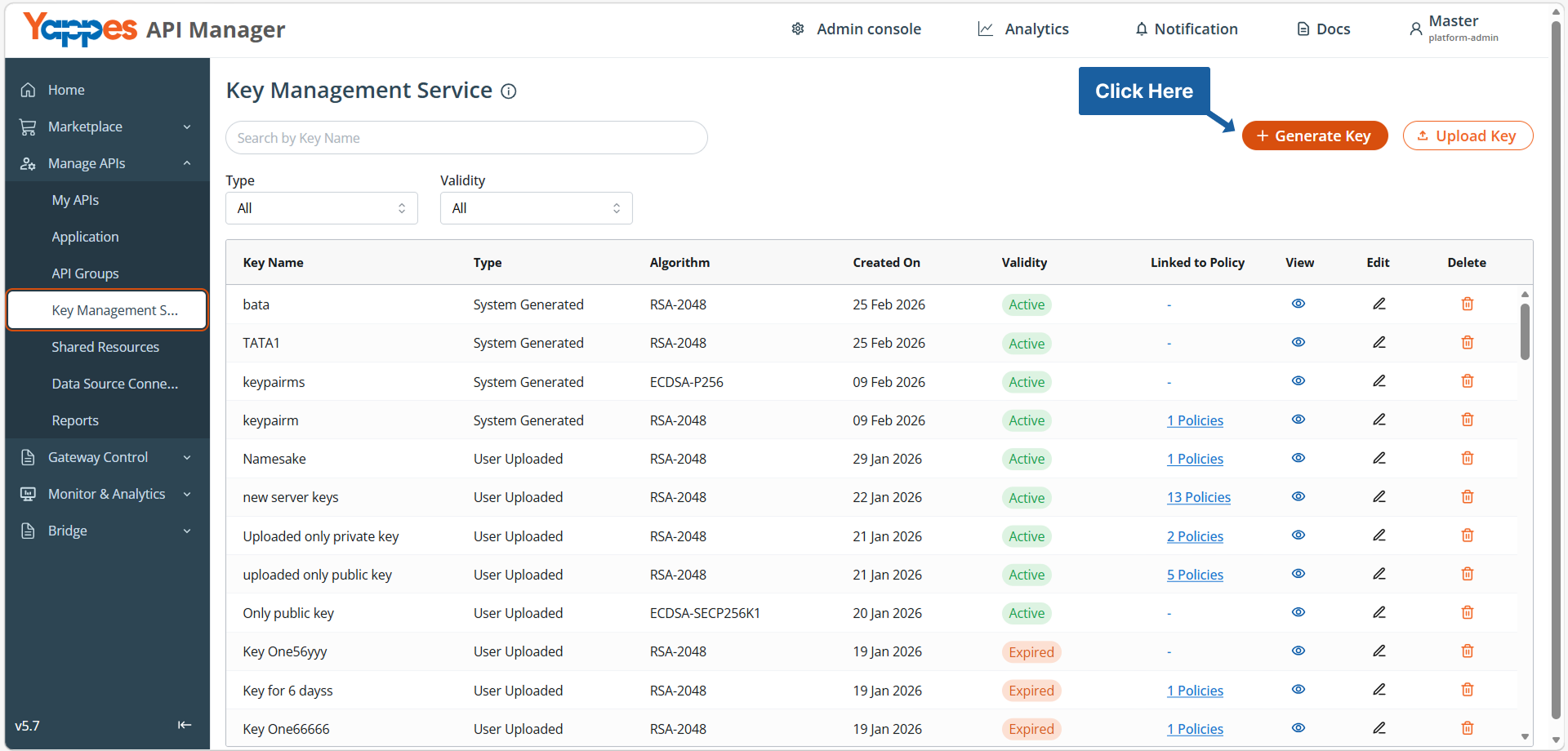
Step 1: Open Generate Key Dialog
- From Key Management Service, click
Generate Key.
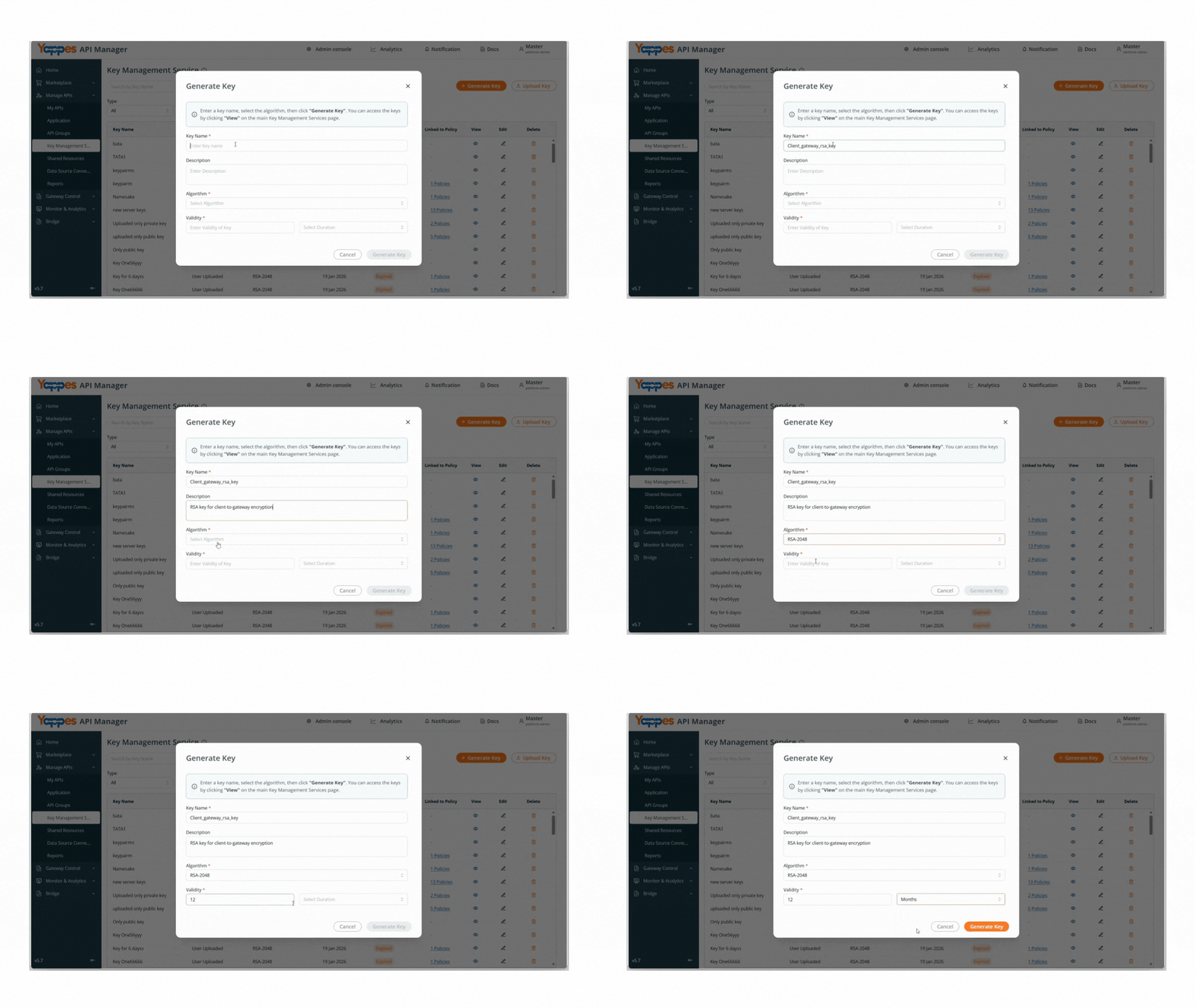
Step 2: Configure Key Details
- In
Key Name, enter a unique key name.
Example:client_gateway_rsa_key - In
Description, enter the purpose of the key.
Example:RSA key for client-to-gateway encryption - In
Algorithm, select one of the following: RSA-2048RSA-4096ECDSA-P256- In
Validity, enter the duration value.
Example:12 - In
Select Duration, choose:DaysMonthsYears
Example: Months
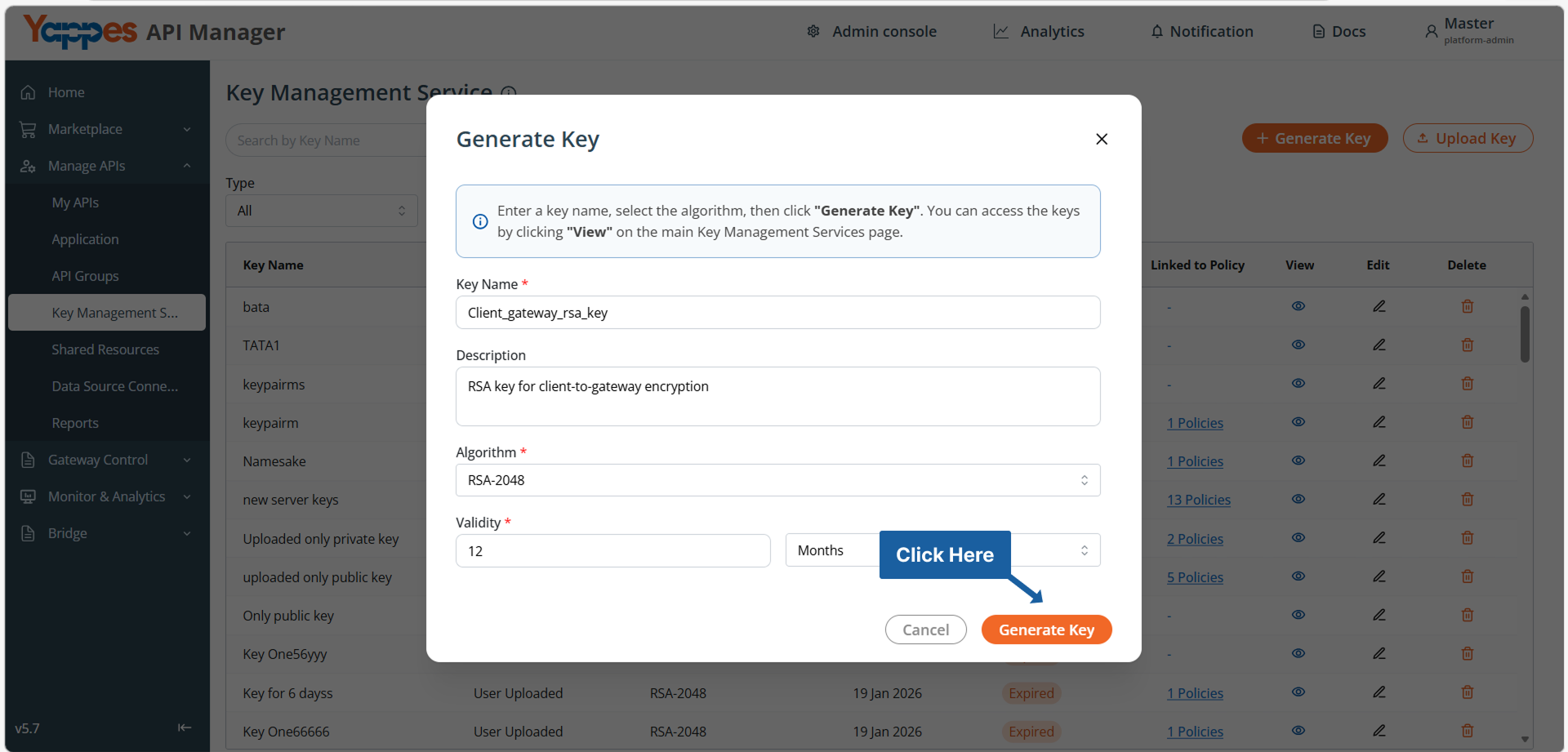
Step 3: Generate the Key
- Review the entered details.
- Click
Generate Key.
Success
The selected key pair is generated and securely stored in the Key Management Service. You can view the key details and use it in your Encryption & Decryption policies.
Method 2: Upload Existing Keys
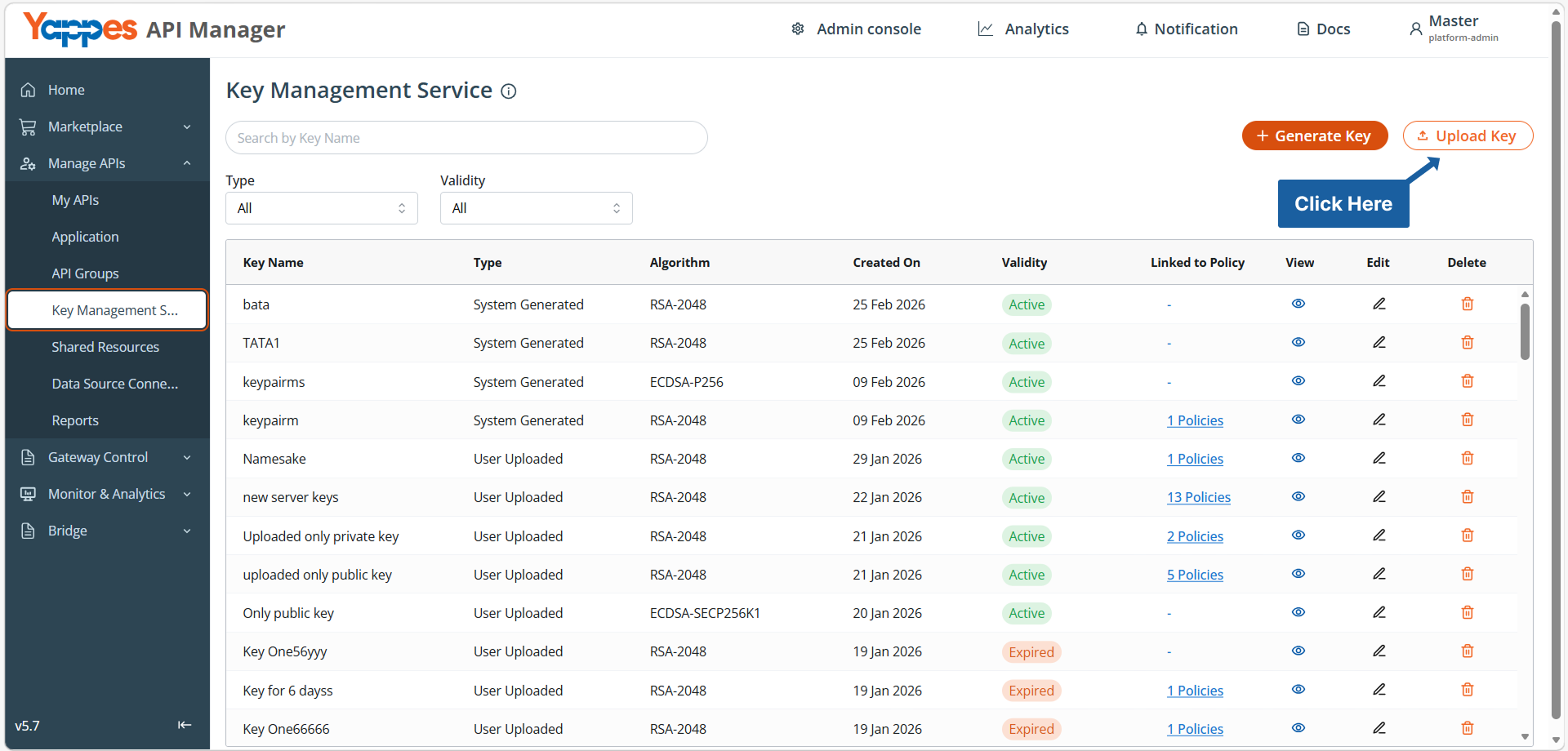
Step 1: Open Upload Key Dialog
- From
Key Management Service, clickUpload Key.
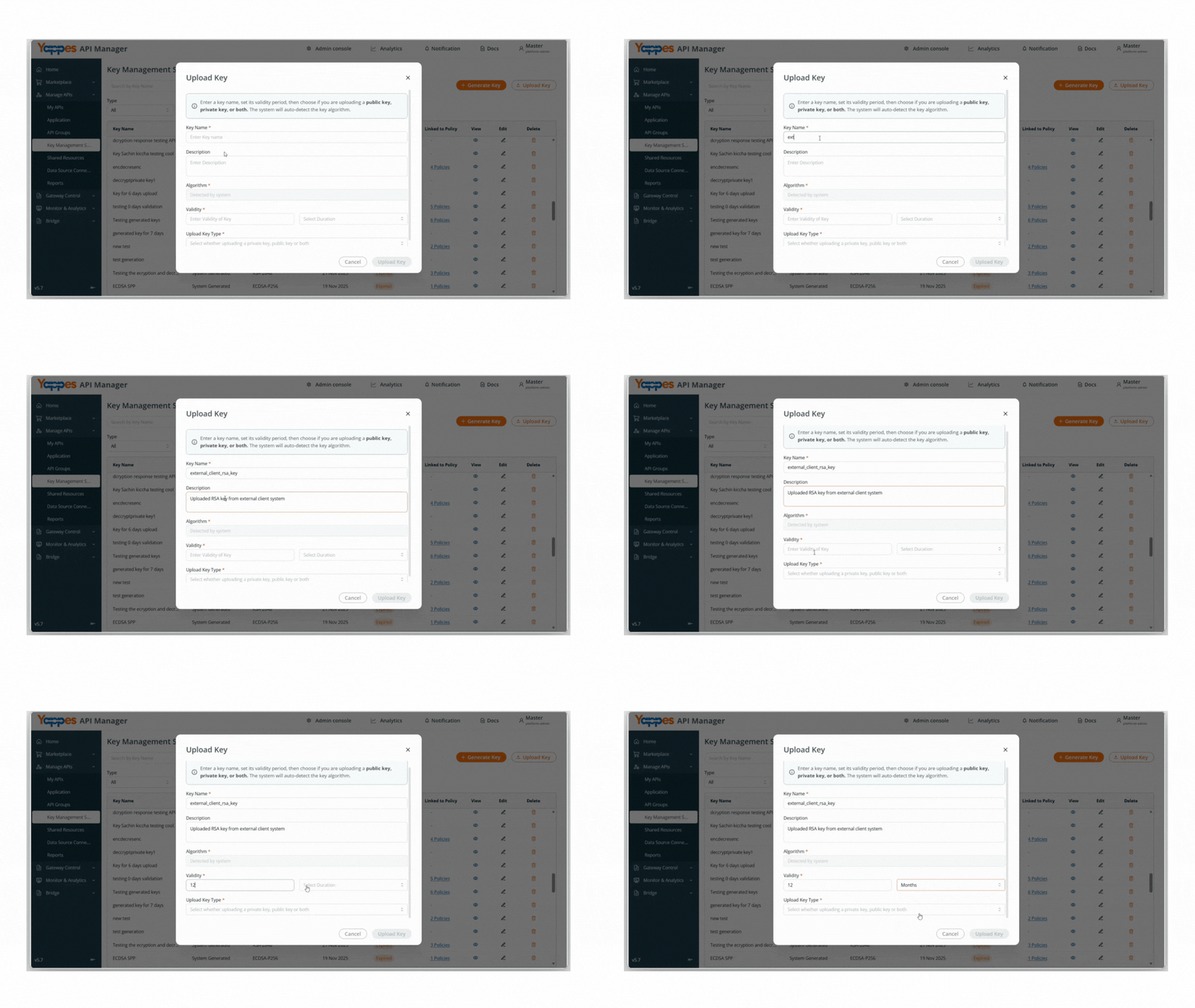
Step 2: Enter Key Details
- In
Key Name, enter a unique key name.
Example:external_client_rsa_key - In
Description, enter the purpose of the key.
Example:Uploaded RSA key from external client system Algorithmis auto-detected by the system.- In
Validity, enter the duration value.
Example:6 - In
Select Duration, choose:DaysMonthsYears
Example:Months
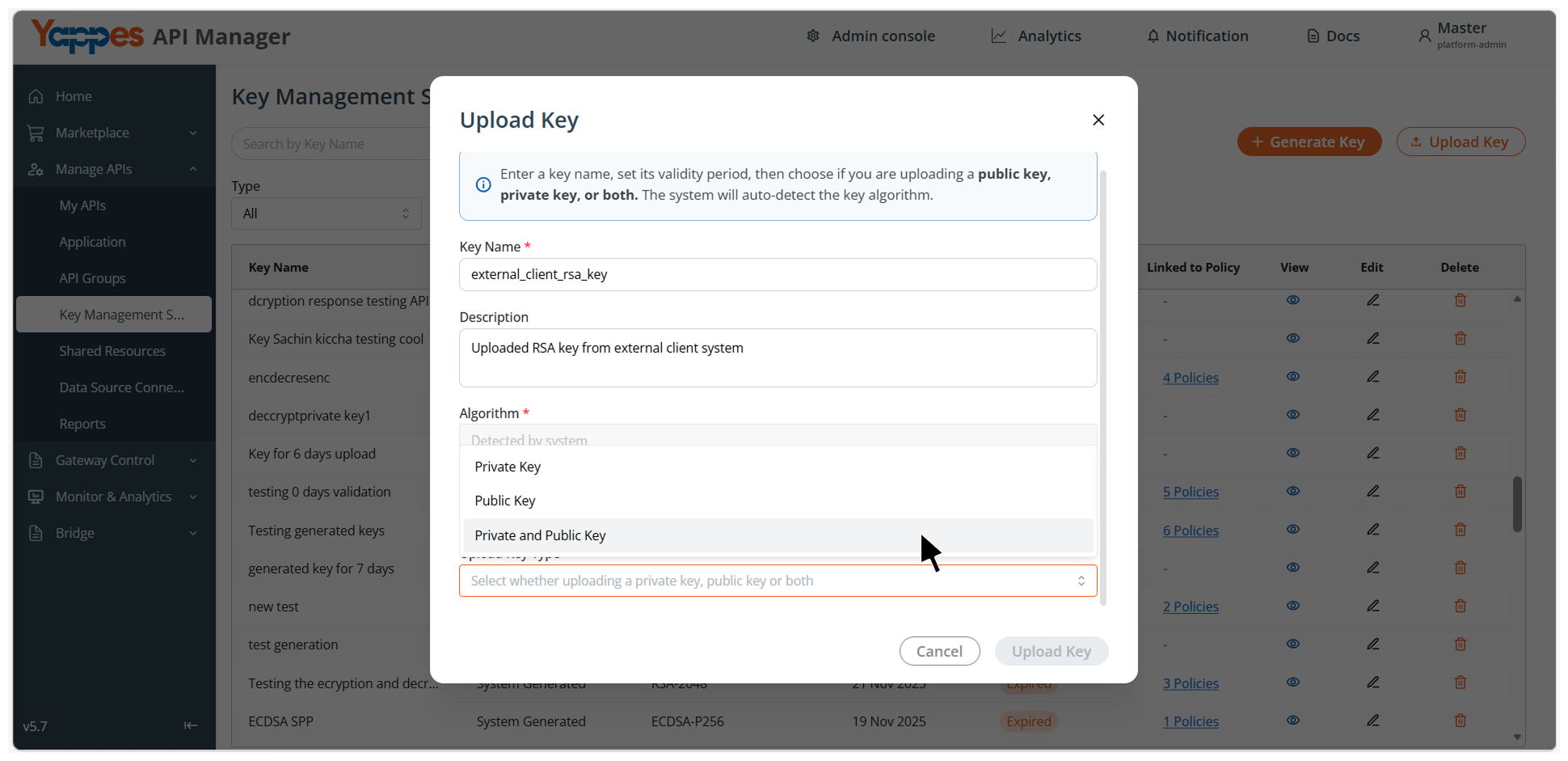
Step 3: Select Upload Key Type
From Upload Key Type, choose one of the following:
Private KeyPublic KeyPrivate and Public Key
Step 4: Provide Key Material
Based on the selected Upload Key Type, provide the required key material:
- If
Private Keyis selected: - Paste the private key into the
Private Keytext area
OR -
Click
Upload Private Key File -
If
Public Keyis selected: - Paste the public key into the
Public Keytext area
OR -
Click
Upload Public Key File -
If
Private and Public Keyis selected: - Paste both keys into their respective text areas
OR -
Upload both
private and public key files -
Supported file formats:
.pem.key.crt.cer
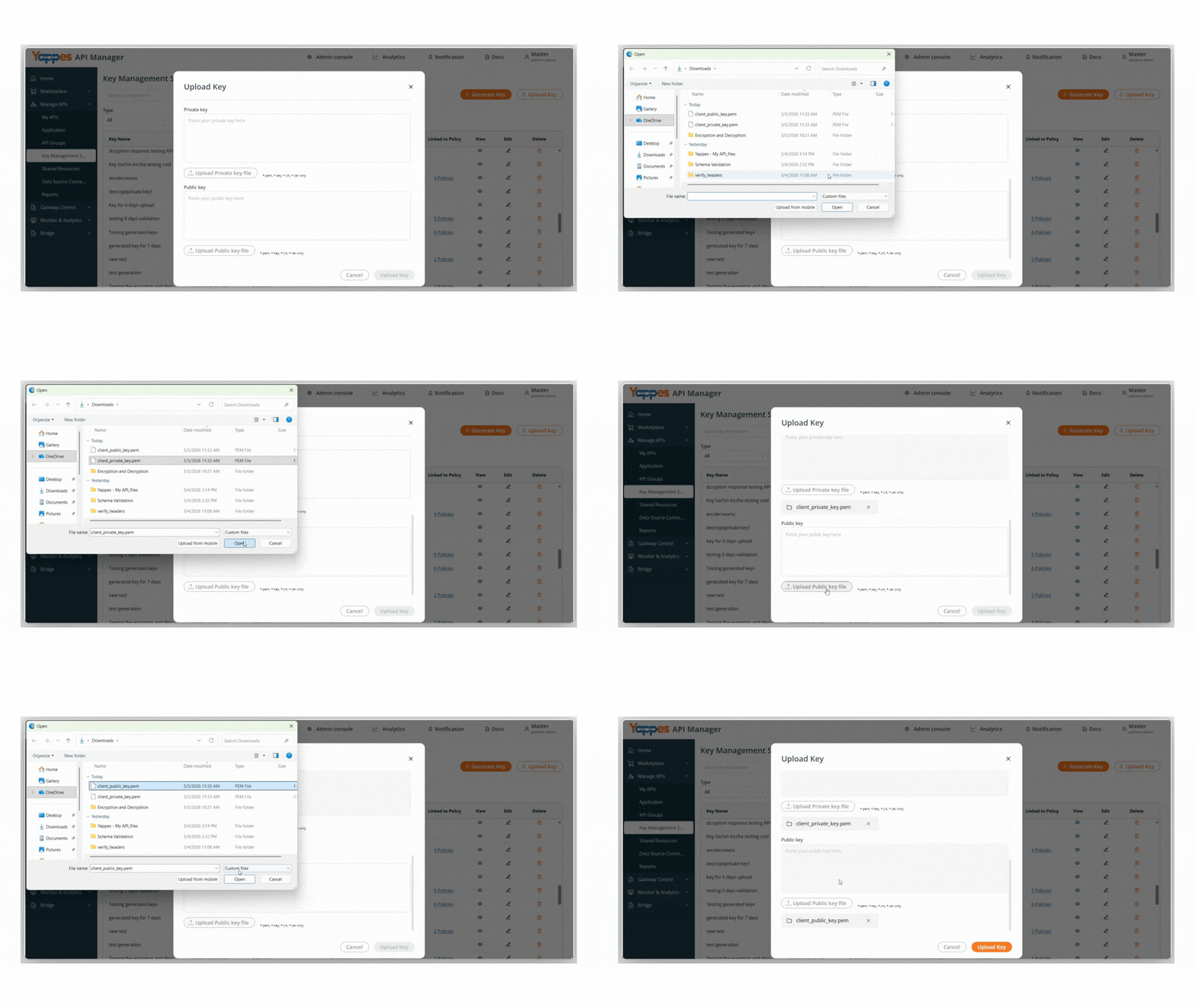
Alternatively, upload the key file directly.
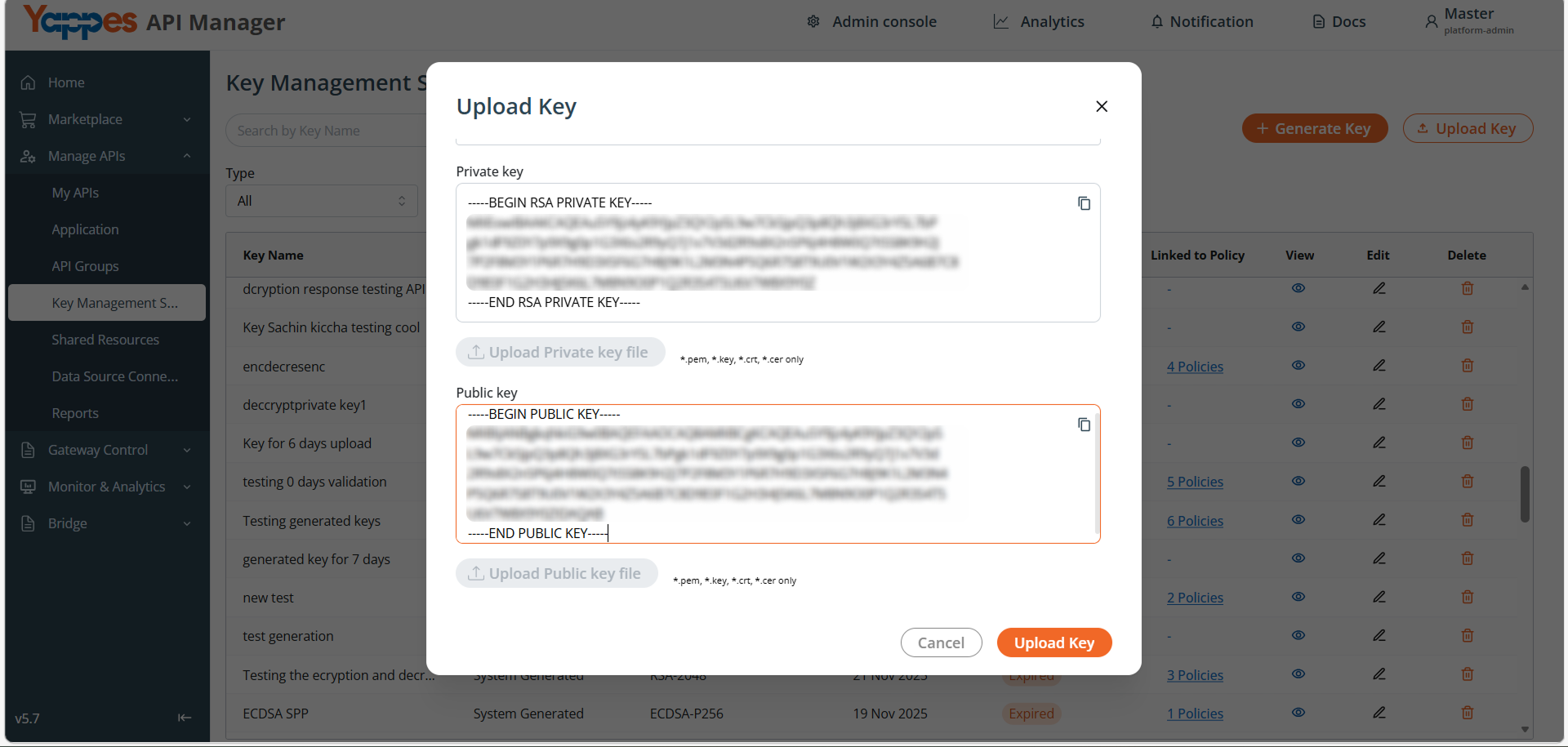
Step 5: Upload the Key
- Review the entered details and uploaded key material.
- Click
Upload Key.
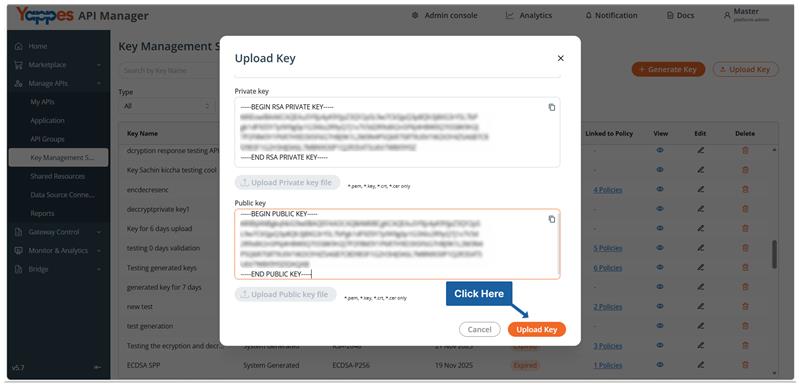
Success
The key is securely stored and available for linking to Encryption & Decryption policies.
Custom error and message
For error scenarios, you can override the default HTTP status code, error code, and message. See Custom Error and Message.
Step-by-Step Implementation
Method 1: Creating Encryption & Decryption Policies During API Onboarding
Step 1: Navigate to API Manager
- Click on
Manage APIsin the main dashboard. - Select
My APIsfrom the submenu.
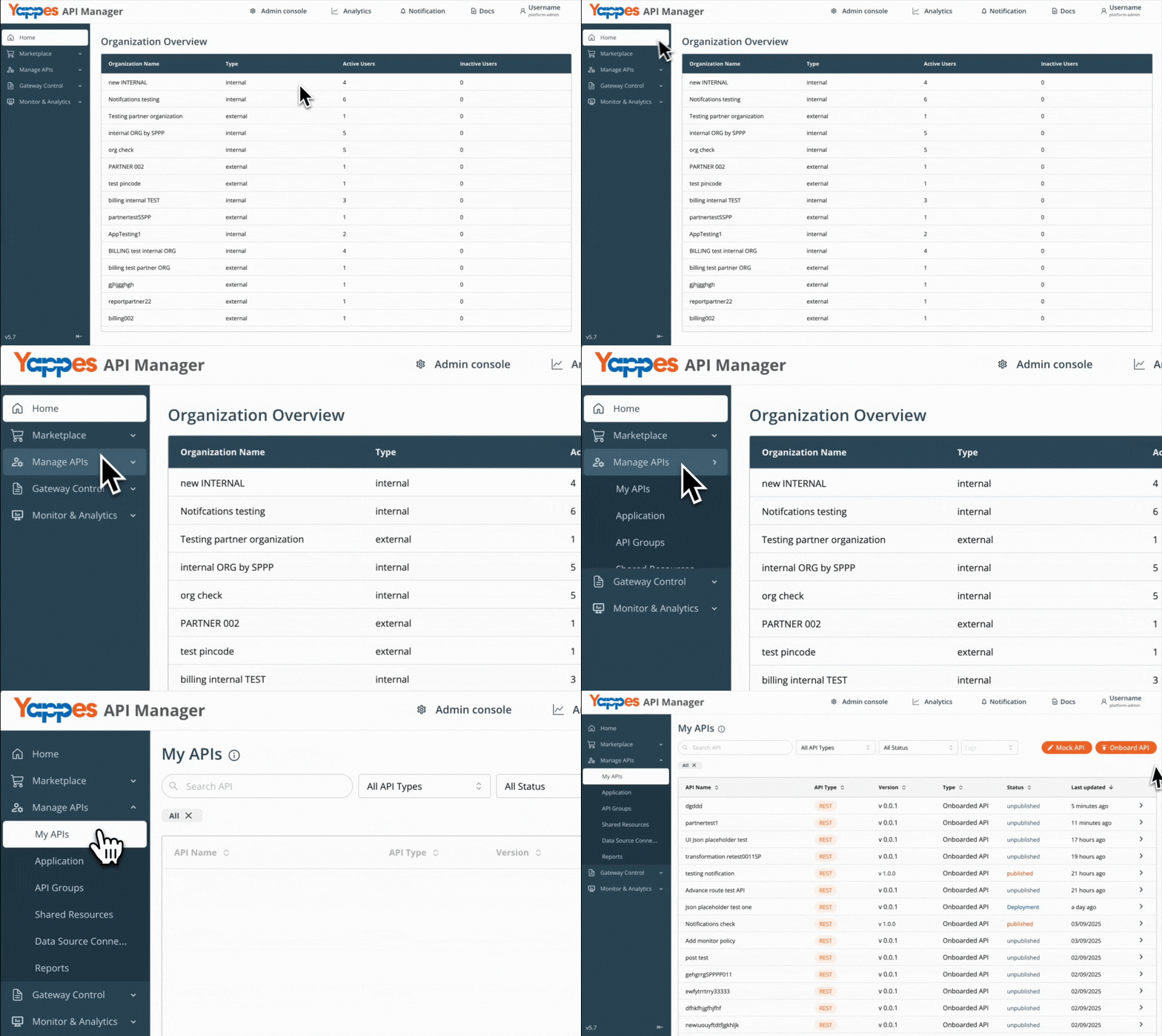
Step 2: Initiate API Onboarding
- Onboard from My APIs using the guide for your API type.
Step 3: Select Endpoint for attaching Encryption & Decryption Policies
- Click on your newly created endpoint (e.g.,
get Post Data). - The endpoint details panel will open.
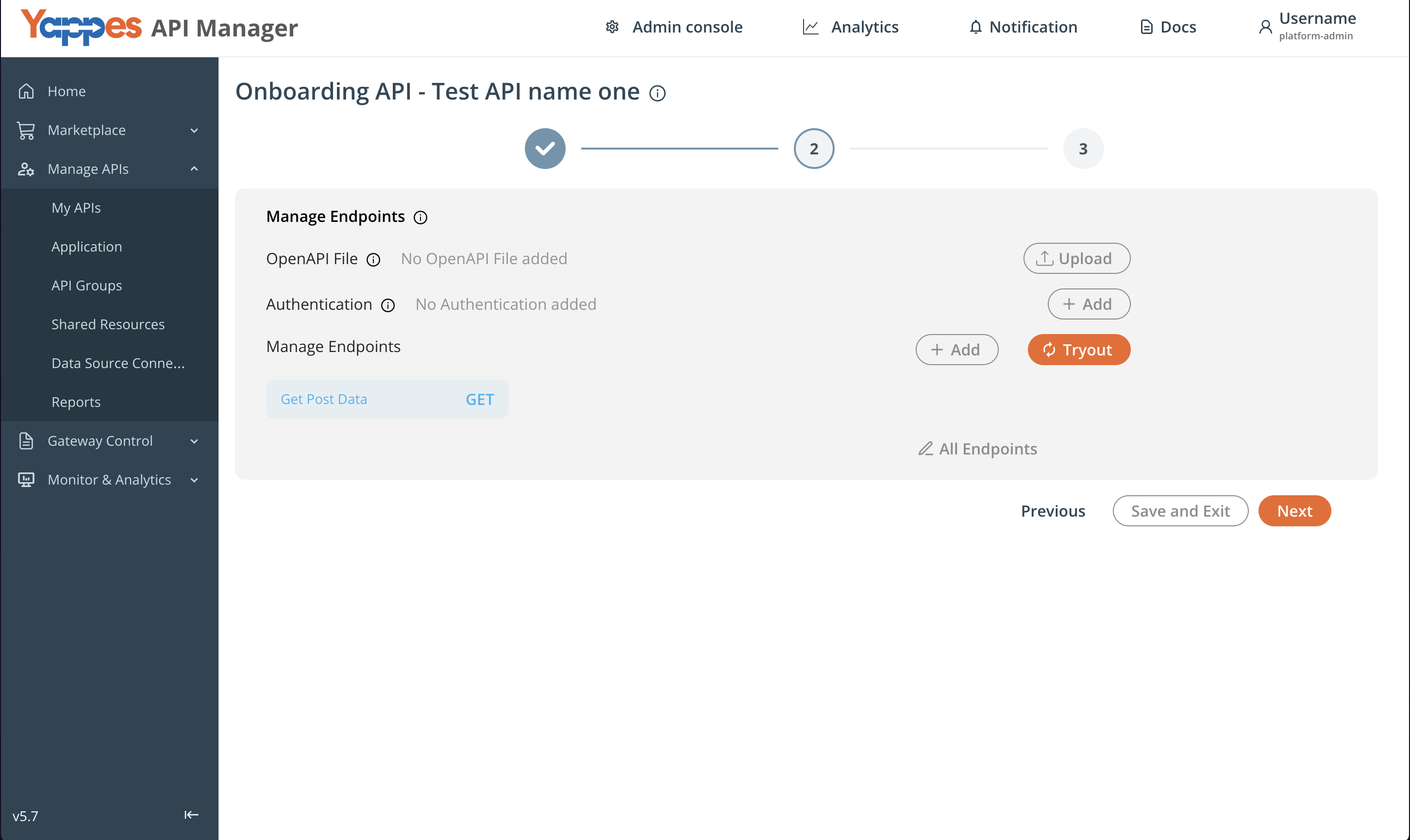
Step 4: Access Encryption & Decryption Policy
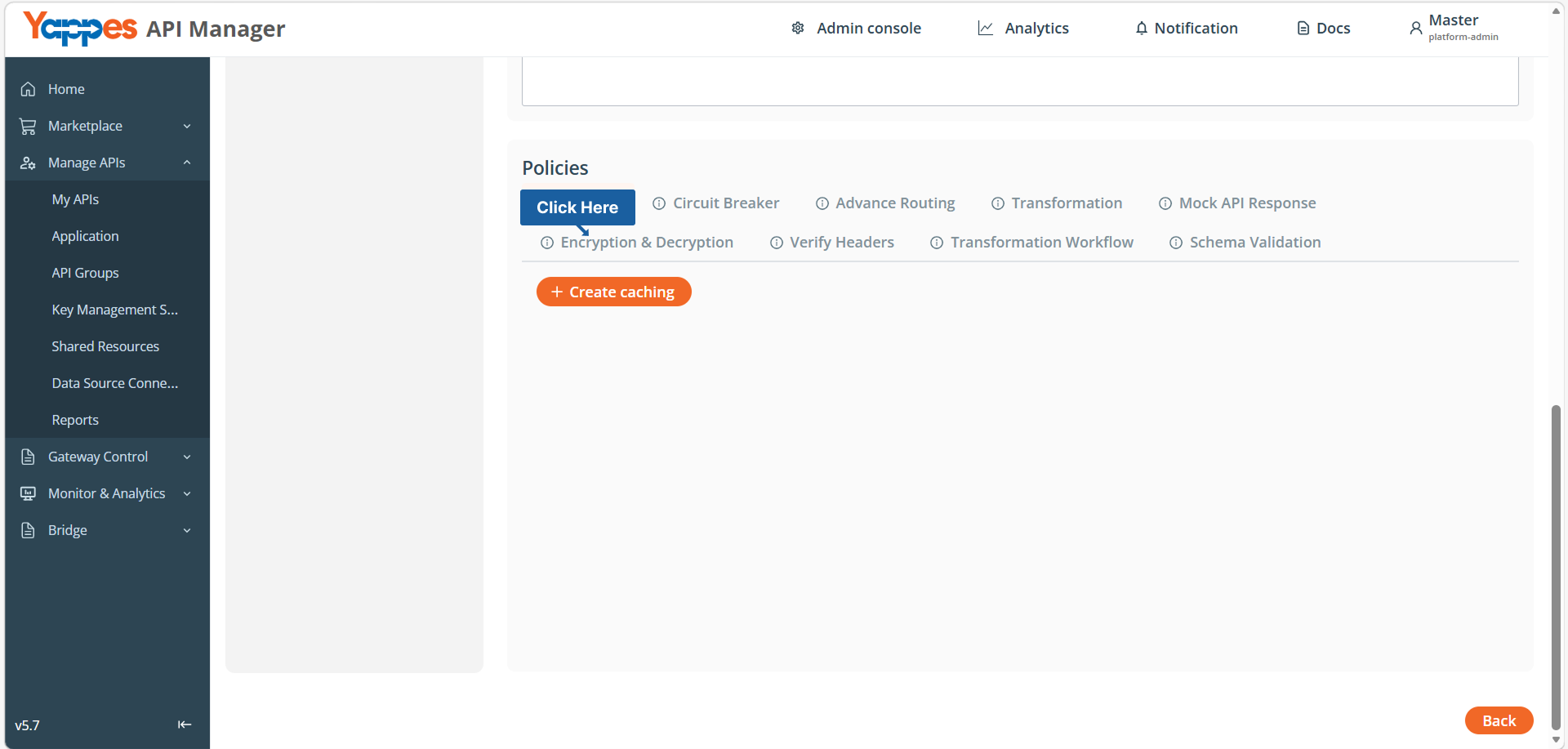
- Click
Create Encryption & Decryptionto open the policy configuration panel. - The Encryption & Decryption dialog will appear.
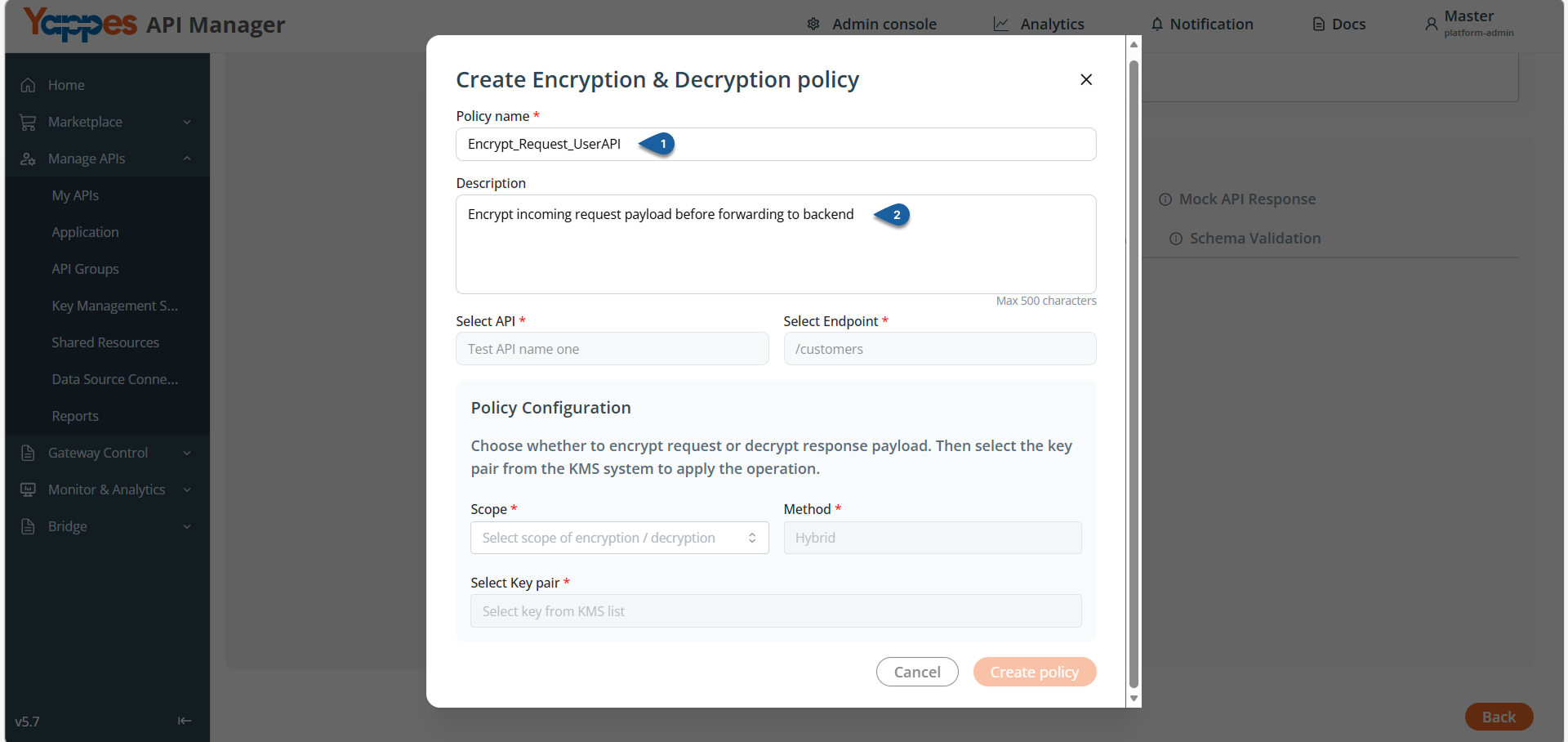
Step 5: Enter Policy Details
- In
Policy Name, enter a unique name.
Example:Encrypt_Request_UserAPI - In
Description, describe the purpose of the policy.
Example:Encrypt incoming request payload before forwarding to backend
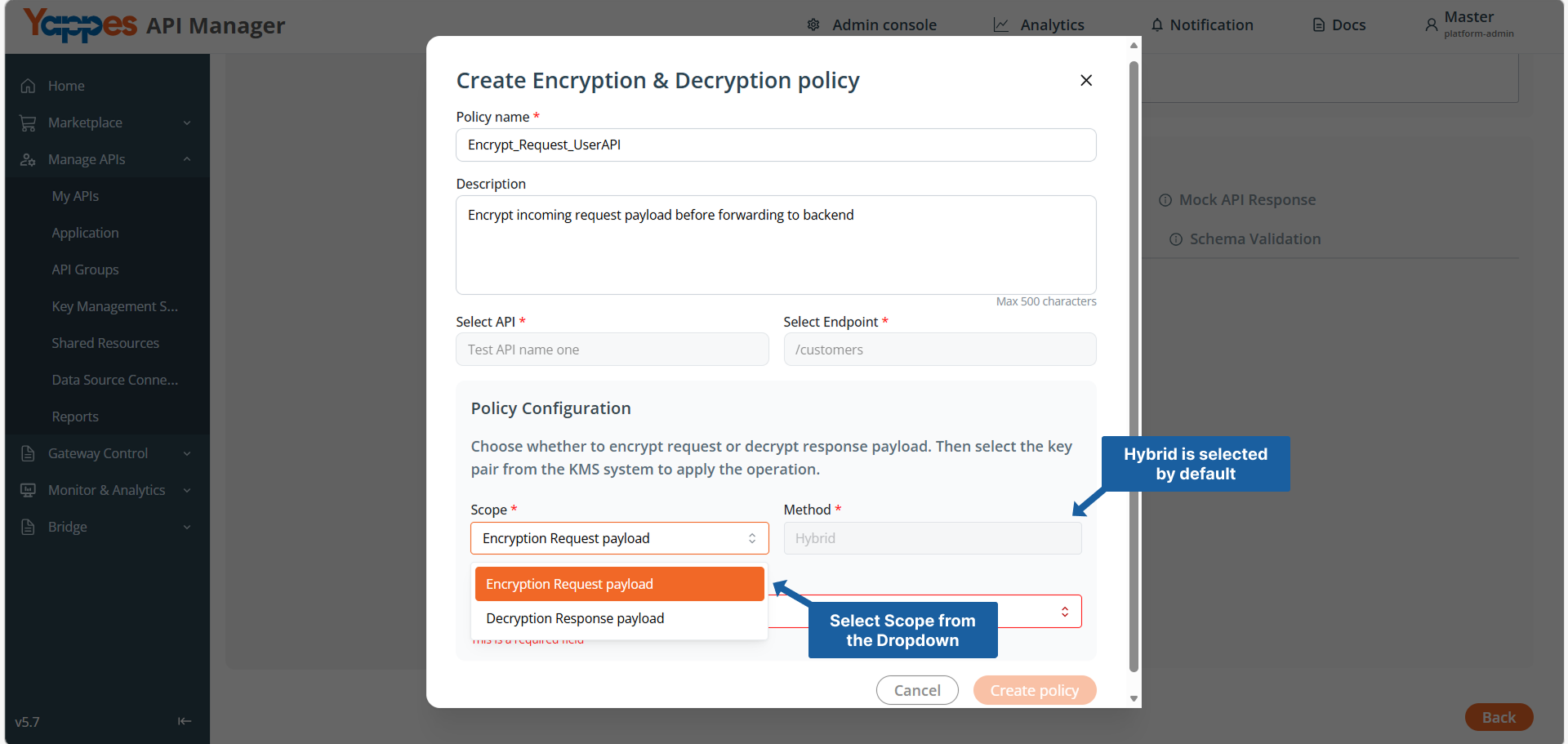
Step 6: Configure Policy Scope
- In
Scope, select one of the following: Encryption Request payloadDecryption Response payloadMethodis set toHybridby default.
Info
- For
GETendpoints, onlyDecryption Response payloadcan be selected. - Only one policy per scope can be attached to an endpoint.
- You can attach:
- One
Encryption Request payloadpolicy - One
Decryption Response payloadpolicy
- One
- If a policy for a specific scope is already attached, another policy for the same scope cannot be added.
Step 7: Select Key Pair
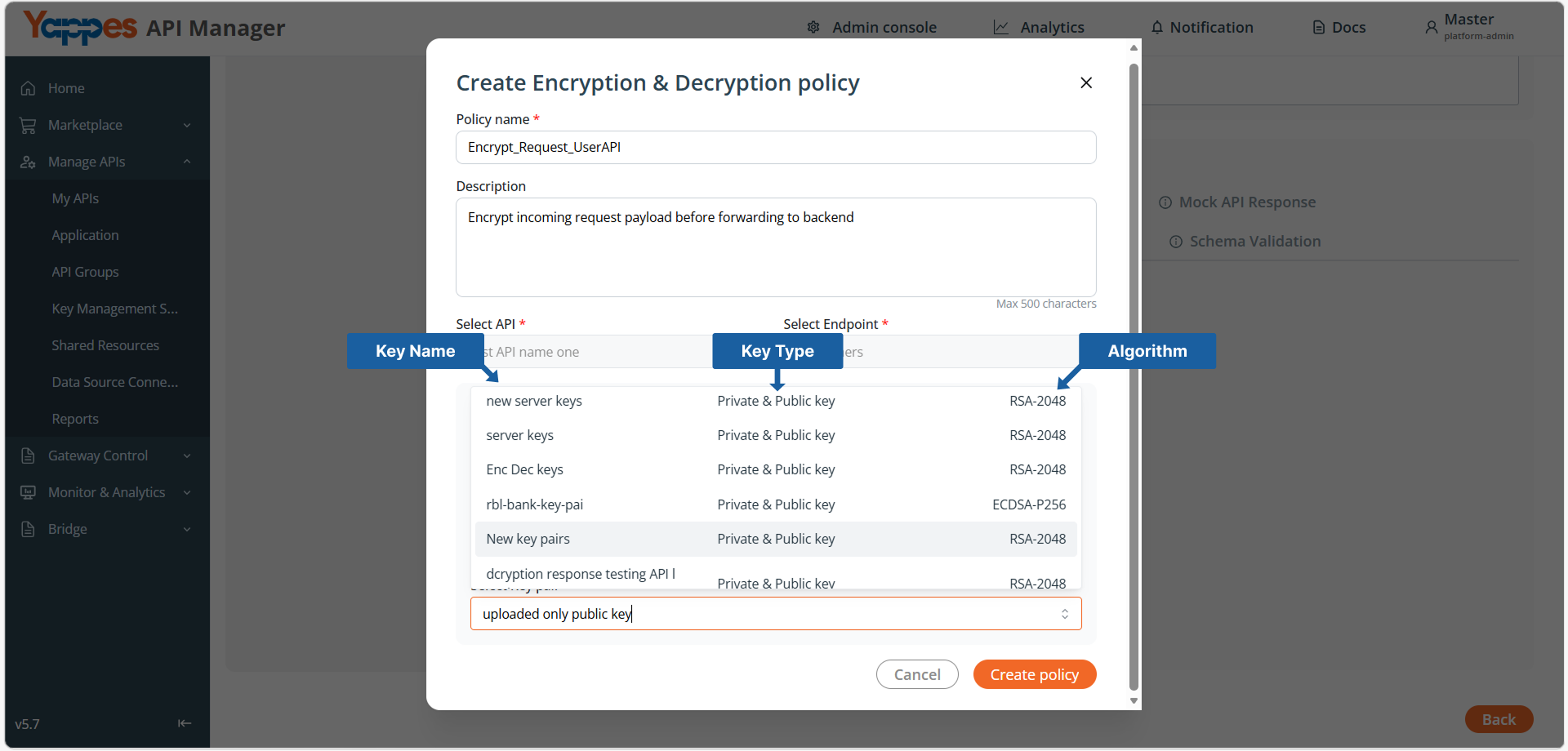
- In
Select Key pair, choose the required key from theKMS list. - The dropdown displays:
Key NameKey Type(Public/Private/Private & Public)Algorithm(RSA-2048,RSA-4096,ECDSA-P256)
Note
Key availability depends on the selected Scope:
-
If
Encryption Request payloadis selected:- Only
Public Key - Or
Private and Public Keyare available for selection.
- Only
-
If
Decryption Response payloadis selected:- Only
Private Key - Or
Private and Public Keyare available for selection.
- Only
Step 8: Create the Policy
- Review the entered details.
- Click
Create policy.
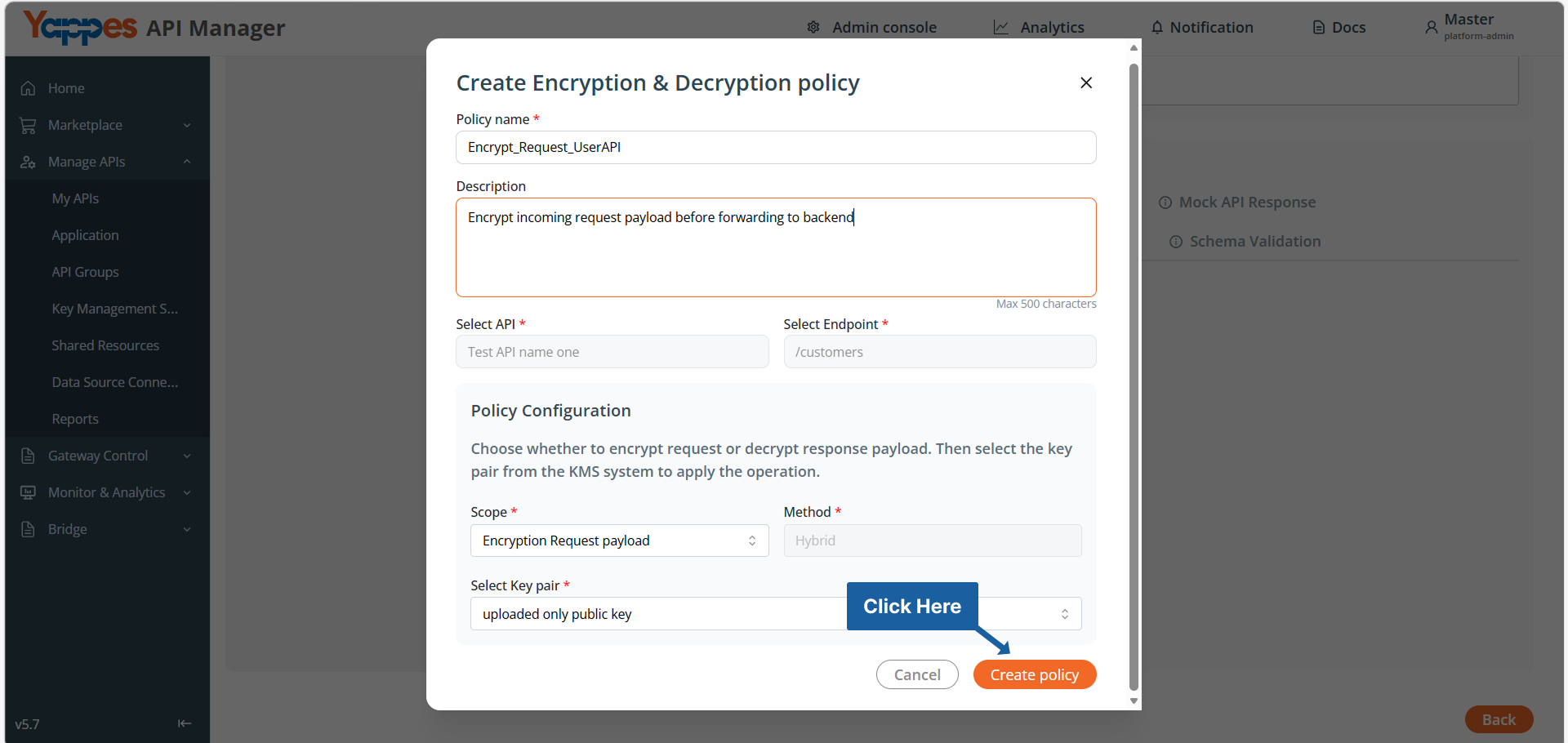
Success
The Encryption & Decryption policy is successfully created and attached.
Method 2: Creating Encryption & Decryption Policies from Gateway Policy Page
Step 1: Navigate to Gateway Policies
- Locate
Gateway Control → Gateway Policiesin the main navigation menu. - The policies management interface will display.
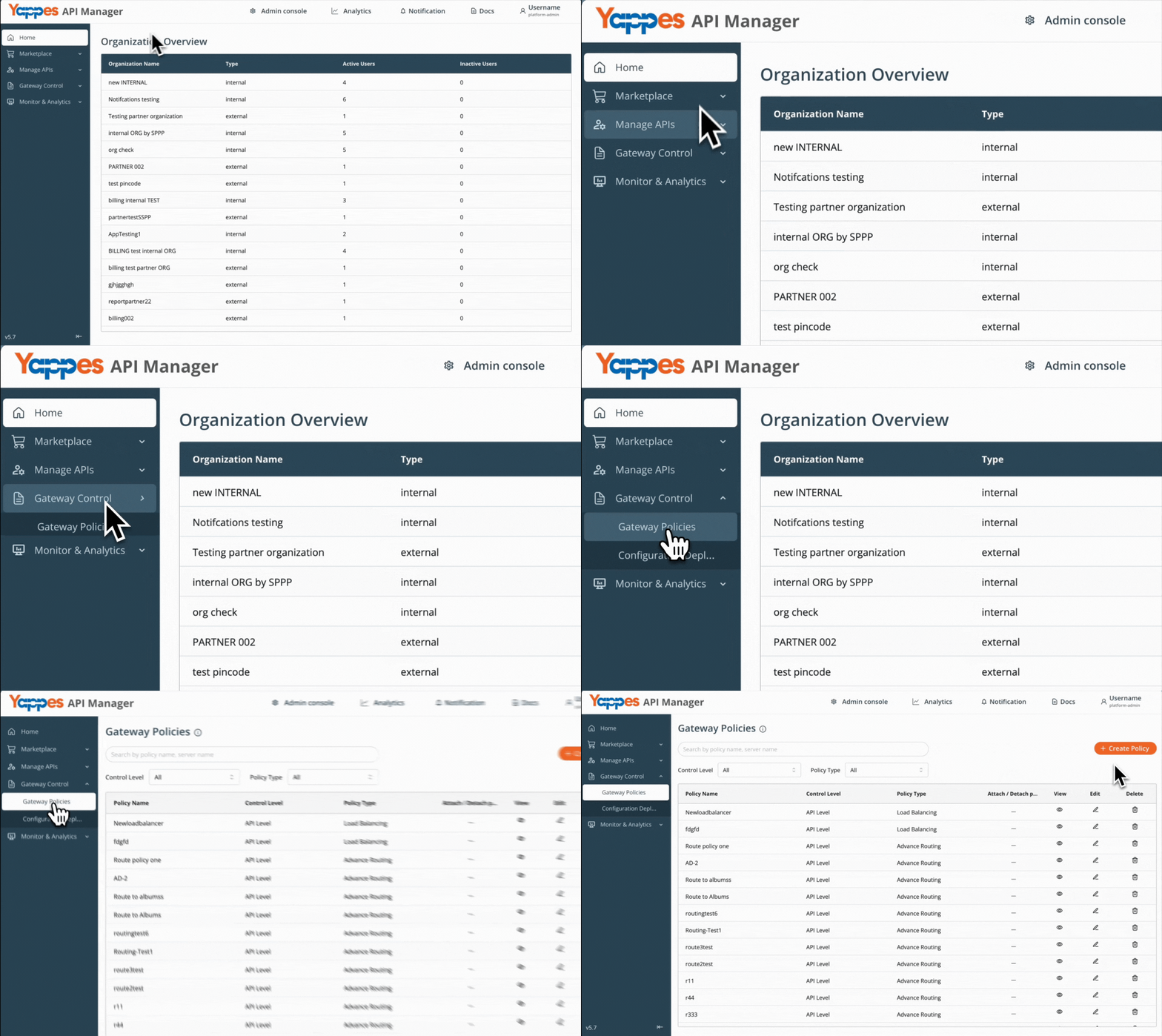
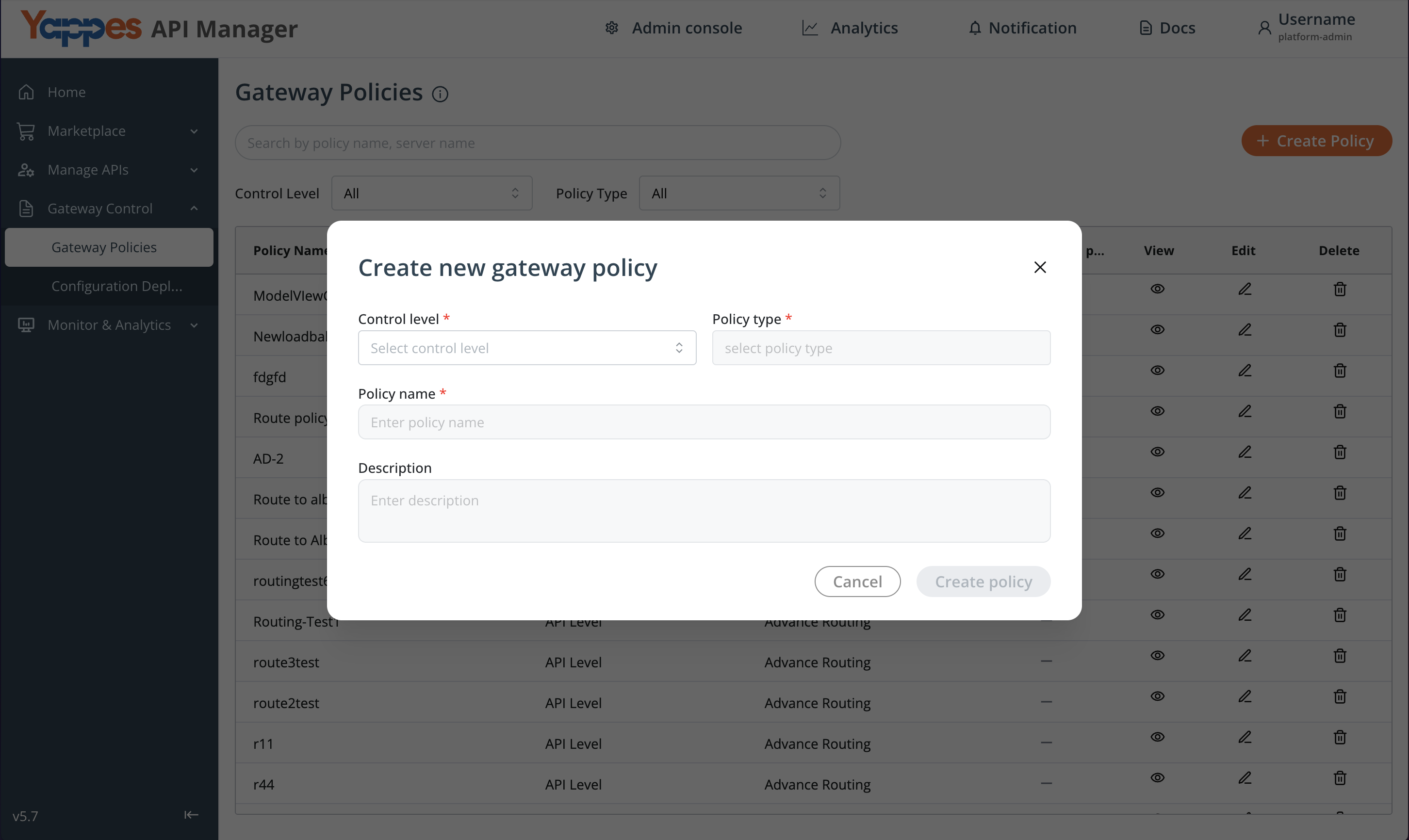
Step 2: Initialize New Policy Creation
- Click the
+ Create Policybutton. - The policy creation modal will open.
Step 3: Configure Policy Settings
- Select the appropriate
Control Levelbased on where the policy is required: Subscription Level– Applies encryption/decryption betweenClient → Gateway.API Level– Applies encryption/decryption betweenGateway → Backend.- In the
Policy Typedropdown, selectEncryption & Decryption. - These settings define the policy’s enforcement scope and traffic direction.
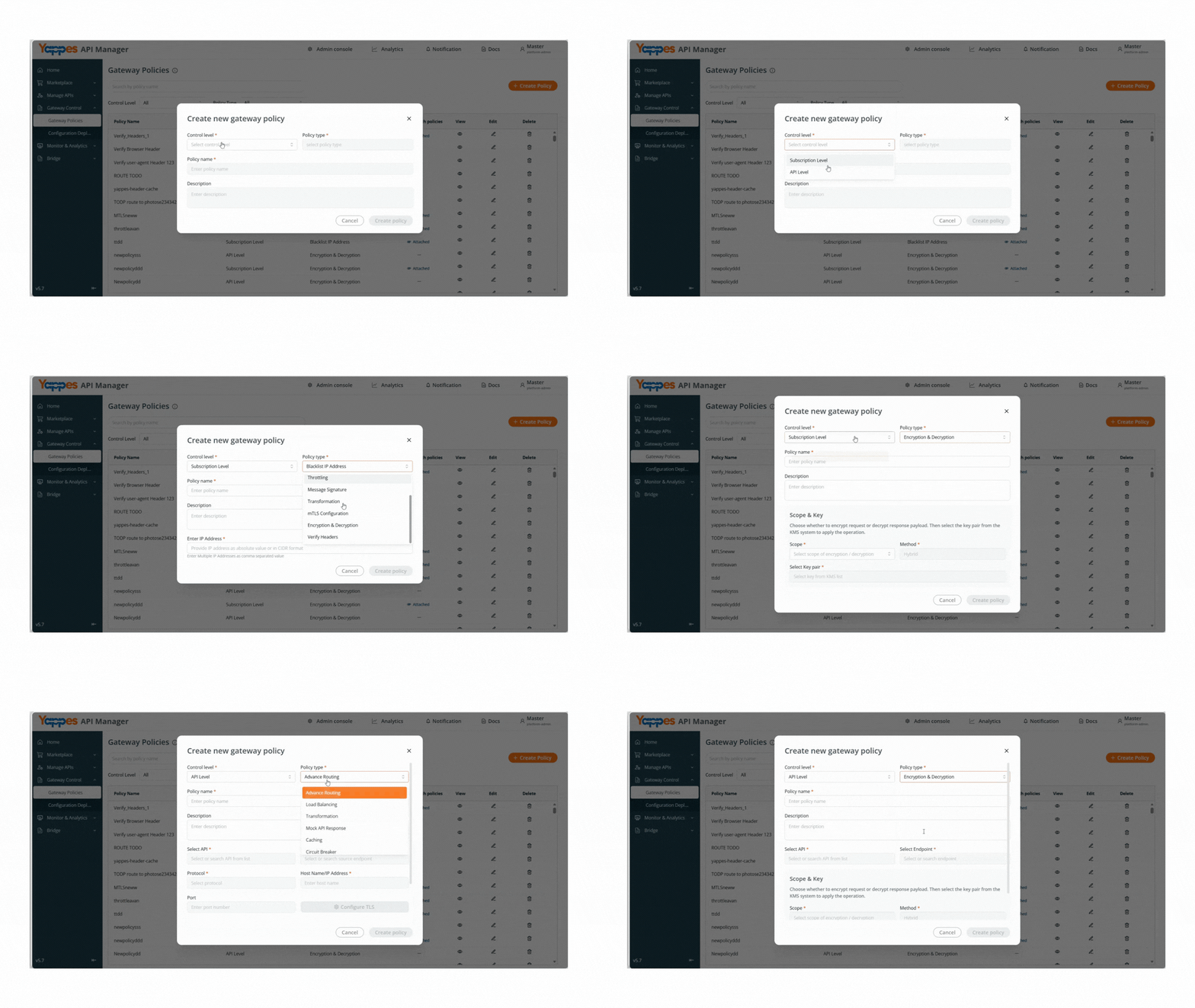
Step 4: Define Policy Details
- Enter a unique
Policy Namefor identification. - Add a detailed description in the text area field to document the policy purpose.
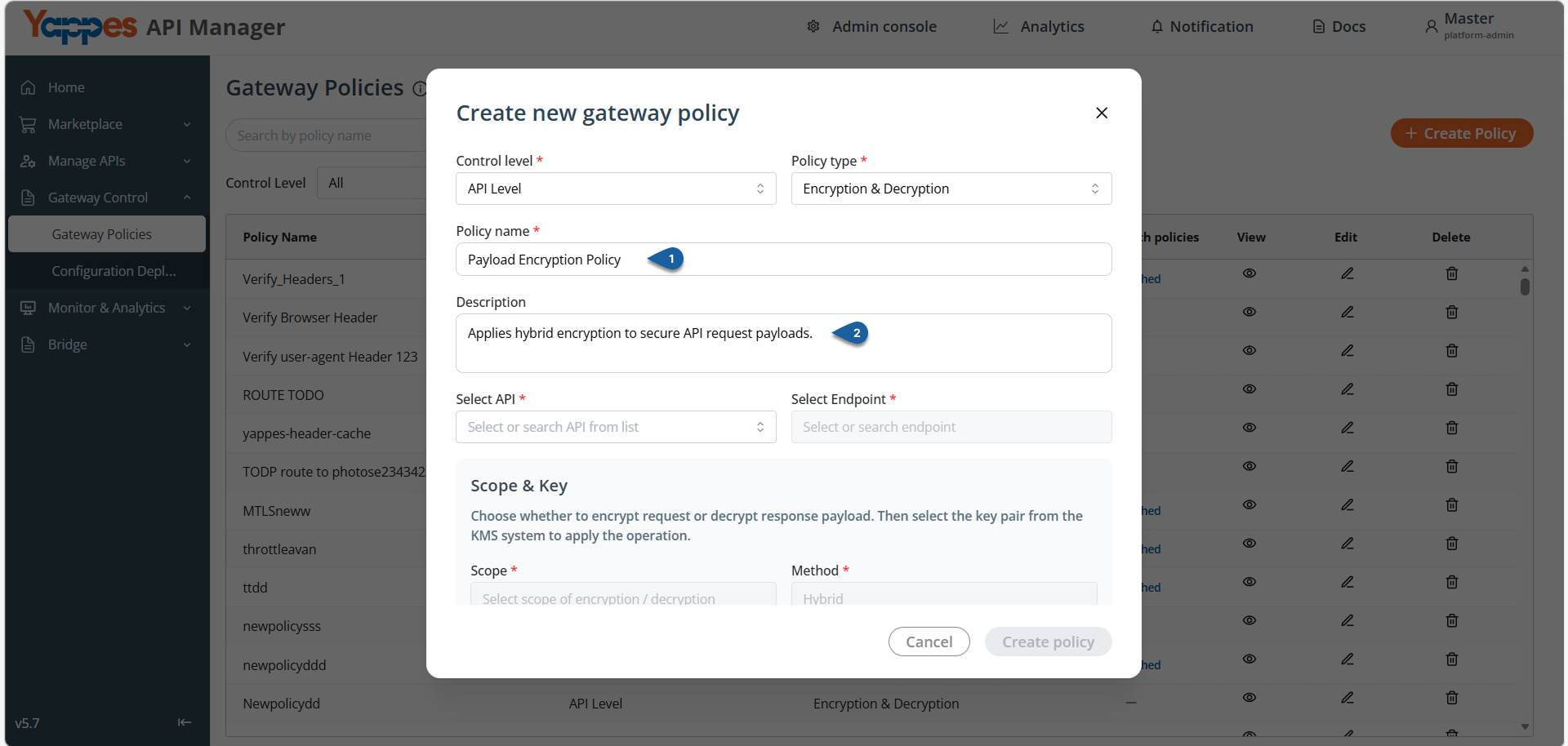
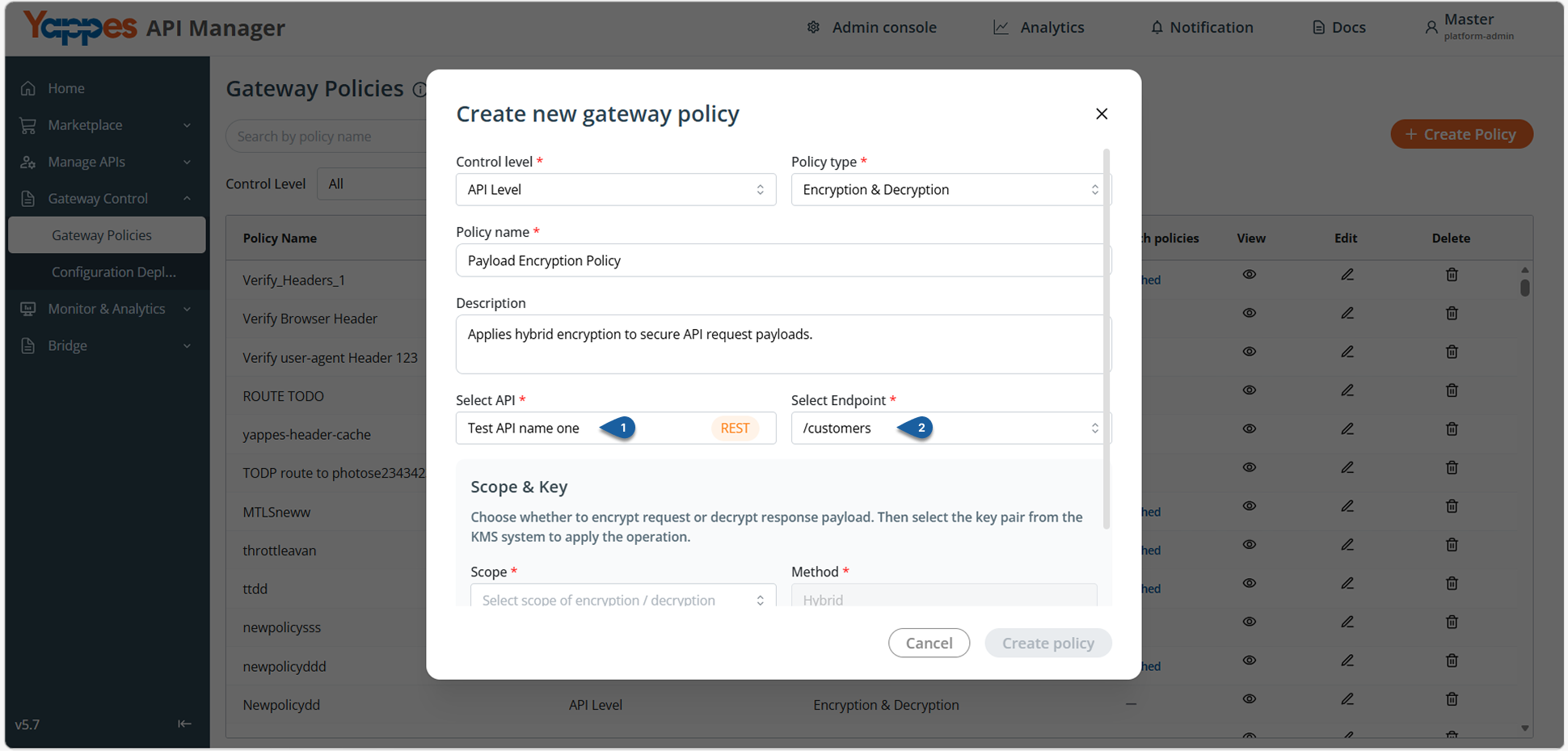
Step 5: Select API and Endpoint (API Level Only)
- If
Control Levelis set toAPI Level: - Select the required
APIfrom theSelect APIdropdown. -
Select the corresponding
Endpointfrom theSelect Endpointdropdown. -
If
Control Levelis set toSubscription Level: -
No API or endpoint selection is required.
-
Proceed to configure the encryption/decryption settings.
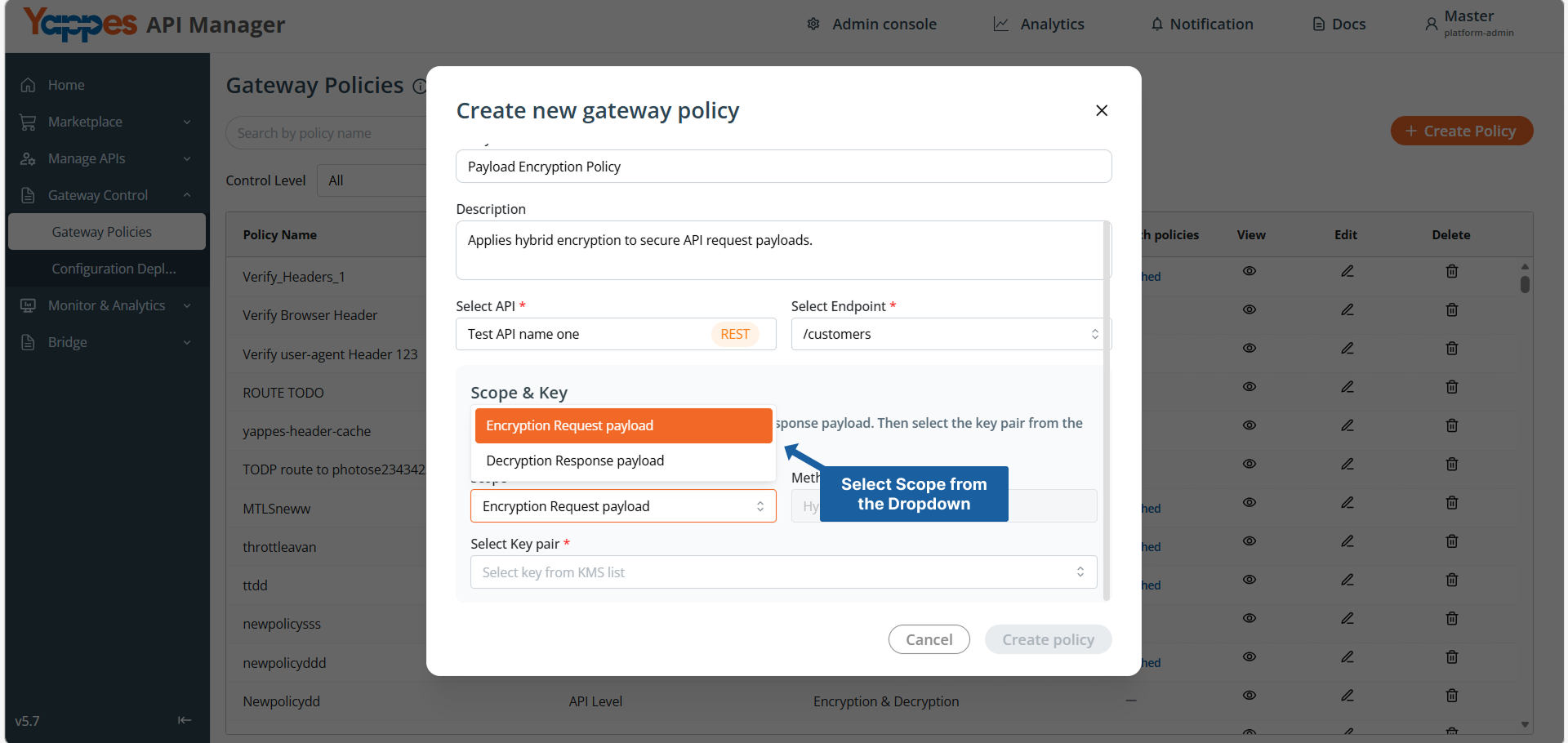
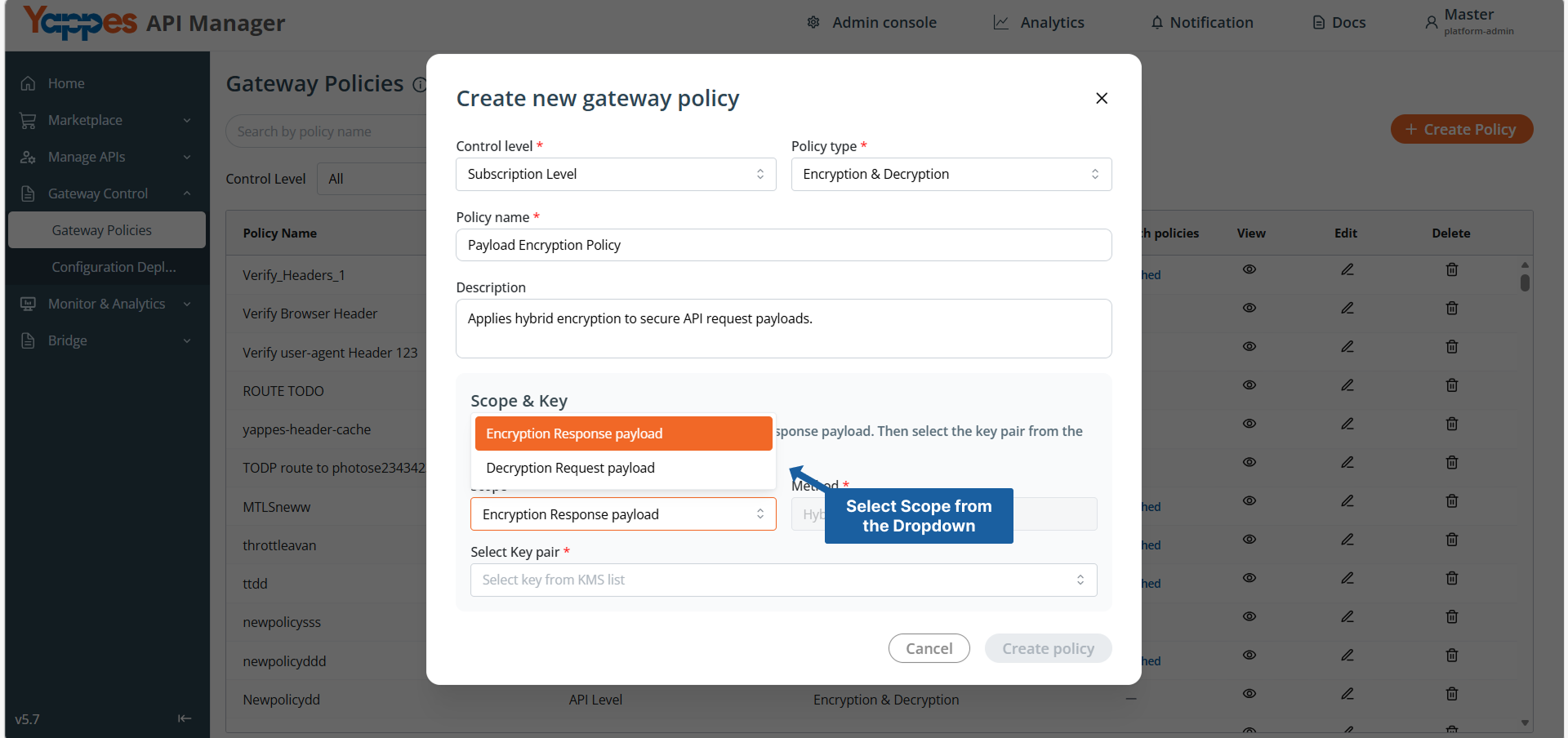
Step 6: Configure Scope & Method
- In
Scope, select one of the following: -
If
Subscription Levelis selected:Encryption Response payloadDecryption Request payload
-
If
API Levelis selected:Encryption Request payloadDecryption Response payload
-
Methodis set toHybridby default and cannot be modified.
Example – API Level Configuration
Example – Subscription Level Configuration
Info
- For
API Level, if the selected endpoint uses theGETmethod, onlyDecryption Response payloadcan be selected.
Step 7: Select Key Pair
- In
Select Key pair, choose the required key from the KMS list. - The dropdown displays:
- Key Name
- Key Type (Public / Private / Private & Public)
- Algorithm (RSA-2048, RSA-4096, ECDSA-P256)
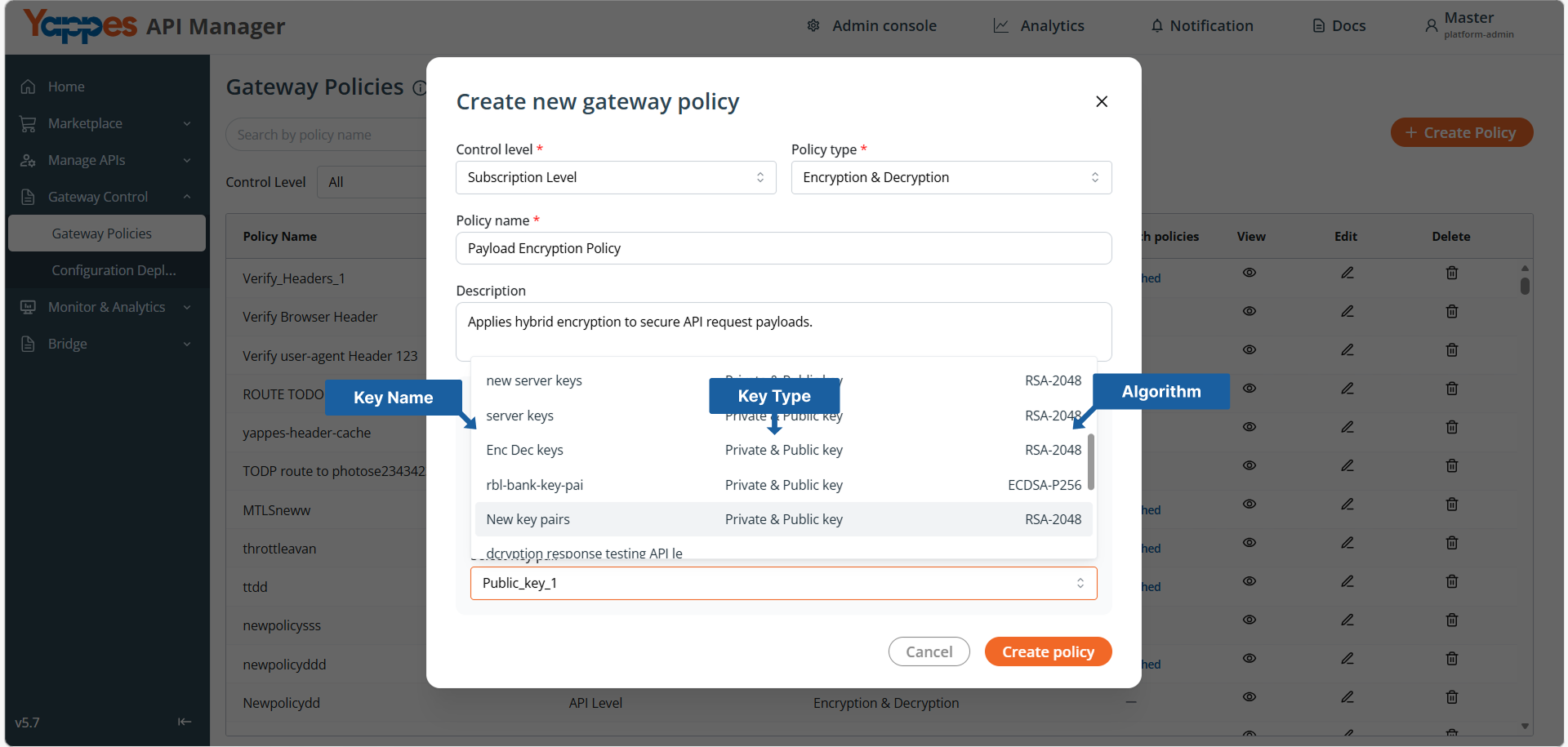
Note
Key visibility depends on the selected Scope:
-
For
Encryptionscopes:- Only
Public Key - Or
Private and Public Keyare available.
- Only
-
For
Decryptionscopes:- Only
Private Key - Or
Private and Public Keyare available.
- Only
Only active keys are displayed.
Step 8: Create the Policy
- Review all entered details.
- Click
Create policy.
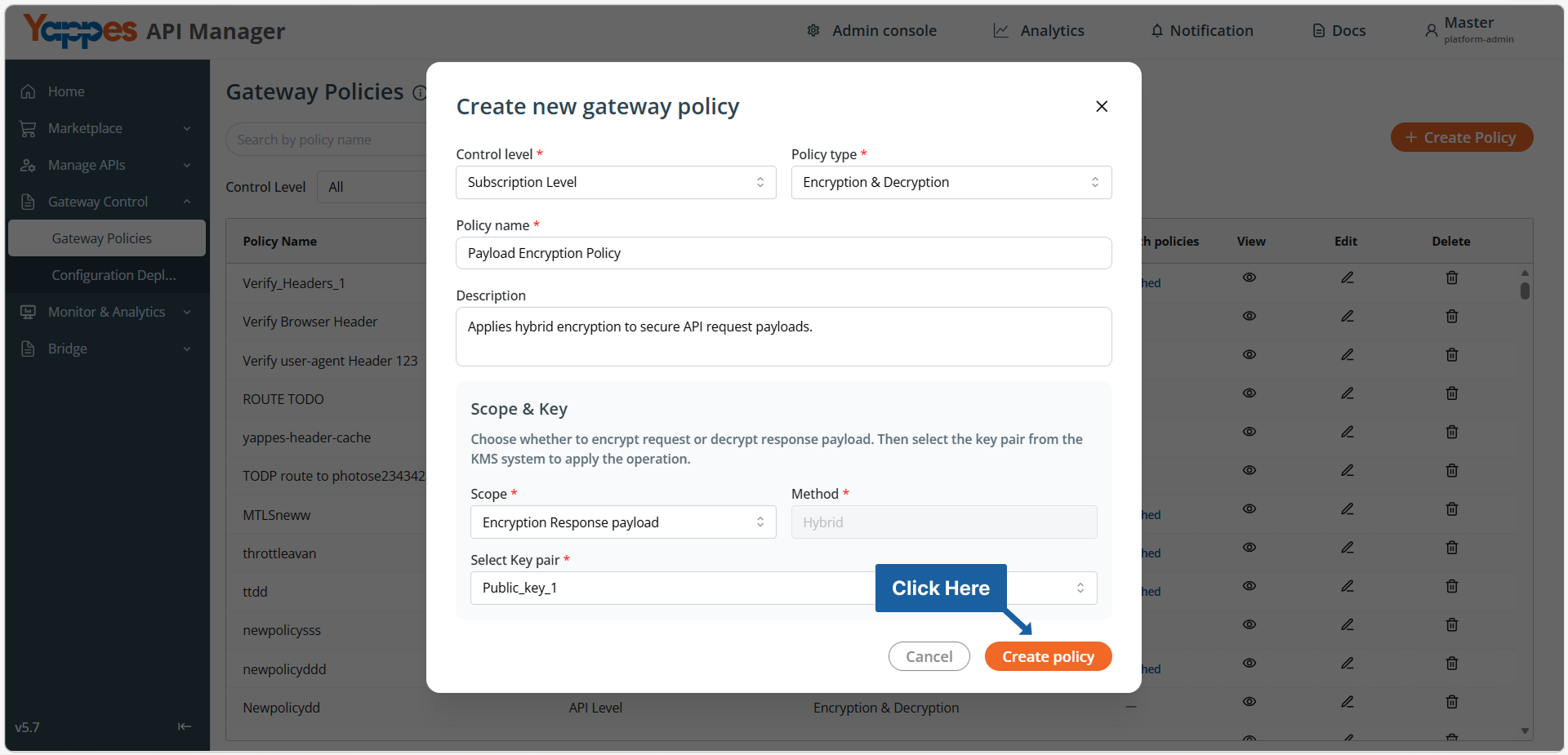
Success
The Encryption & Decryption policy is successfully created.
Attaching Encryption & Decryption Policy to Subscriptions
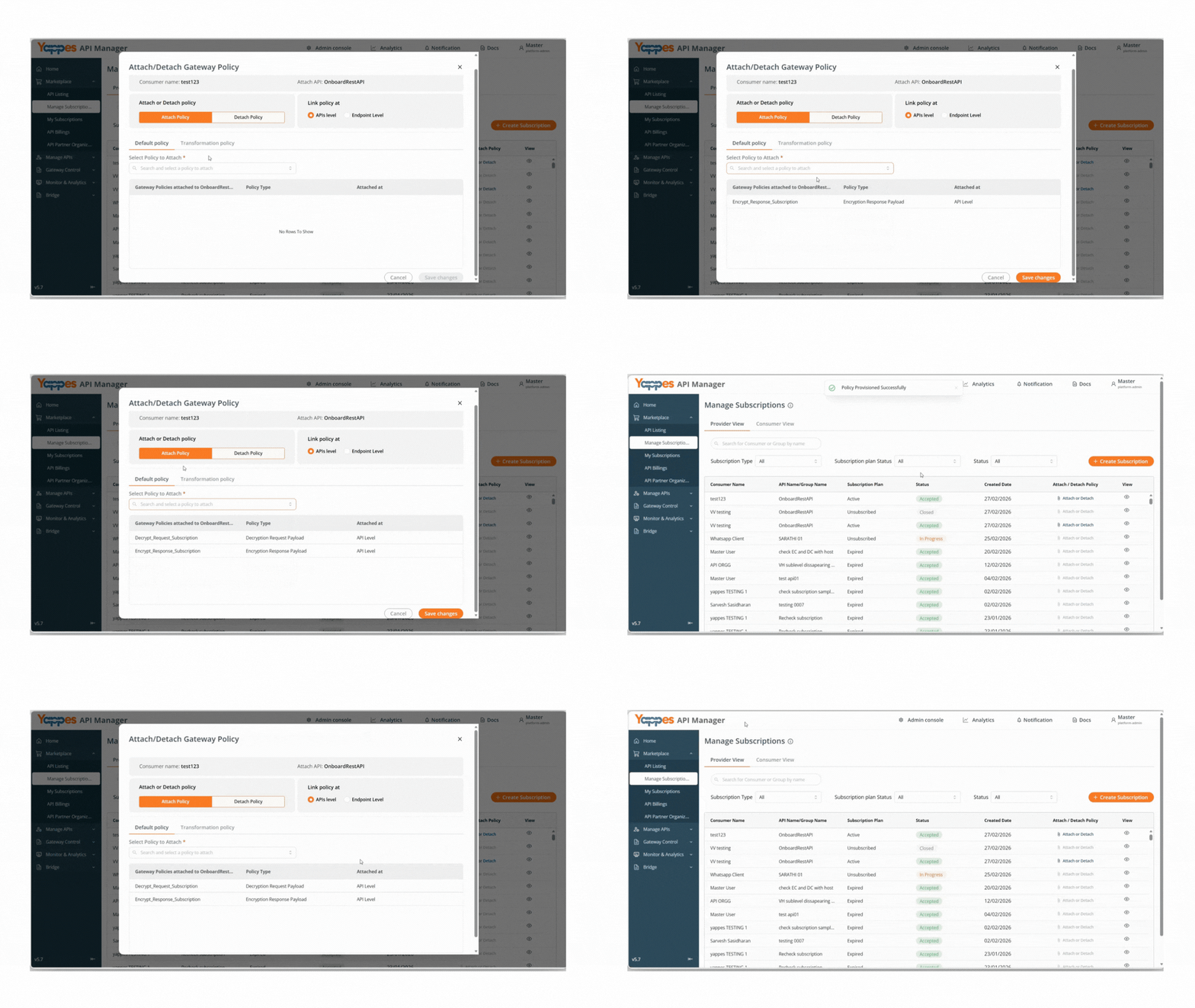
Step 1: Navigate to Manage Subscriptions
- From the main menu, click on
Manage Subscriptions. - The
Manage Subscriptionspage will display a list of all API subscriptions. - Locate the subscription(s) where you want to apply the
Encryption & Decryptionpolicy.
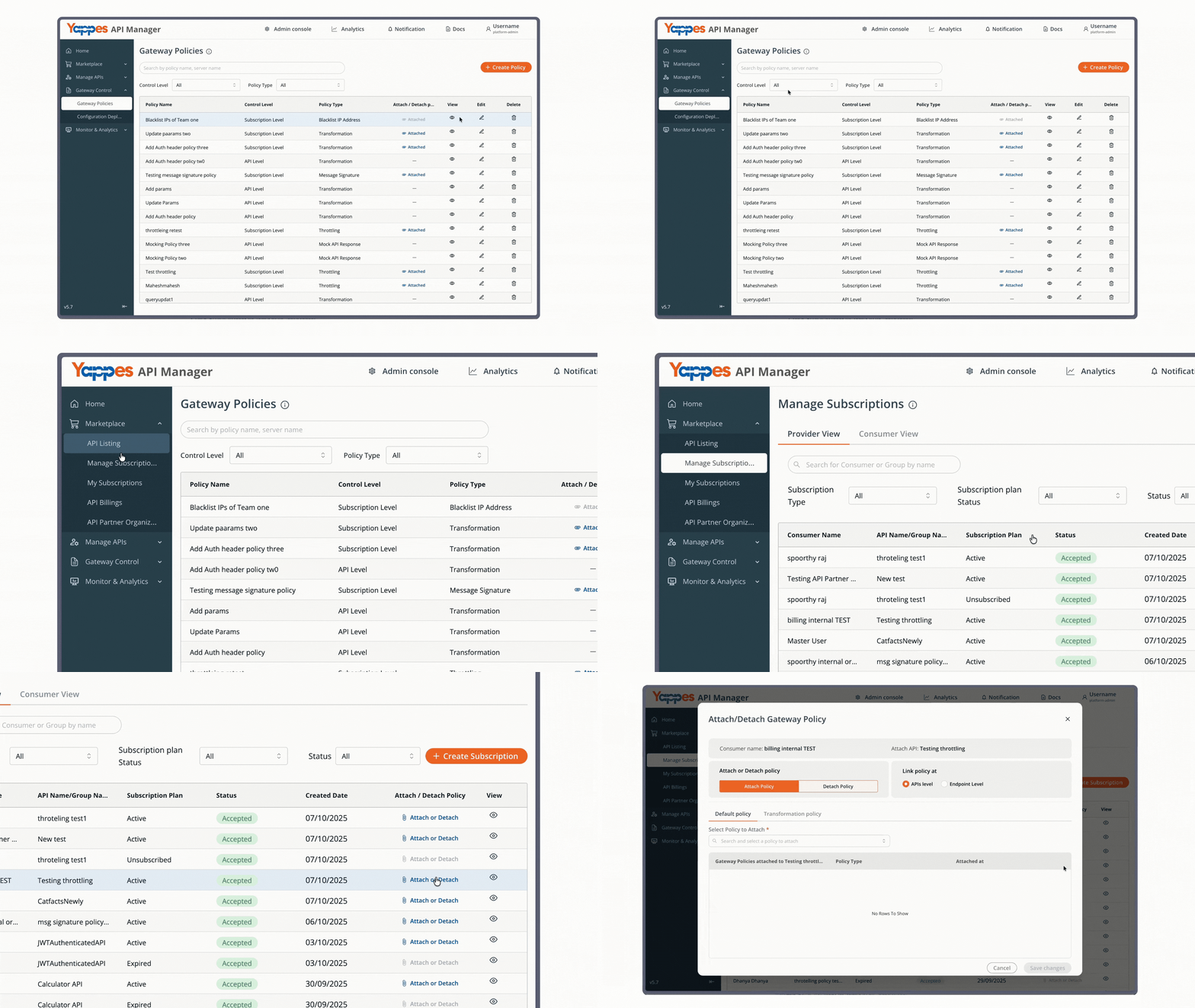
Step 2: Open the Policy Attachment Dialog
- Click the
Attach or Detachbutton for the relevant subscription. - The policy attachment dialog will open.
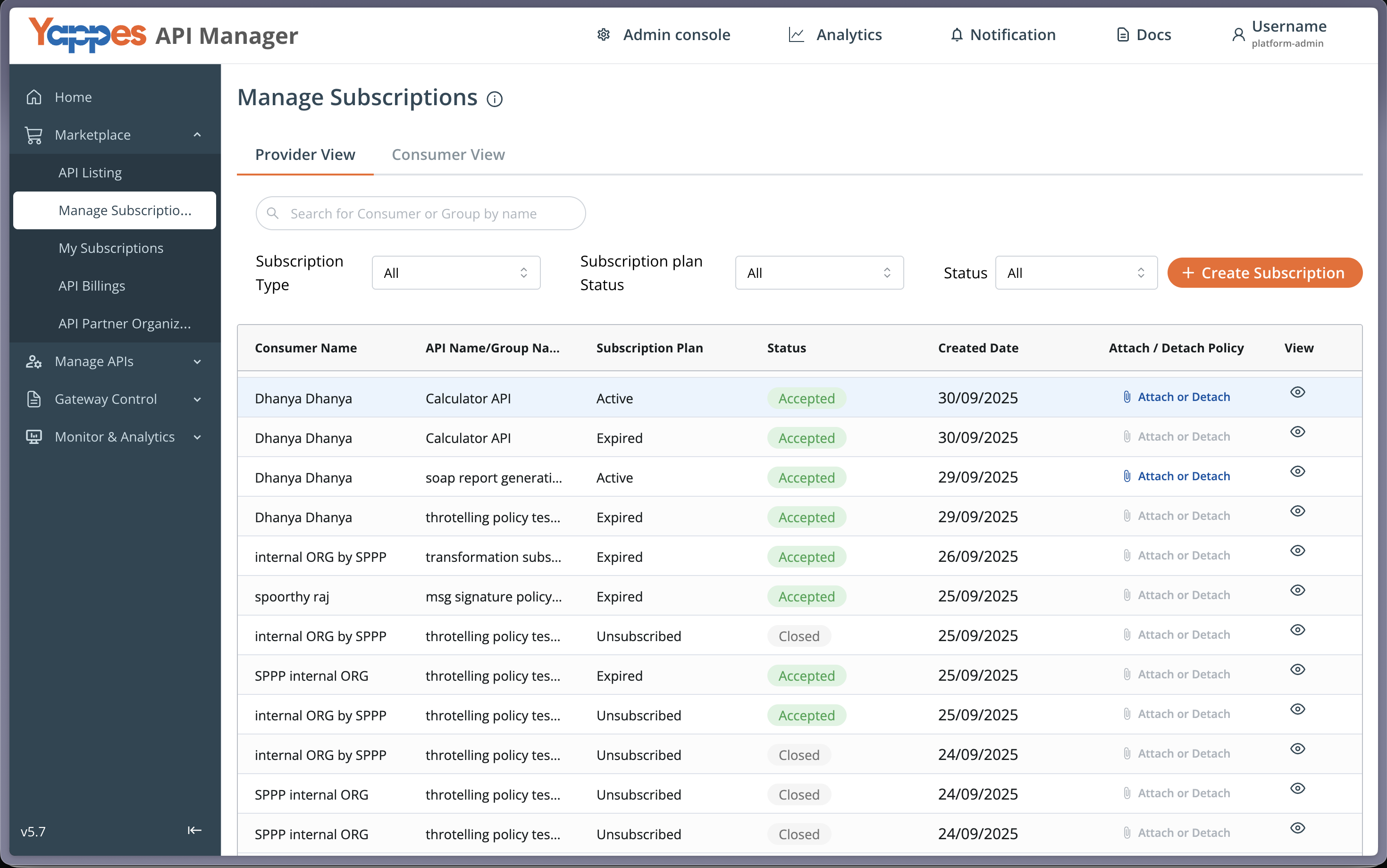
Step 3: Select and Attach the Policy
- In the
Select Policy to Attachdropdown field, choose your newly createdEncryption & Decryptionpolicy. - Click
Attachto apply the policy to the subscription.
For Subscription Level, the available scopes are:
Encryption Response payloadDecryption Request payload
Each scope can be attached independently (one policy per scope).
Key Visibility in Subscription Views
The displayed key depends on the attached Encryption & Decryption scope.
- If
Encryption Response payloadis attached: -
The Private Key will be displayed (if available).
-
If
Decryption Request payloadis attached: - The Public Key will be displayed (if available).
If the required key type is not available, it will not be shown.
The corresponding key information is visible in:
- Manage Subscription → Consumer View → Keys
- My Subscriptions → Security
Understanding the Interface
| Component | Description |
|---|---|
| Key Management Service | Stores and manages cryptographic keys used for encryption and decryption. |
| Encryption Scope | Defines whether encryption or decryption is applied to request or response payloads. |
| Key Pair Selection | Determines the RSA key used for hybrid (envelope) encryption. |
| Control Level | Defines enforcement scope (API Level or Subscription Level). |
Key Configuration Requirements
Cryptography Rules
- RSA-2048 / RSA-4096 / ECDSA-P256 are used for secure key exchange.
- AES-256-GCM is used for payload encryption.
- GCM authentication tags ensure payload integrity and authenticity.
Key Usage Rules
- Separate key pairs should be maintained for:
- Client ↔ Gateway communication
- Gateway ↔ Backend communication
- Keys must not be reused across different trust boundaries.
- Expired keys are automatically blocked and cannot be selected.
Payload Handling Rules
- Entire payload is encrypted.
- Partial encryption is not supported.
- Backend services must support decryption for encrypted payloads.
Best Practices for Configuration
| Best Practice | Benefit |
|---|---|
| Rotate keys regularly | Reduces cryptographic risk |
| Use separate keys per integration | Improves isolation |
| Test in non-production environments | Prevents outages |
| Combine with TLS | Enables defense-in-depth security |
| Document key ownership | Simplifies audits and compliance reviews |
Additional Best Practices
- Always pair encryption with strong authentication mechanisms.
- Use different keys for request and response scopes when applicable.
- Avoid hard-coding keys in client applications.
- Align key rotation policies with regulatory and compliance requirements.
What Happens If Encryption or Decryption Fails
If encryption or decryption fails:
- The request or response is blocked at the gateway.
- The backend service is not invoked.
- The client receives an encryption/decryption error response.
- The failure is logged for monitoring and audit purposes.
Verification and Testing
- Send an encrypted request and verify the backend receives a properly decrypted payload.
- Send an invalid or unencrypted payload and verify that it is rejected.
- Validate that encrypted responses are processed correctly by the client.
- Monitor gateway logs for encryption or decryption errors.
Impact of Policy Changes
- Key rotation may break client integrations if not properly coordinated.
- Removing decryption policies may cause backend processing failures.
- Always test policy changes in non-production environments before rolling out to production.
❓ Frequently Asked Questions
Does this replace TLS?
No. Payload encryption complements TLS.
Is encryption applied to headers?
No. Only payloads are encrypted.
Can backend services opt out?
No. Backend must support decryption when enabled.
Pro Tip
Encryption & Decryption in Yappes provides end-to-end payload-level security using hybrid RSA and AES-GCM encryption to protect sensitive API data across all communication hops.