Throttling Policy
Overview
The Yappes Throttling Policy allows you to control and limit the rate of API requests at the subscription level so you can protect your backend services from overload while ensuring fair usage across all consumers.
This powerful gateway policy feature enables administrators to set precise limits on the number of API requests that can be made within specified time windows, providing essential traffic management capabilities for your API ecosystem. As a subscription-level gateway policy, throttling integrates seamlessly into your existing Yappes API management workflow.
By implementing throttling policies, you can prevent API abuse, maintain consistent performance during peak usage periods, and differentiate service levels across different consumer tiers. This feature is particularly valuable when you need to enforce usage quotas, implement fair-use policies, or protect your infrastructure from potential denial-of-service scenarios.
The throttling implementation process involves two main phases:
1. Creating the policy through the Gateway Policies interface
2. Attaching it to specific subscriptions via the Manage Subscriptions page
This separation of policy creation and attachment provides maximum flexibility, allowing you to create reusable throttling configurations that can be applied across multiple subscriptions while maintaining centralized policy management.
Prerequisites
Before implementing the Throttling feature, ensure you have:
- Administrative access to the Yappes API Management platform
- Gateway Policy permissions to create and manage policies at the subscription level
- Subscription management access to attach policies to consumer subscriptions
- Understanding of your API usage patterns to set appropriate throttling limits
- Knowledge of consumer requirements to ensure throttling limits align with business needs
Custom error and message
For error scenarios, you can override the default HTTP status code, error code, and message. See Custom Error and Message.
Step-by-Step Implementation
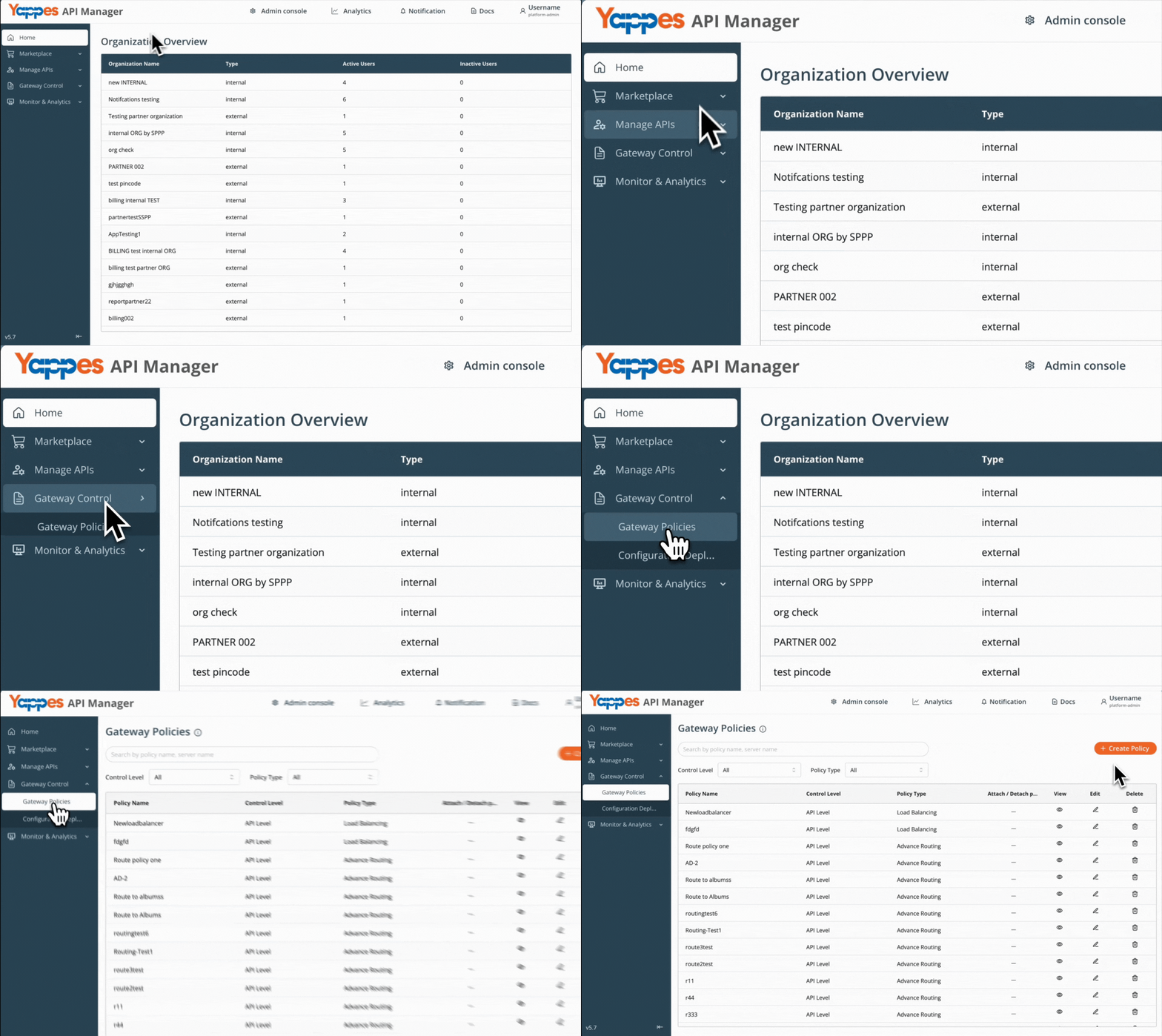
Step 1: Navigate to Gateway Policies
- Locate
Gateway Control → Gateway Policiesin the main navigation menu - The policies management interface will display
Step 2: Create a New Throttling Policy
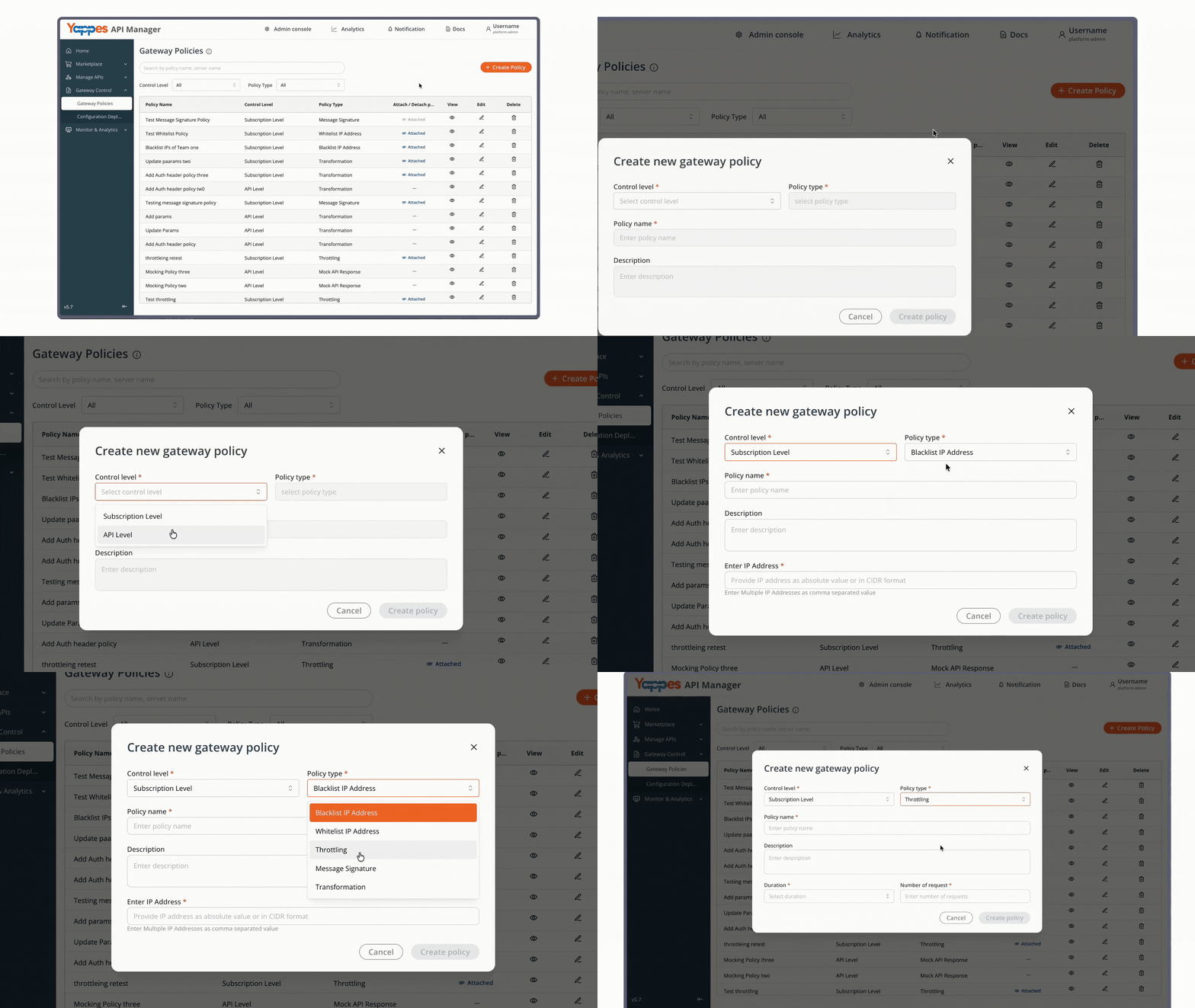
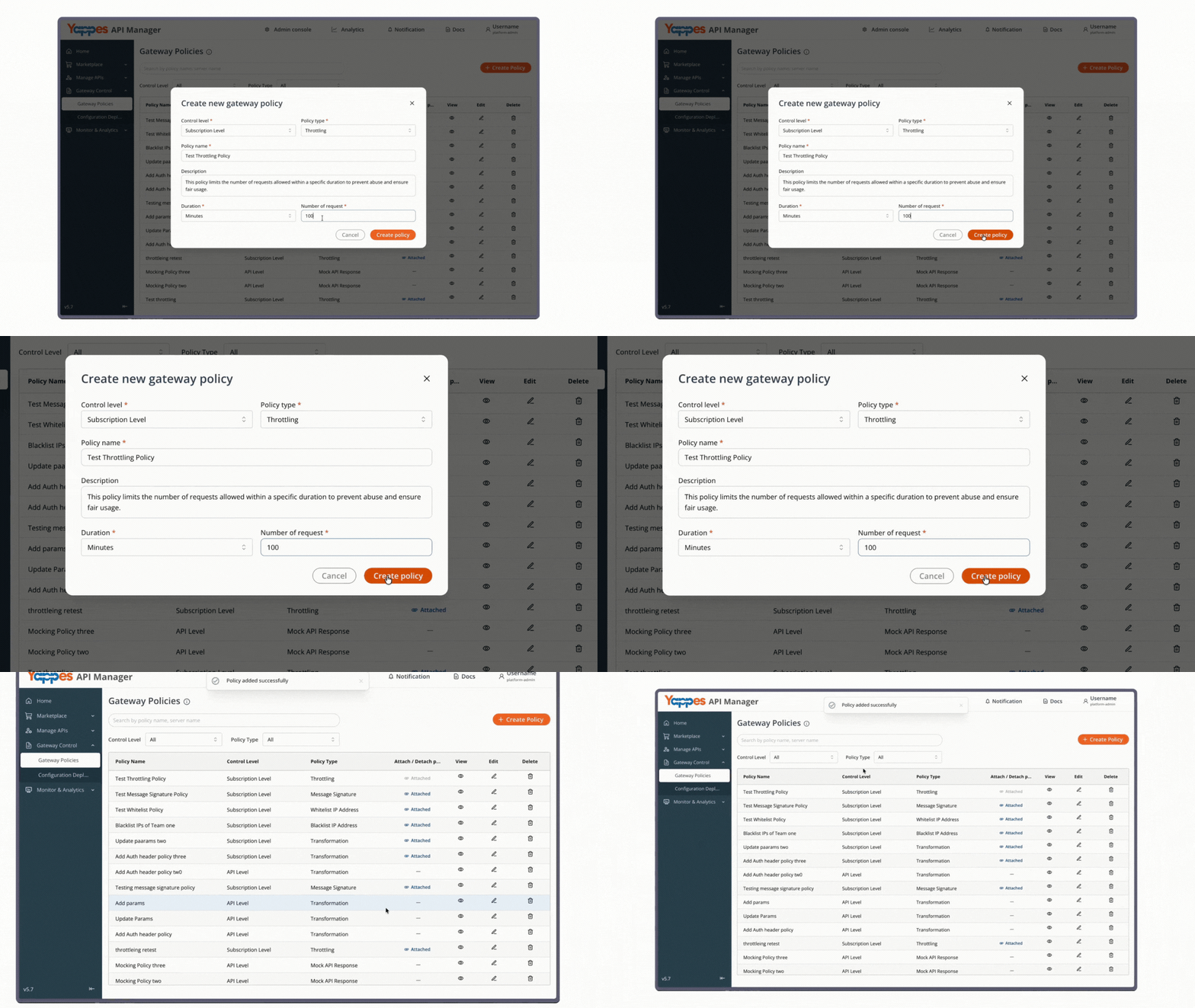
- Click
Create policyfrom the gateway page - Set the
Control LeveltoSubscription Level - In the
Policy Typedropdown, selectThrottling
Step 3: Set the Policy Name
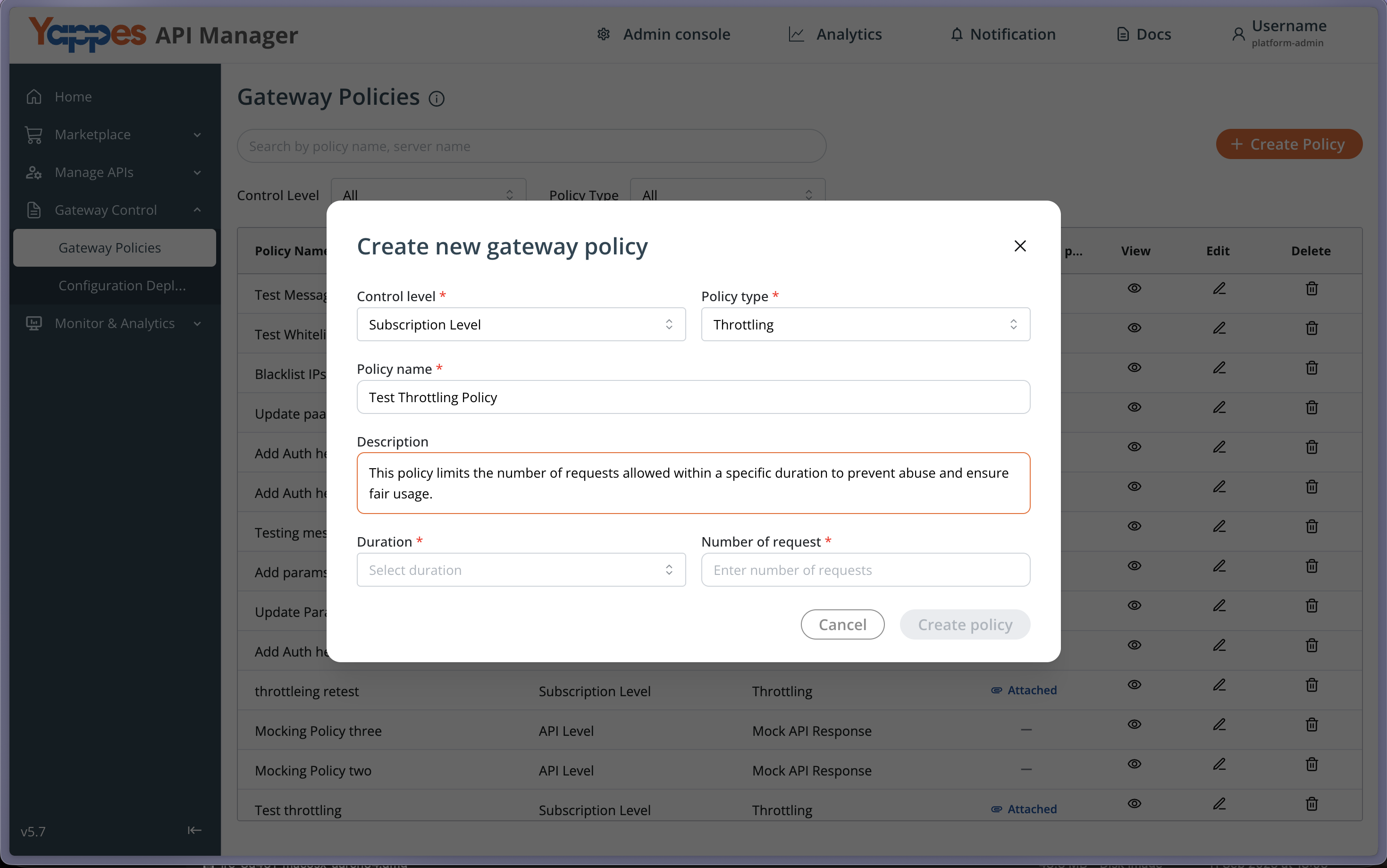
- Enter a descriptive name in the
Policy Name*field (e.g.,throttling_1) - Add a detailed description in the text area field to document the policy purpose
Step 4: Configure Throttling Parameters
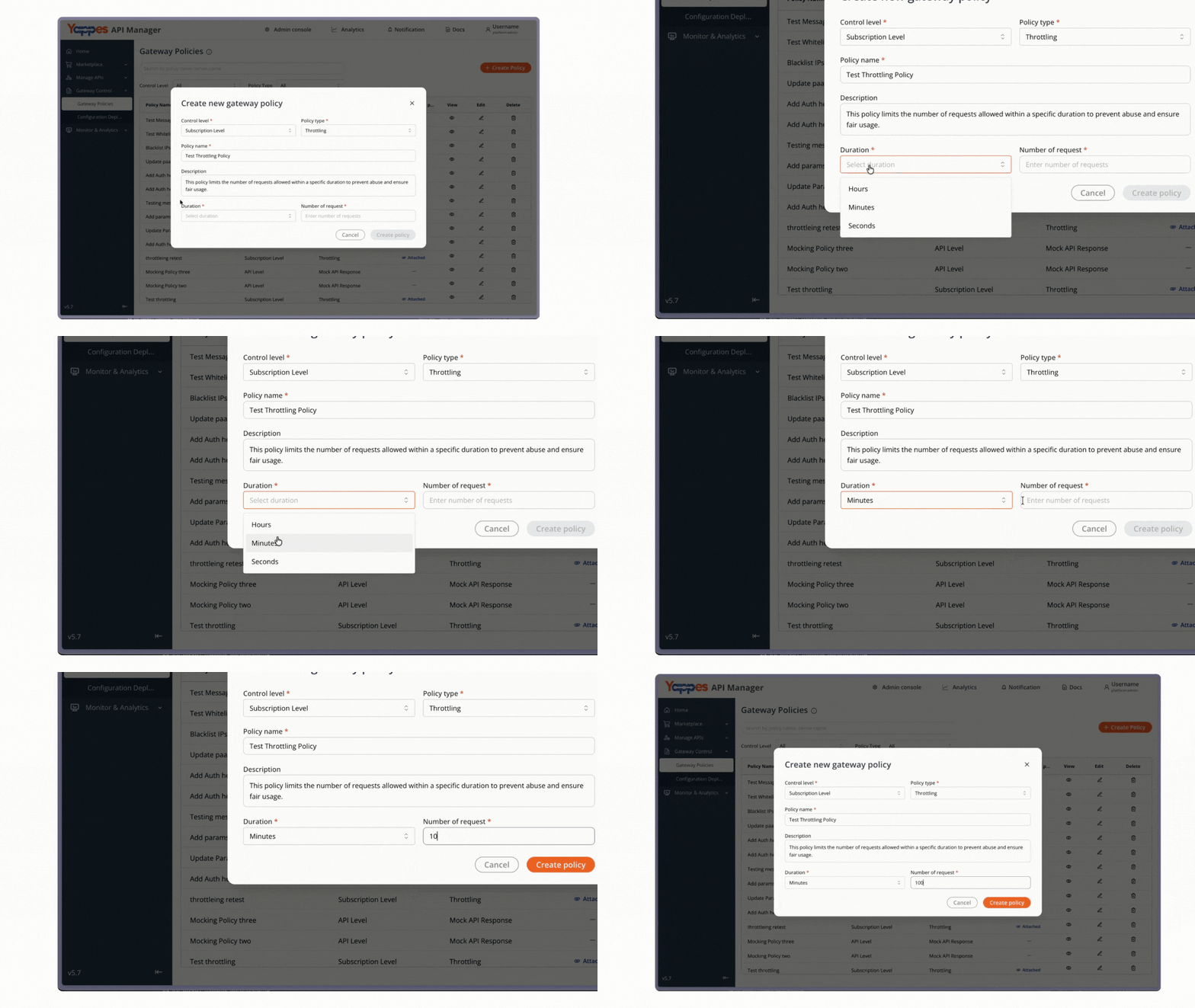
Complete the throttling policy configuration form with the following fields:
-
Duration*: Select the time window for throttling.- Options typically include:
1 minute,1 hour,1 day
- Options typically include:
-
Number of Requests*: Enter the maximum requests allowed.- Example:
1000
- Example:
Step 5 : Save the Throttling Policy
- Review all entered information for accuracy
- Click the Create Policy button to create the policy
- Wait for the confirmation message
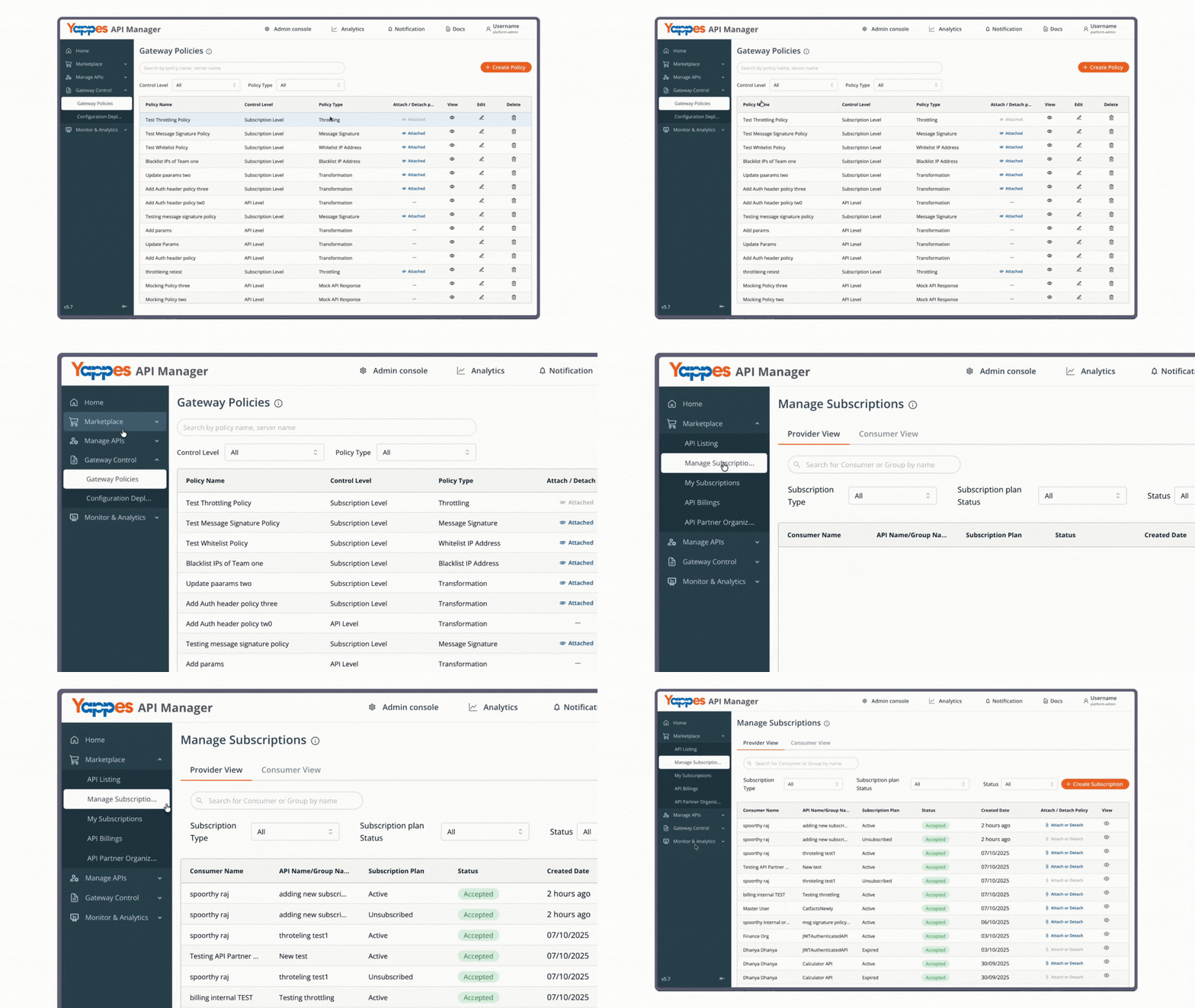
Step 6: Navigate to Manage Subscriptions
- From the main navigation menu, click on
Manage Subscriptions - The
Manage Subscriptionspage will display a list of all API subscriptions - Locate the subscription(s) where you want to apply the throttling policy
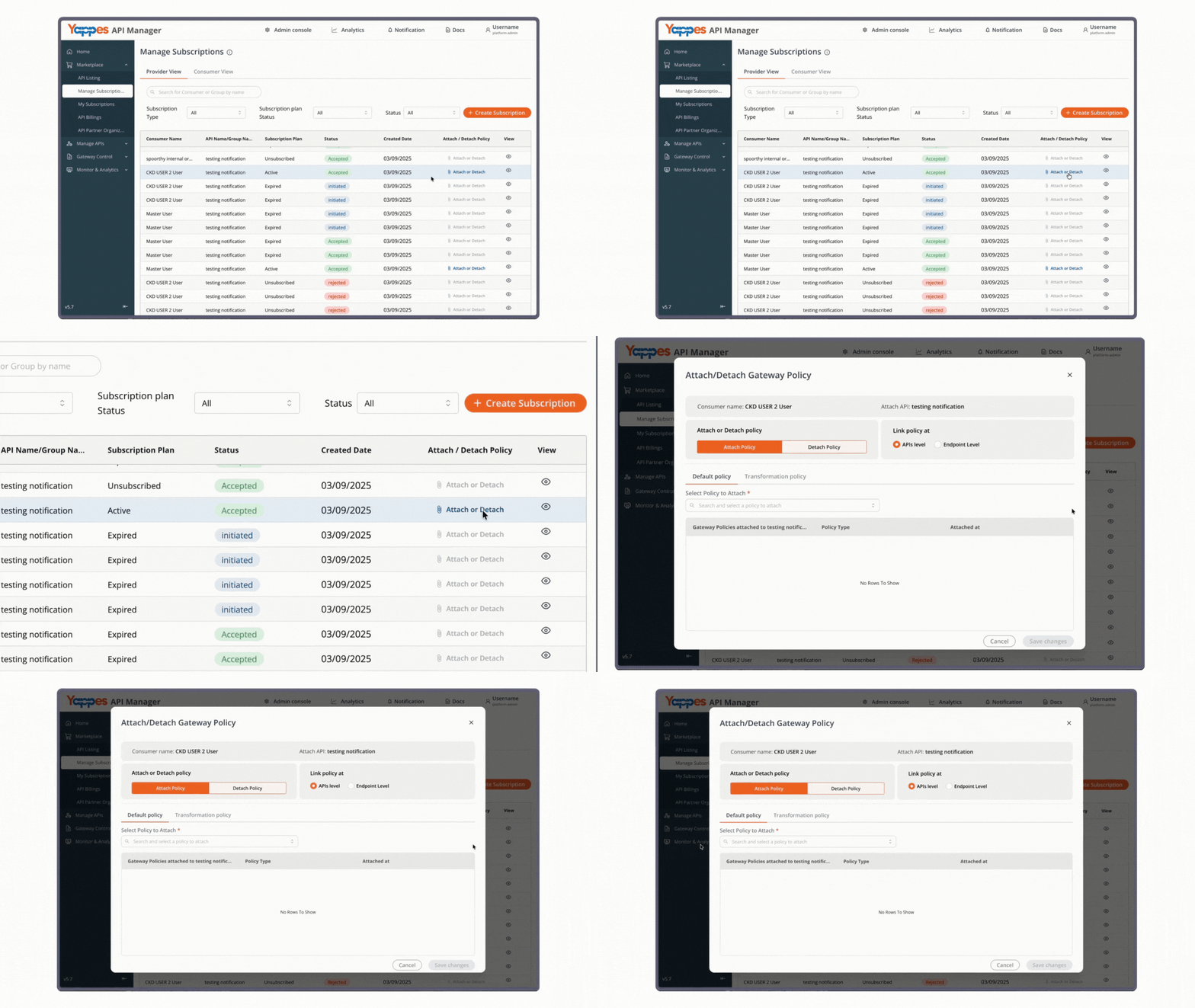
Step 7: Attach the Policy to Subscriptions
- Click the
Attach or Detachbutton for the relevant subscription - The policy attachment dialog will open
Step 8: Attach Policy to API or Endpoint
- In the
Select Policy to Attachdropdown field, choose your newly created throttling policy (e.g.,throttling_1) - Choose the attachment level:
API Level: Applies throttling to all endpoints of an APIEndpoint Level: Applies throttling to specific endpoints only
- Click the
Attach Policybutton next to your selection
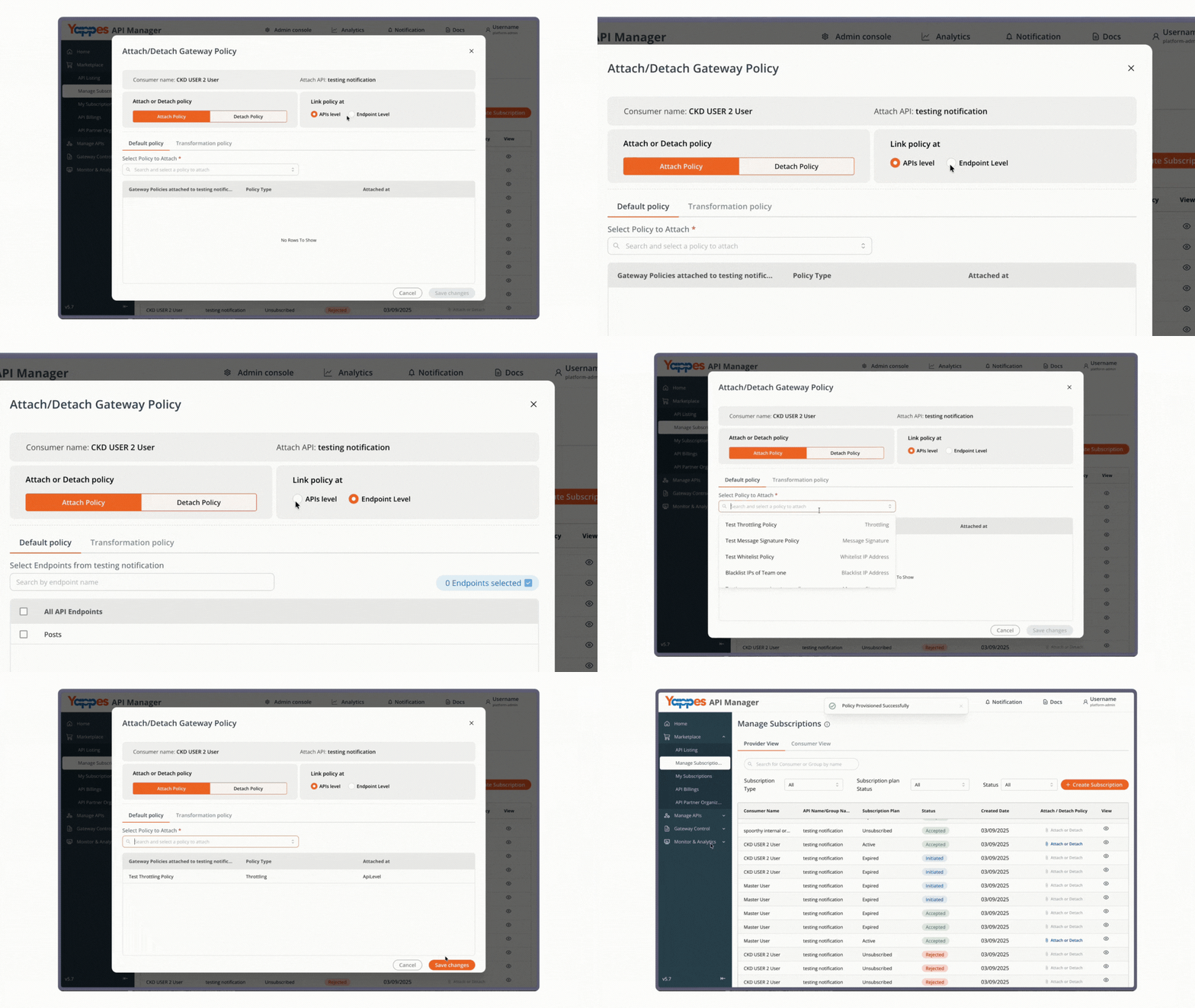
Step 9: Verify Policy Attachment
- Confirm that the policy appears in the attached policies list for the subscription
Understanding the Interface
Key Form Fields
- Control Level*: Required field that must be set to "Subscription Level" for throttling policies
- Policy Name*: Required unique identifier for your policy
- Policy Type*: Determines the functionality – select "Throttling"
- Description: Optional field for documenting the policy purpose
- Duration*: Time window for counting (common options: minute, hour, day)
- Number of Requests*: Maximum allowed requests (integer value based on requirements)
Subscription Management Interface
The Manage Subscriptions section provides:
- List of all active API subscriptions
- Consumer/organization information
- API names and subscriptions
- Attach/Detach functionality for policy management
Configuration and Settings
Recommended Throttling Configurations
Best Practice: Start with conservative limits and adjust based on actual usage patterns.
Development Environment
- Duration: 1 minute
- Requests: 50
- Purpose: Prevent runaway test scripts
Production - Basic Tier
- Duration: 1 hour
- Requests: 1,000
- Purpose: Standard API access for basic users
Production - Premium Tier
- Duration: 1 hour
- Requests: 10,000
- Purpose: Enhanced access for premium subscribers
Key Configuration Considerations
Duration Selection Impact
- Shorter durations (e.g., 1 minute) provide more granular control but may impact legitimate burst usage
- Longer durations (e.g., 1 day) allow for usage flexibility but provide less immediate protection
Request Limit Calculation
- Consider average request size and processing time
- Factor in peak usage periods
- Allow headroom for legitimate usage spikes
Attachment Level Strategy
- API Level: Use when all endpoints share similar resource requirements
- Endpoint Level: Use for endpoints with specific performance characteristics
Verification and Testing
Confirming Policy Creation
- Navigate to the
Gateway Policiespage - Verify your policy appears in the list with the correct type: Throttling
- Check that policy details match your configuration
Testing Throttling Enforcement
- Make API requests using the affected subscription credentials
- Monitor request count as it approaches the configured limit
- Verify throttling response when the limit is exceeded:
{
  "error": "Rate limit exceeded",
  "retry_after": 3600
}
- Confirm request access resets after the duration period expires
Monitoring Checklist
- Policy appears in the
Gateway Policieslist - Policy is attached to the correct subscriptions
- API requests are counted correctly
- Throttling activates at the configured limit
- Request counter resets after the duration period
- Error messages are returned appropriately
Troubleshooting
Common Issues and Solutions
Issue: Throttling policy not enforcing limits
Solution:
- Verify policy is attached at the correct level (API vs Endpoint)
- Check
Control Levelis set toSubscription Level - Confirm policy was saved successfully after creation
- Allow 2–5 minutes for policy propagation
Issue: Requests blocked below configured limit
Solution:
- Review
Durationsetting – may be shorter than expected - Check if multiple policies are attached
- Verify request counting methodology matches expectations
Issue: Cannot create throttling policy
Solution:
- Ensure
Subscription Levelis selected forControl Level - Verify all required fields are populated
- Check for special characters in the policy name
- Confirm you have necessary permissions
Issue: Policy not appearing in attachment list
Solution:
- Return to
Gateway Policiesand confirm policy exists - Verify policy type is Throttling
- Check policy control level matches subscription requirements
- Refresh the
Manage Subscriptionspage
Error Messages
| Error Message | Cause | Resolution |
|---|---|---|
"Policy creation failed" |
Missing required fields | Complete all mandatory fields |
"Invalid duration" |
Unsupported time window | Select from available options |
"Policy not found" |
Policy deleted or not saved | Recreate policy and save |
"Attachment failed" |
Permission or system issue | Check permissions and retry |
Pro Tip
Start with slightly higher throttling limits than your expected peak usage. This prevents false positives while still giving you room to tighten limits once you establish accurate traffic baselines.