XML Threat Protection
Overview
XML Threat Protection in Yappes guards XML payloads at the API Gateway against oversized documents, excessive element counts, and deeply nested structures that can indicate denial-of-service or injection attacks.
This feature helps organizations to:
- Limit XML element count, attribute count, and nesting depth before requests reach backend services
- Block malicious or abnormally large XML structures early in the request lifecycle
- Protect backend systems from XML-based abuse without changing application code
- Enforce consistent structural limits across XML API endpoints
When applied at the API or subscription level, XML Threat Protection enforces structural limits on XML payloads at the Yappes Gateway before they reach backend services.
XML Threat Protection aligns with OWASP API Security best practices for input validation and payload size control.
When to Use XML Threat Protection
Use XML Threat Protection when:
- APIs accept XML request or response payloads (
application/xml) - You need to cap element count, attribute count, text length, or nesting depth at the gateway
- Backend services should be protected from oversized or deeply nested XML
- You want separate request and response limits per endpoint
When Not to Use XML Threat Protection
Avoid using XML Threat Protection in the following scenarios:
- The endpoint uses JSON content type only (use JSON Threat Protection instead)
- You need pattern-based blocking on URI, headers, or query parameters (use Regex Threat Protection)
- Full XML schema (XSD) validation is required (consider Schema Validation for structural contracts)
Prerequisites
Before configuring XML Threat Protection policies, ensure the following requirements are met.
Required Access and Permissions
Common Requirements
- Active Yappes platform account
API Manageraccess- Permission to create and manage Gateway Policies
- At least one API created under
My APIs
API Level
- Endpoint content type is
application/xml - For GET endpoints, only Response context is supported (no request body)
Subscription Level
- API must be
published - An
active subscriptionmust be available on the Manage Subscriptions page
System Requirements
- Supported web browser:
Chrome,Edge, orFirefox
JSON Configuration
XML Threat Protection is configured in a code editor labeled JSON Configuration. A default template is loaded when you select Context (Request or Response). Edit the JSON object to set limits for your endpoint.
Info
Yappes policy language will be in JSON format (regardless of the endpoint content type).
Configuration Properties
| Property | Required | Description | Default |
|---|---|---|---|
enabled |
Yes | Turns threat protection on or off for this policy. Must be "true" or "false" (string, not JSON boolean) |
"true" |
continueOnError |
Yes | If "true", the request proceeds even when evaluation fails. Must be "true" or "false" |
"false" |
limits.elementCount |
No | Maximum number of XML elements allowed in the document (positive integer) | 200 |
limits.attributeCount |
No | Maximum number of attributes allowed (positive integer) | 100 |
limits.textNodeLength |
No | Maximum length of text node content (positive integer) | 1000 |
limits.containerDepth |
No | Maximum nesting depth of XML elements (positive integer) | 15 |
Default Template Example
{
  "enabled": "true",
  "continueOnError": "false",
  "limits": {
    "elementCount": 200,
    "attributeCount": 100,
    "textNodeLength": 1000,
    "containerDepth": 15
  }
}
Note
- Click the Expand icon to open the editor in full-screen mode for easier editing.
- The configuration must be valid JSON.
enabledandcontinueOnErrormust be the strings"true"or"false", not JSON booleans.
Content-type warnings
Endpoint tab: When the endpoint uses application/xml, the info banner shows: "This endpoint uses XML-compatible content type, so only XML Threat Protection is available." The same banner also includes the request/response attachment limit and the JSON format note.
Gateway Policies: If you select an endpoint whose content type is not application/xml, the platform shows: "This endpoint's content type is not compatible with XML Threat Protection. Please select an endpoint with content type application/xml." The configuration editor is hidden and save is blocked until you select an XML endpoint.
Custom error and message
For error scenarios, you can override the default HTTP status code, error code, and message. See Custom Error and Message.
Step-by-Step Implementation
Method 1: Creating XML Threat Protection from the Endpoint Tab
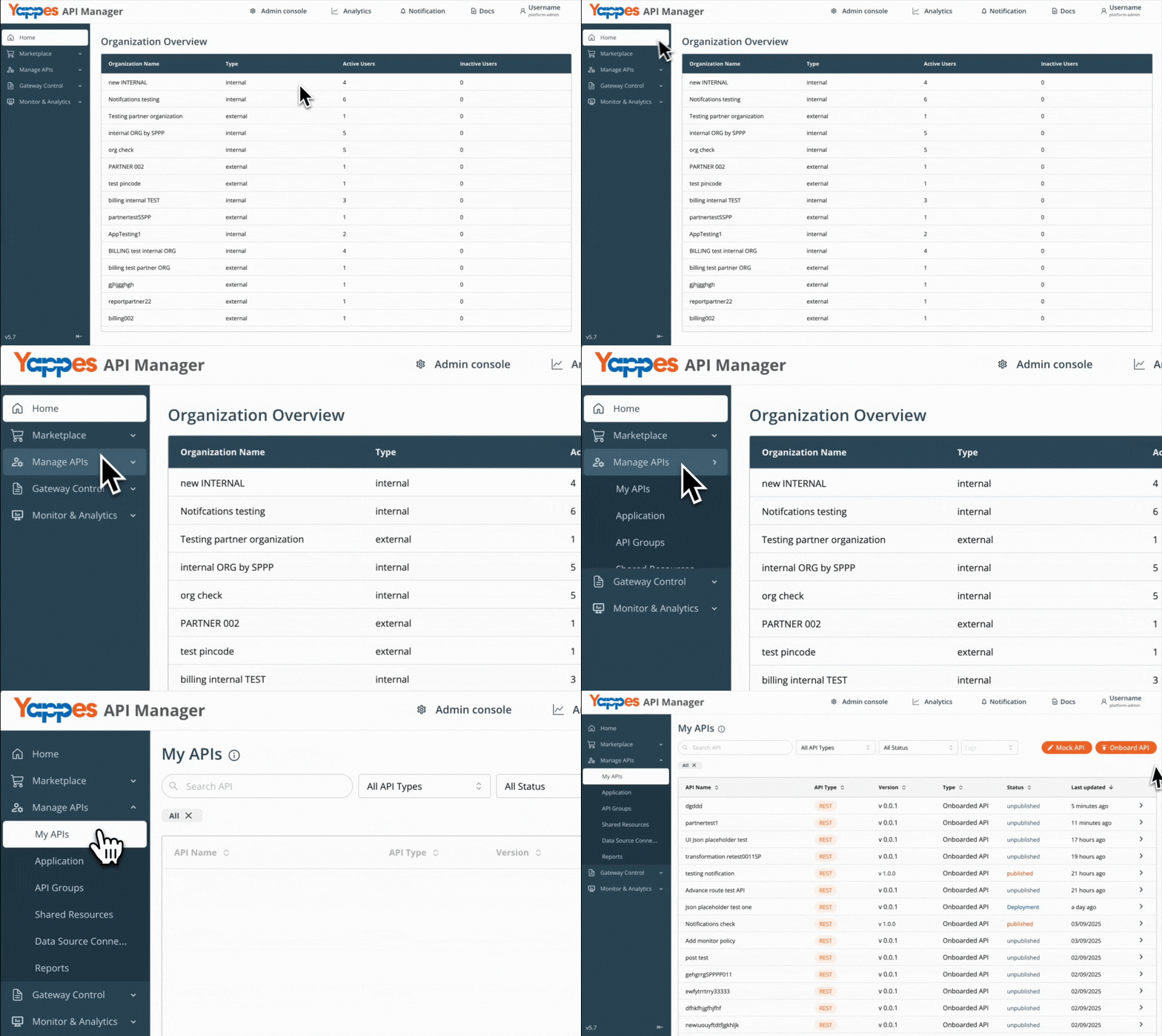
Step 1: Navigate to API Manager
- Click on
Manage APIsin the main dashboard. - Select
My APIsfrom the submenu.
Step 2: Open Your API and Select an Endpoint
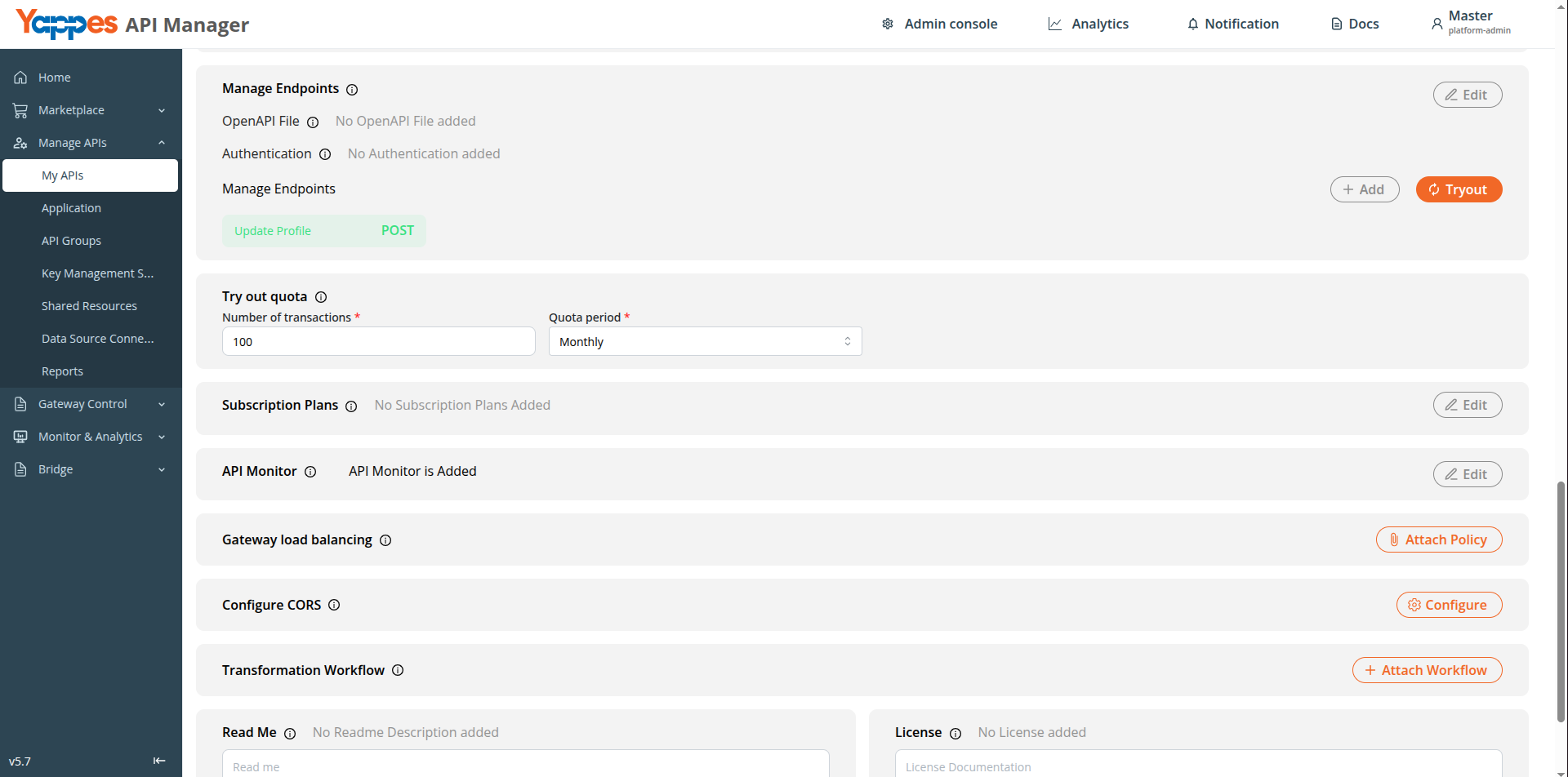
- For a new API, onboard from My APIs using the guide for your API type, then open endpoint details.
- For an existing API, select it from
My APIsand click the target endpoint. - The endpoint must use content type
application/xml.
Step 3: Open XML Threat Protection Tab
- Click the
XML Threat Protectiontab on the endpoint details panel. - Click
XML Threat Protectionto create a new policy, orEdit/Viewon an existing attached policy.
Step 4: Enter Policy Details
- Enter a descriptive
Policy name(e.g.SoapOperationXmlResponseProtection). - Add a
Description(max 500 characters). Select APIand endpoint fields are read-only.
Step 5: Select Context and Configure JSON
- Select
Context—RequestorResponse. - On
GETendpoints, onlyResponseis available. - Edit the
JSON Configurationin the editor. Refer to JSON Configuration for property details. - The endpoint tab info banner shows that only XML Threat Protection is available for XML-compatible content types, and that policy language is JSON regardless of content type.
Step 6: Create the Policy
- Review the configuration.
- Click
Create policy(orSavewhen editing). Expected Result: The policy is attached to the endpoint.
Info
Each endpoint can have one request and one response XML Threat Protection policy. On GET endpoints, you can attach one response policy only.
Method 2: Creating XML Threat Protection from Gateway Policies Page
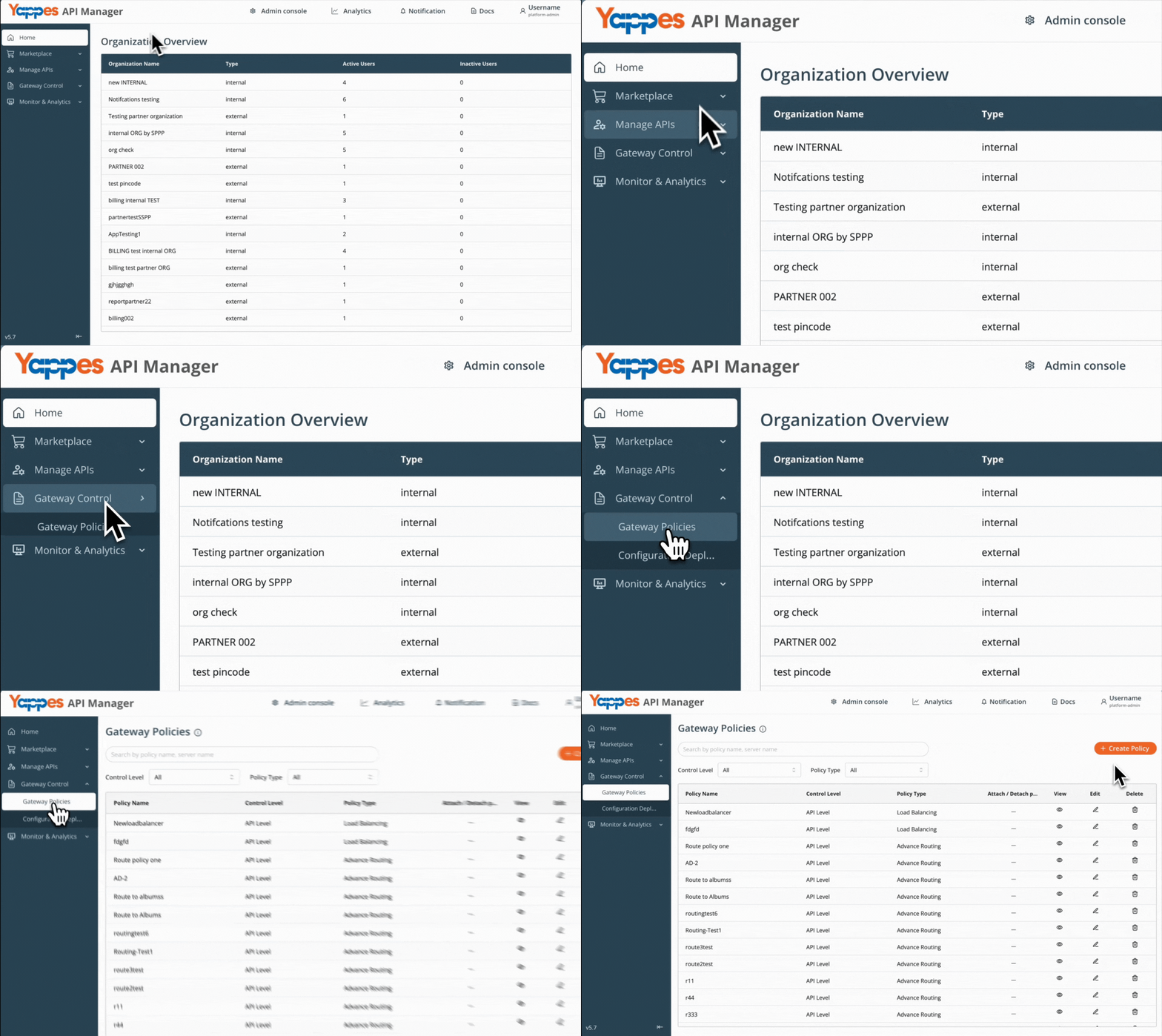
Step 1: Navigate to Gateway Policies
- Locate
Gateway Control → Gateway Policiesin the main navigation menu.
Step 2: Configure Policy Settings
- Click
Create Policy. - Select the appropriate
Control Levelbased on where the policy is required: API Level— Applies XML Threat Protection to a specific API endpoint at creation.Subscription Level— Creates a reusable policy for attachment to consumer subscription endpoints.- In
Policy Type, selectXML Threat Protection.
For general policy creation guidance, see Creating a policy (w/edit and delete).
Step 3: Define Policy Details
- Enter
Policy NameandDescription.
Step 4: Select API and Endpoint (API Level Only)
- If
Control Levelis set toAPI Level: - Select the target
APIandSource endpoint(orOperationfor SOAP APIs). - XML Threat Protection requires endpoint content type
application/xml. - If the selected endpoint is not XML-compatible, the platform shows: "This endpoint's content type is not compatible with XML Threat Protection. Please select an endpoint with content type application/xml." The editor is hidden and save is blocked.
- If
Control Levelis set toSubscription Level: - No API or endpoint selection is required.
Step 5: Select Context and Configure JSON
- Select
Context—RequestorResponse. - On
API Levelwith aGETendpoint, onlyResponseis available. - Edit
JSON Configurationin the editor. Refer to JSON Configuration for property details. - The editor banner shows: "Yappes policy language will be in JSON format (regardless of the endpoint content type)."
Info
At Subscription Level, both Request and Response context are available during policy creation. GET endpoint restrictions apply when you attach the policy to endpoints in Manage Subscriptions — request-context policies are not listed when a GET endpoint is selected.
Step 6: Create the Policy
- Review all settings.
- Click
Create Policy.
Success
The XML Threat Protection policy is successfully created.
Attaching XML Threat Protection Policy to Subscriptions
Use this flow when you created a policy with Control Level set to Subscription Level in Gateway Policies.
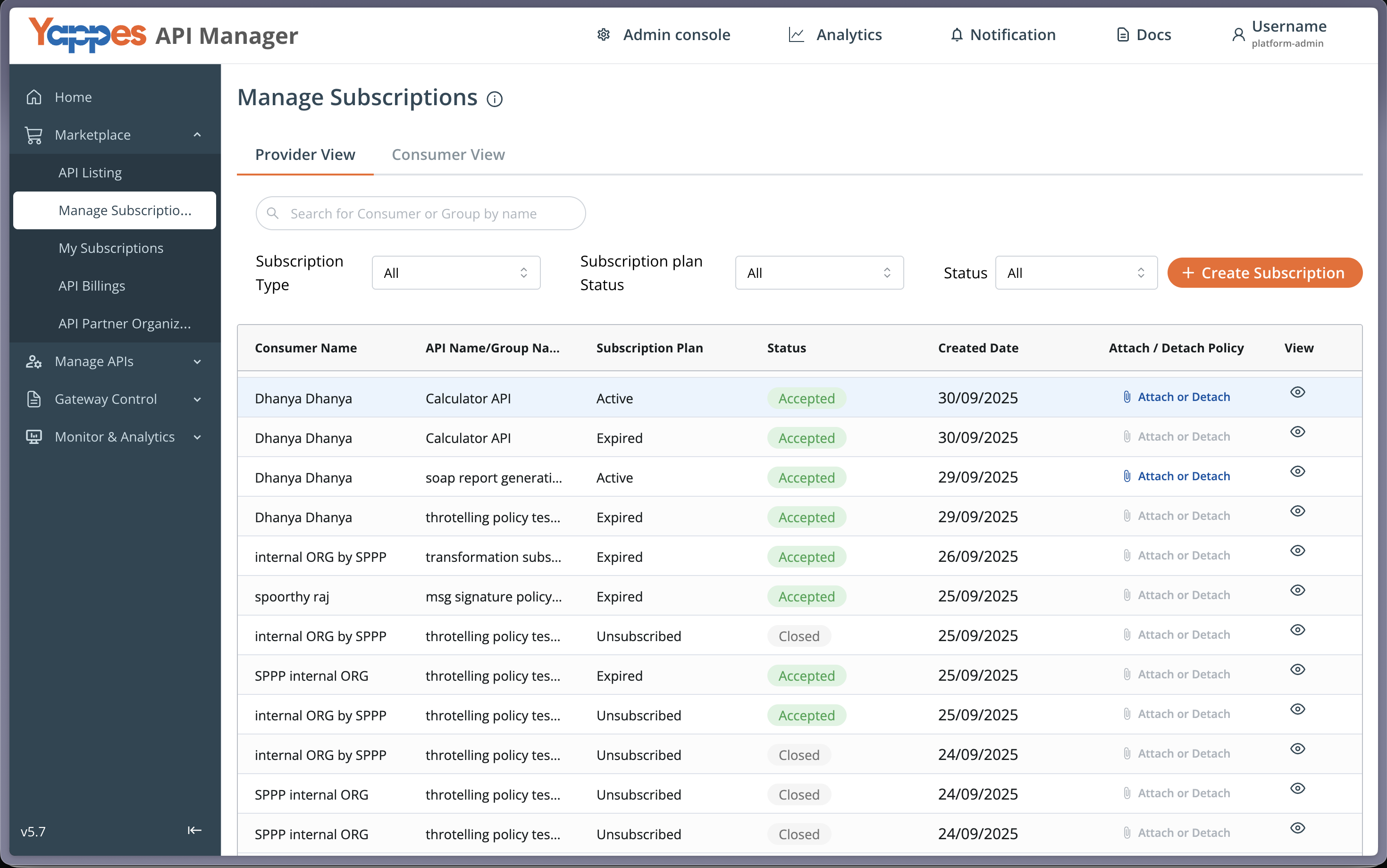
Step 1: Navigate to Manage Subscriptions
- From the main menu, click
Manage Subscriptions. - The
Manage Subscriptionspage displays a list of all API subscriptions. - Locate the subscription where you want to apply the XML Threat Protection policy.
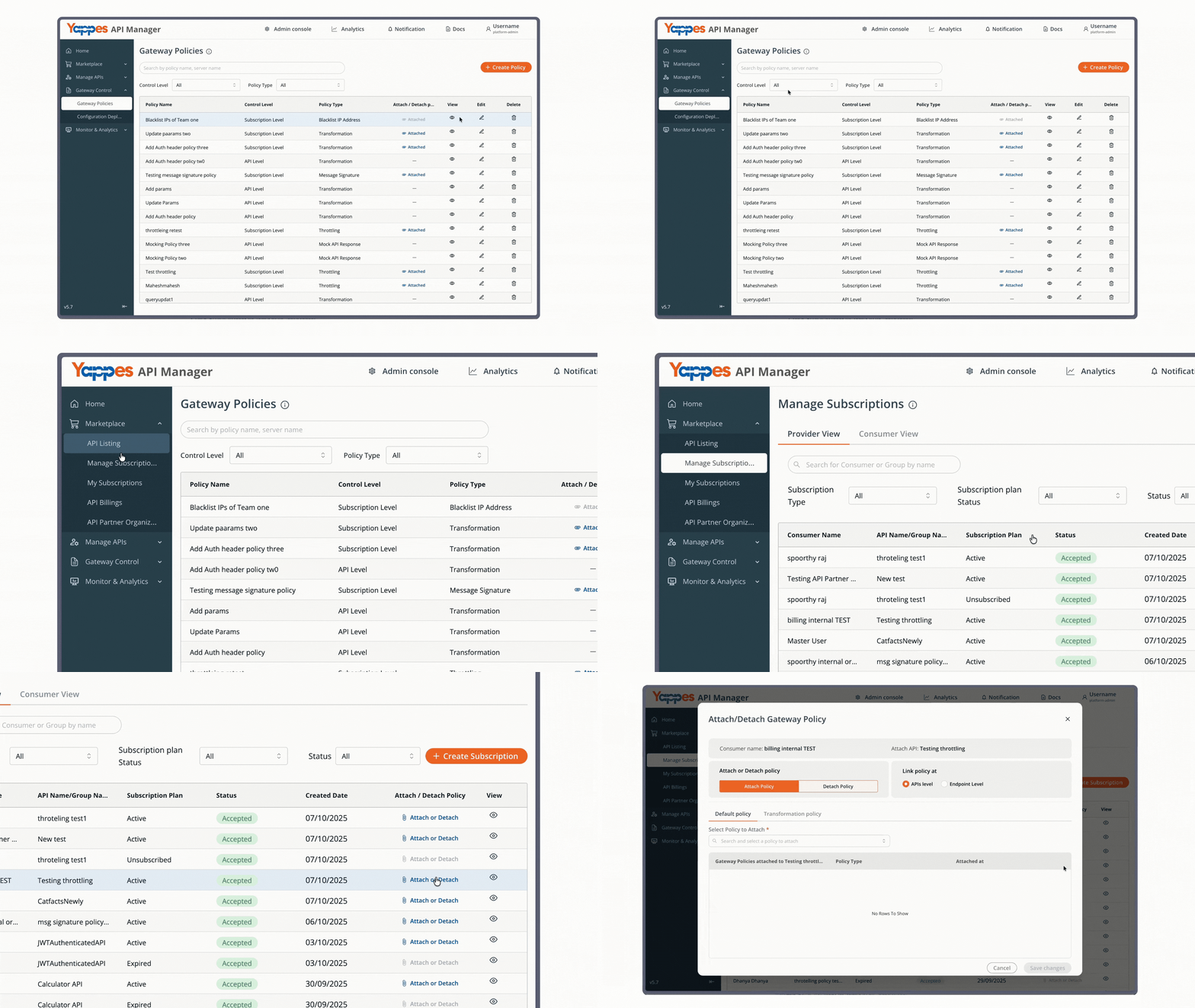
Step 2: Open the Policy Attachment Dialog
- Click
Attach or Detachfor the relevant subscription. - The policy attachment dialog opens.
Step 3: Select Endpoint Level
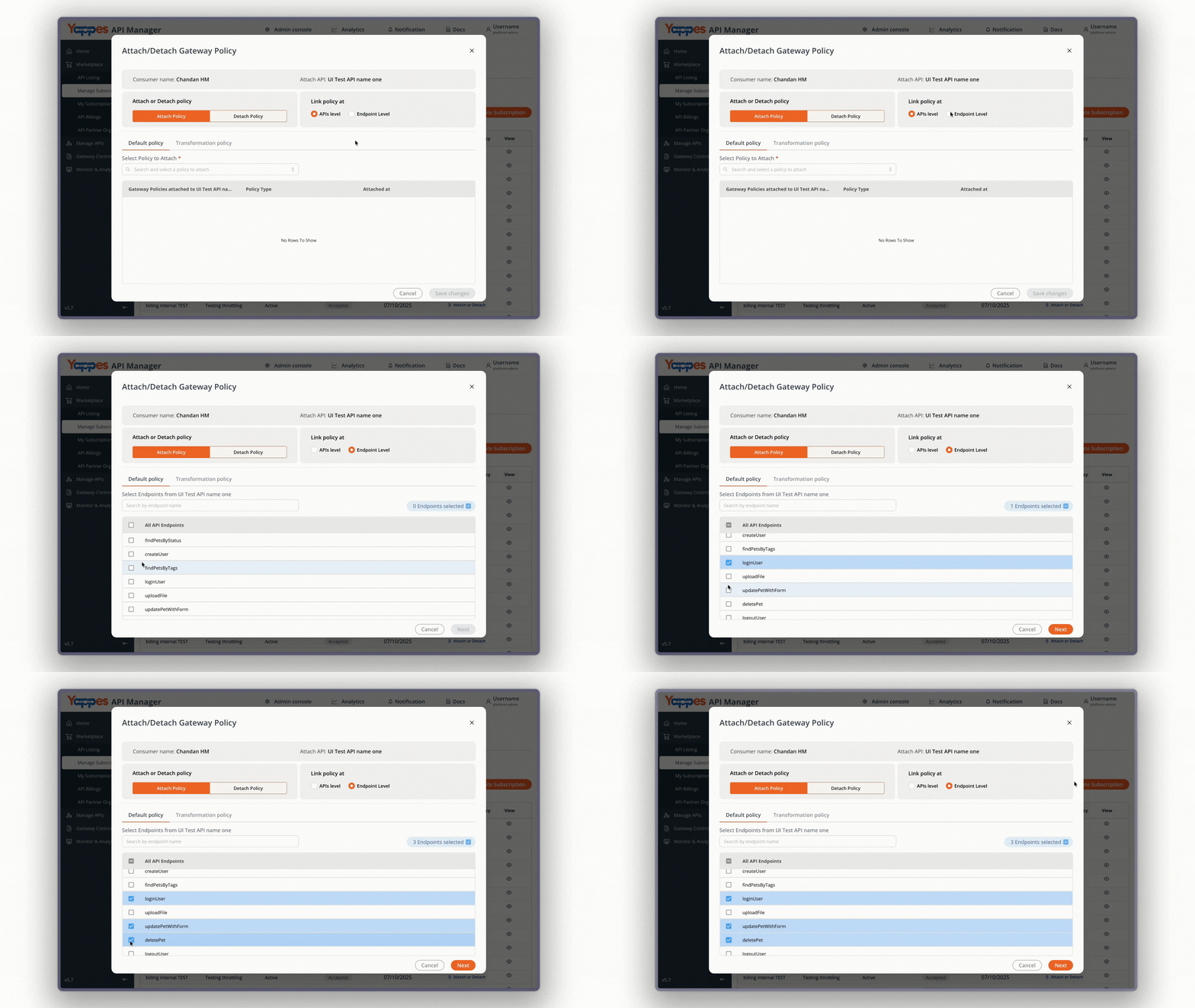
- In the
Attach Policytab, selectEndpoint Level. - XML Threat Protection policies do not appear when
API Levelis selected. The platform shows: "Custom Plugin, JSON, XML and Regex Threat Protections are not listed and cannot be attached at API level."
Step 4: Select Endpoints
- Select one or more endpoints from the endpoint list.
- Only endpoints with
application/xml,text/xml, or*+xmlcontent type are compatible with XML Threat Protection policies. - If a
GETendpoint is among your selection,Requestcontext policies are not available for attachment. - After selecting endpoints, proceed to the policy selection step.
For general attach and detach steps, see Manage Subscriptions — Attach/Detach Gateway Policies.
Step 5: Select and Attach the Policy
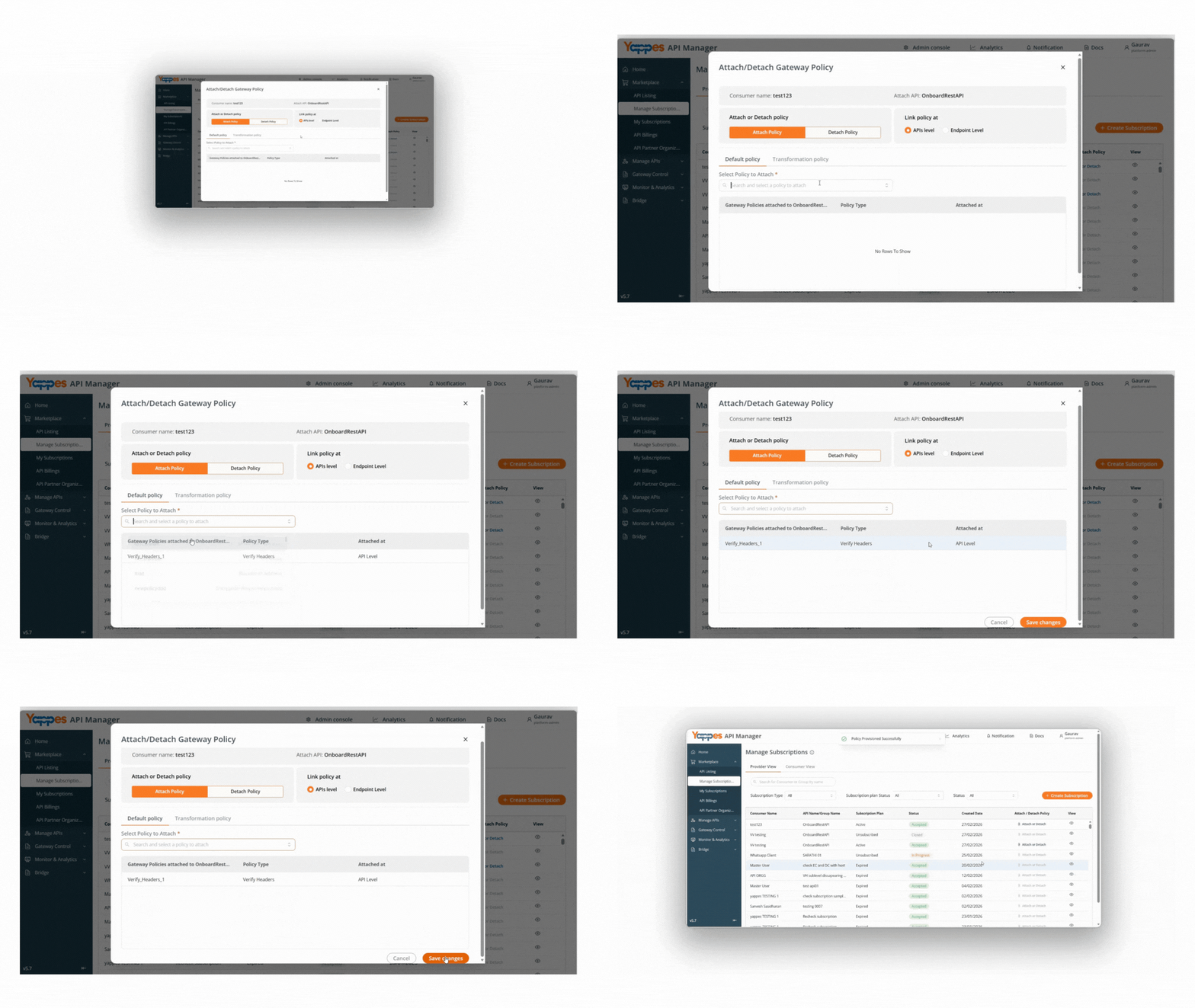
- In
Select Policy to Attach, choose your subscription-level XML Threat Protection policy. - Click
Save Changesto apply the policy to the selected endpoints.
Note
- Only one policy of the same type can be attached to a subscription at a time. Detach the existing policy before attaching a replacement.
- Each endpoint supports at most one request and one response XML Threat Protection policy.
Understanding the Interface
| Component | Description |
|---|---|
| Policy Name | Identifies the XML Threat Protection policy |
| Description | Documents the policy purpose |
| Context | Request or Response — where limits are enforced |
| JSON Configuration | Code editor for XML limit settings in JSON |
| Control Level | API Level (single endpoint at creation) or Subscription Level (attach via Manage Subscriptions) |
Control Level Summary
| Control Level | API/Endpoint at Creation | Attach Path |
|---|---|---|
| API Level | Required | Endpoint tab or Gateway Policies (auto-attached to selected endpoint) |
| Subscription Level | Not required | Manage Subscriptions → Endpoint Level |
Configuration and Settings
Required Configuration Fields
| Field | Requirement | Description |
|---|---|---|
| Policy Name | Mandatory | Min 3 characters; must start with a letter |
| Description | Optional | Max 500 characters |
| Control Level | Mandatory | API Level or Subscription Level |
| API Selection | Mandatory at API Level | Target API; not required at Subscription Level |
| Endpoint Selection | Mandatory at API Level | Specific endpoint for enforcement; not required at Subscription Level |
| Context | Mandatory | Request or Response |
| JSON Configuration | Mandatory | Valid JSON with enabled, continueOnError, and optional limits |
Info
GET endpoints do not support Request context for XML Threat Protection. The platform shows: "Get endpoint can not have request context" and limits you to Response only.
Each endpoint supports at most one request and one response XML Threat Protection policy.
Best Practices for Configuration
| Best Practice | Benefit |
|---|---|
| Start with default limits and tune based on real SOAP/XML traffic | Reduces false blocks while maintaining protection |
| Set separate request and response policies when payload sizes differ | More precise control per direction |
Keep continueOnError as "false" in production |
Ensures limits are strictly enforced |
| Test with oversized XML documents in non-production | Confirms blocking behavior before rollout |
| Use Regex Threat Protection for URI/header pattern blocking | Complements structural XML limits |
What Happens If a Request Is Blocked
If XML Threat Protection detects a limit violation:
- The request or response is blocked at the API Gateway (unless
continueOnErroris"true") - The backend service is not invoked for blocked requests
- The client receives a threat protection error response
- The failure is logged for monitoring and audit purposes
Verification and Testing
After configuring XML Threat Protection:
- Send an XML payload within configured limits and confirm the API responds successfully.
- Send XML that exceeds element count, attribute count, or depth limits and confirm the gateway blocks it.
- Confirm separate request and response policies apply when both are configured.
- On GET endpoints, verify only response context is enforced.
Troubleshooting
| Issue | Possible Cause | Resolution |
|---|---|---|
| XML Threat Protection tab not visible | Endpoint content type is not application/xml |
Use an XML content type endpoint |
| Cannot select Request context | Endpoint method is GET | Use Response context only |
| Cannot create second policy | Request or response slot already filled | Edit existing policy or choose the other context |
| Configuration save fails | Invalid JSON or wrong field types in editor | Fix syntax errors; use "true"/"false" strings for enabled and continueOnError; use positive integers in limits |
| Save fails with unknown fields | Legacy XMLThreatProtection root object in editor |
Replace with flat JSON: enabled, continueOnError, and optional limits |
| Requests blocked unexpectedly | Limits too strict for legitimate payloads | Increase values in JSON Configuration |
| JSON Threat Protection shown instead | Wrong content type on endpoint | Confirm endpoint uses application/xml |
| Content-type warning in Gateway Policies | Selected endpoint is not application/xml |
Select an XML endpoint; the editor stays hidden until the content type is compatible |
Impact of Policy Changes
- Tightening limits may cause previously accepted XML payloads to fail.
- Relaxing limits may allow larger or deeper XML documents through the gateway.
- Changing
continueOnErroraffects whether violations block traffic or only log. - Always test updates in non-production before deploying to production.
❓ Frequently Asked Questions
How many XML Threat Protection policies can I attach per endpoint?
One request and one response policy per endpoint. GET endpoints support response only.
Is XML Threat Protection available at subscription level?
Yes. Create the policy with Control Level set to Subscription Level in Gateway Policies, then attach it via Manage Subscriptions at Endpoint Level. See Attaching XML Threat Protection Policy to Subscriptions.
Does XML Threat Protection validate against XSD?
No. It enforces structural limits (element count, depth, text length), not full schema validation.
What content types support XML Threat Protection?
Endpoints with application/xml content type. The policy configuration itself is always JSON.
Is the configuration written as XML?
No. The editor is labeled JSON Configuration. Use a flat JSON object with enabled, continueOnError (as "true" or "false" strings), and an optional limits object — not raw XML markup.
Can I use XML Threat Protection on SOAP APIs?
Yes. SOAP endpoints typically use XML content type. The UI shows Operation instead of Endpoint for SOAP APIs.
What is the difference between XML and JSON Threat Protection?
JSON Threat Protection applies JSON-specific limits. XML Threat Protection applies element, attribute, and depth limits on XML documents.
Pro Tip
XML Threat Protection in Yappes enforces structural limits on XML payloads at the API Gateway. Use it on SOAP and XML endpoints, start with the default JSON template, and pair with Regex Threat Protection for pattern-based defense on URI and headers.