How to add APIs and policies to a group
In this tutorial, you’ll learn how to add or remove APIs from a group as well as different policies. An API group allows you to effectively apply subscription, and attach security and monitoring policies to multiple APIs at once. To learn more about groups in the API Manager, visit API Groups.
To add APIs to a group, follow the below steps.
Note
Before you proceed with the steps, ensure you’re a user with the platform-admin or api-product-manager role. Also, there are groups created, if not, first create an API group and then follow the below instructions.
Steps to add APIs
- Access
Manage APIs→ selectAPI Groups.

-
Then, click in the
Editcolumn for the group in which you need to add APIs. -
The
APIstab opens. Here you can:- Search with
Search API by name - Filter by
OrganizationandTags - Use
Select Allto select every API in the current organization list - Use
Reset to Defaultto restore the previously attached API set (shown when the selection has changed)
- Search with
-
To add APIs into the group:
- In the
Add to groupcolumn, select the APIs you need to add - Then, click
Update
- In the
This will add the APIs to the group.
Note
If a selected API already belongs to another group, an Add APIs to group confirmation appears. Confirming with Update sets this group as high priority, disables priority on the other groups, and applies this group’s policies to those APIs.
Attach policies
You can also attach gateway and monitor policies to the groups that you’ve created. Furthermore, the API Groups functionality enables you to create new policies and attach them to the group. To do that, follow the instructions in the below section:
Attach gateway policy
- Open
API Groups. - Click for the API group you need to attach policies.
- In the window that opens, select
Gateway Policies.
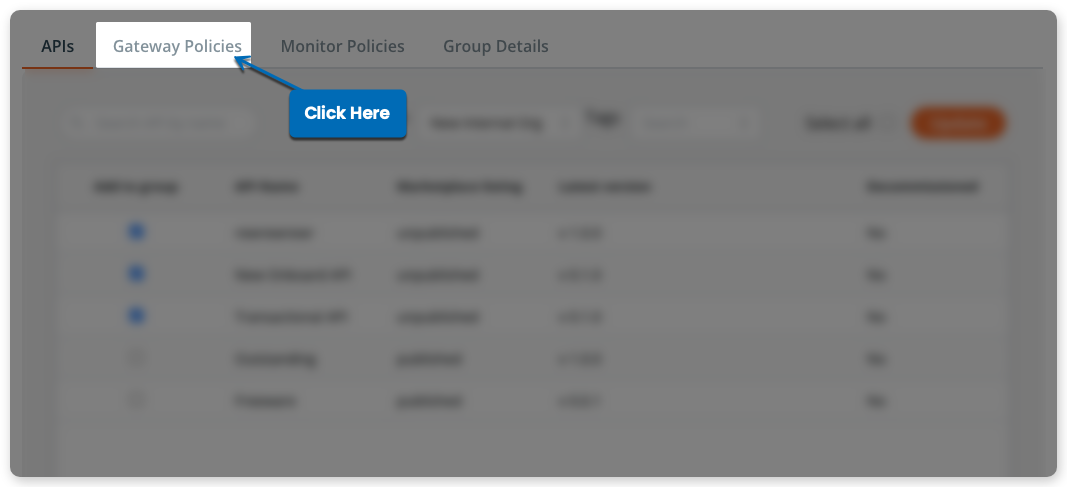
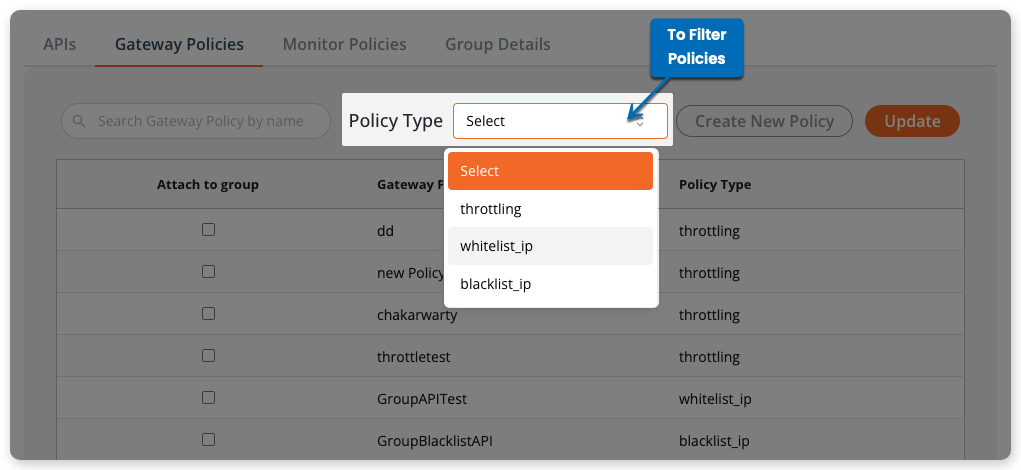
By default, the gateway policies section displays all the policies of different types. However, you can filter them out:
- Go to
Policy Typeand selectAll,Blacklist IP Address,Whitelist IP Address,Throttling, orMessage Signature. - Once you’ve selected the type, the policies will be filtered out.
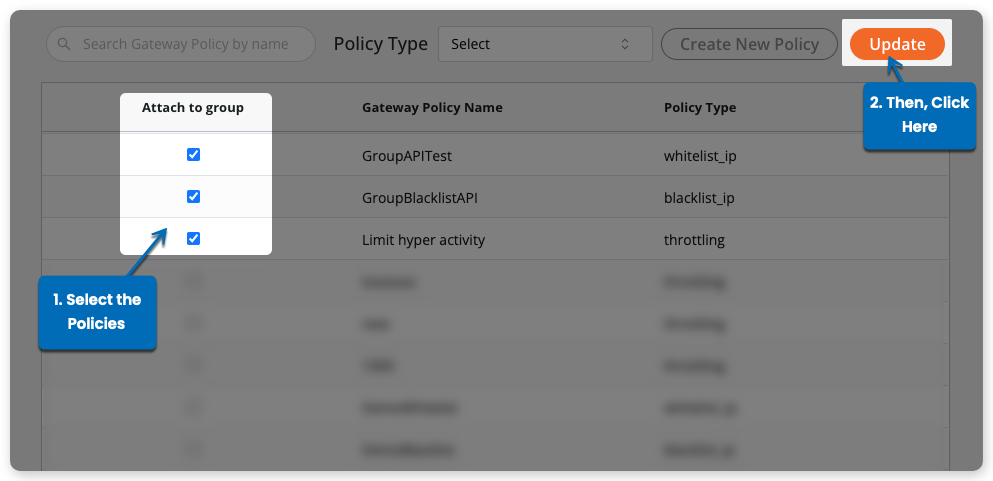
- Now, to attach the policies:
- In the
Attach to groupcolumn, select the policies you need to attach - Once you’re done selecting the policies, click
Update
- In the
Note
A group can have only one gateway policy of each type. If a type is already attached, deselect it before attaching another policy of the same type.
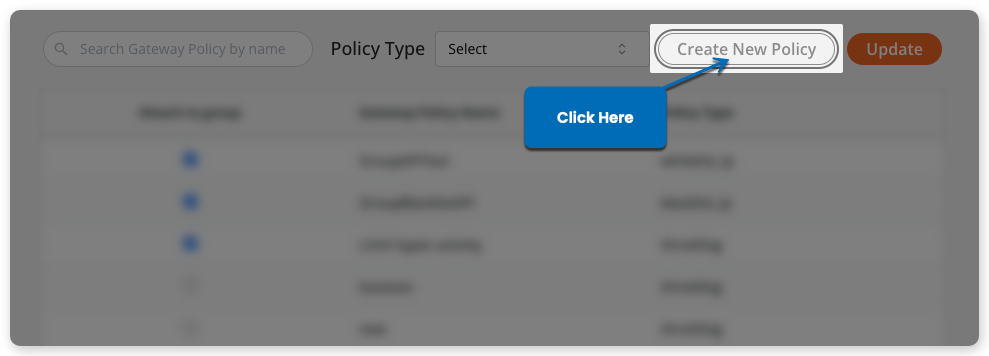
If you need to create a new policy and attach it to the group:
- Click
Create New Policy.
- In the
Create Gateway Policywindow:- Select the
Policy Type - Enter the policy details
- Select the
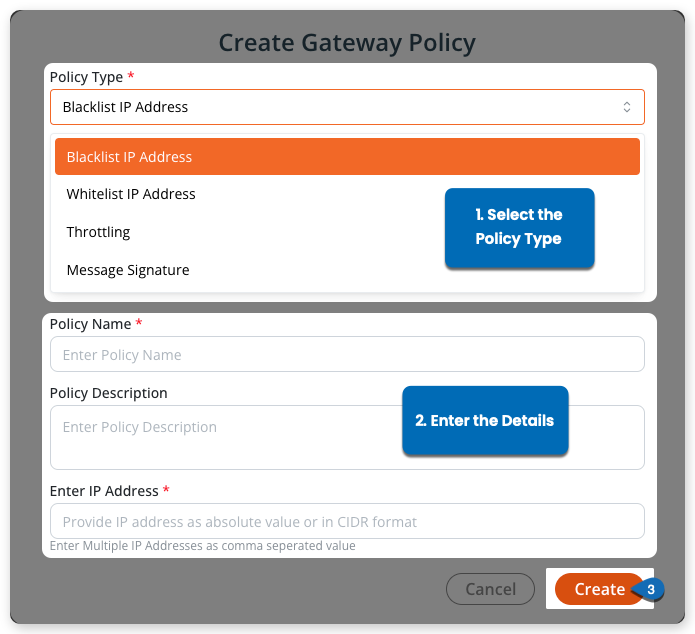
- Once done adding the details, click
Create.
Tip
For detailed instructions on creating gateway policies, visit Gateway Policies.
This will create the policy. Select it in Attach to group and click Update to attach it to the group.
Attach monitor policy
- Open
API Groups. - Click for the API group you need to attach policies.
- In the window that opens, select
Monitor Policies.
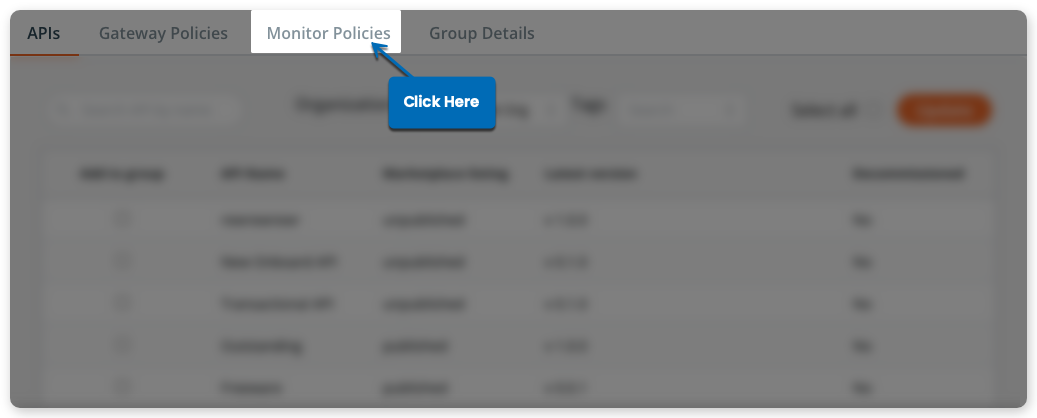
By default, the monitor policies section displays all policies. You can filter them:
- Go to
Policy Typeand selectAll Types,Error code, orRequest limit (IP block). -
Once you’ve selected the type, the policies will be filtered out.
-
Now, to attach the policies:
- In the
Attach to groupcolumn, select the policies you need to attach - Once you’re done selecting the policies, click
Update
- In the
Note
When one or more monitor policies are attached, all present and future APIs under the group are monitored.
If you need to create a new policy and attach it to the group:
-
Click
Create New Policy. -
In the popup shown:
- Select the Policy Type
- Enter details of the policy
-
Once done adding the details, click
Create.
Tip
For detailed instructions on creating monitor policies, visit Monitor Policies.
This will create the policy. Select it in Attach to group and click Update to attach it to the group.