Mutual TLS (mTLS) Configuration Policy
Overview
Mutual TLS (mTLS) is an advanced security mechanism that authenticates both the client and the server during API communication. Unlike standard TLS, where only the server presents a certificate, mTLS requires both parties to exchange and validate certificates before any data is transmitted.
Within the Yappes Gateway, the mTLS Configuration policy enables secure, certificate-based authentication for APIs at the Subscription Level.
This ensures:
- Only trusted clients can access protected APIs.
- Strong identity validation using X.509 certificates.
- Protection against unauthorized or rogue client applications.
- Compliance with regulatory and enterprise-grade security. requirements
This feature is especially critical for:
- Financial services.
- Healthcare.
- Government systems.
- B2B enterprise integrations.
When to Use Mutual TLS (mTLS)
Use mTLS when:
- Exposing APIs to trusted enterprise partners
- Integrating with regulated industry systems
- Requiring certificate-based client authentication
- Replacing or strengthening API key or token-based authentication
- Enforcing strict identity verification at the subscription level
When Not to Use Mutual TLS (mTLS)
Do not use mTLS when:
- APIs are public and intended for broad consumer access
- Clients cannot manage the certificate lifecycle (issuance, renewal, revocation)
- Lightweight authentication (API key, OAuth) is sufficient
- Rapid onboarding of unknown clients is required
For general authentication needs, consider OAuth or API Key policies instead.
Prerequisites
Before configuring mTLS policies, ensure the following requirements are met.
Required Access and Permissions
Common Requirements
- Active Yappes platform account.
API Manageraccess.- Permission to create and manage Gateway Policies.
- Permission to attach
mTLSpolicies to subscriptions.
System / Technical Requirements
Certificate Requirements
- Valid
X.509client certificate. - Associated private key.
- Trusted
Certificate Authority (CA)certificate. - Certificates must be issued by a recognized authority.
Supported TLS Version
TLS 1.2or higher.
Client-Side Requirements
- Secure certificate storage.
- Proper certificate lifecycle management (issuance, renewal, revocation).
Custom error and message
For error scenarios, you can override the default HTTP status code, error code, and message. See Custom Error and Message.
Step-by-Step Implementation
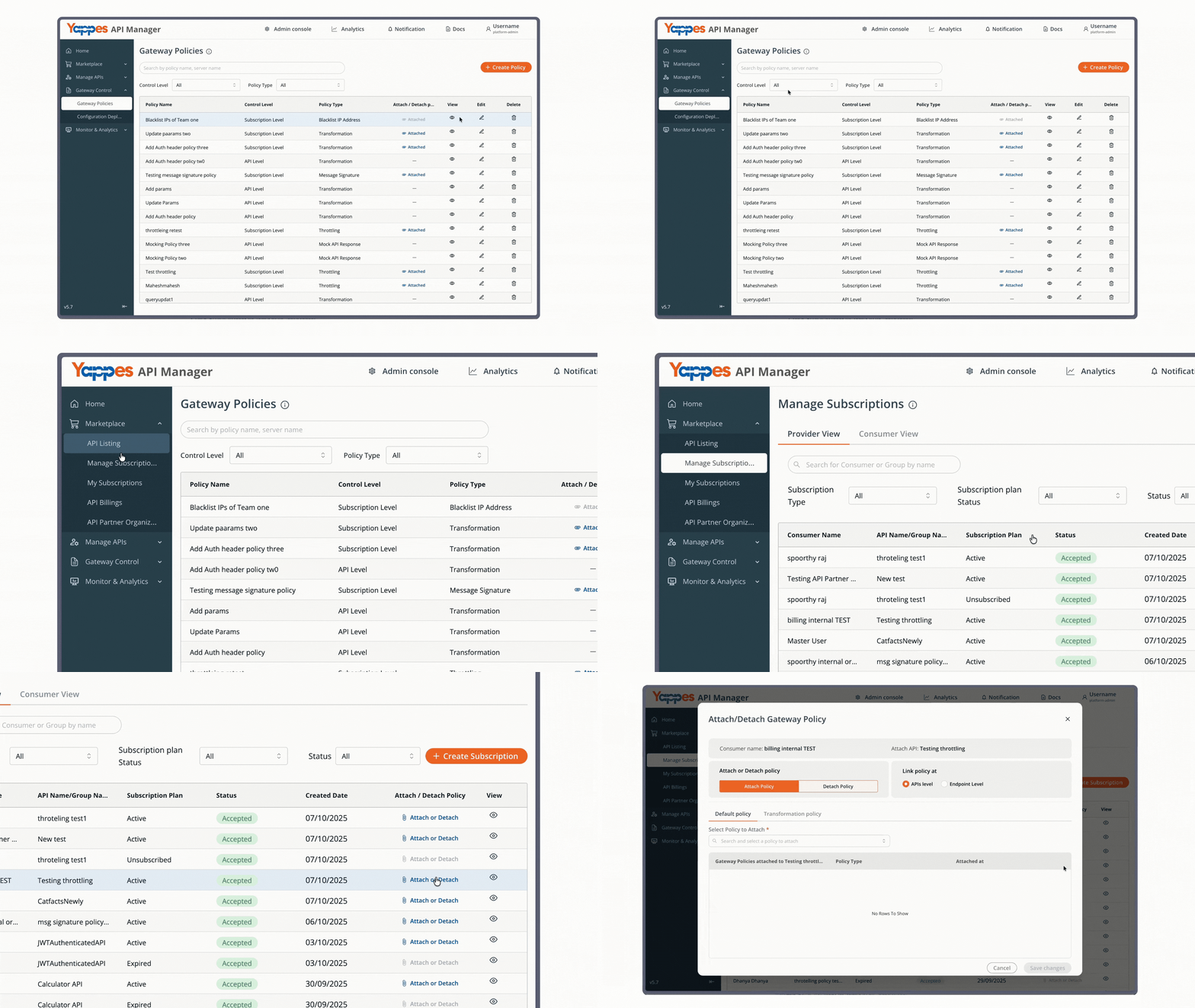
Step 1: Navigate to Gateway Policies
- Locate
Gateway Control → Gateway Policiesin the main navigation menu. - The policies management interface will display.
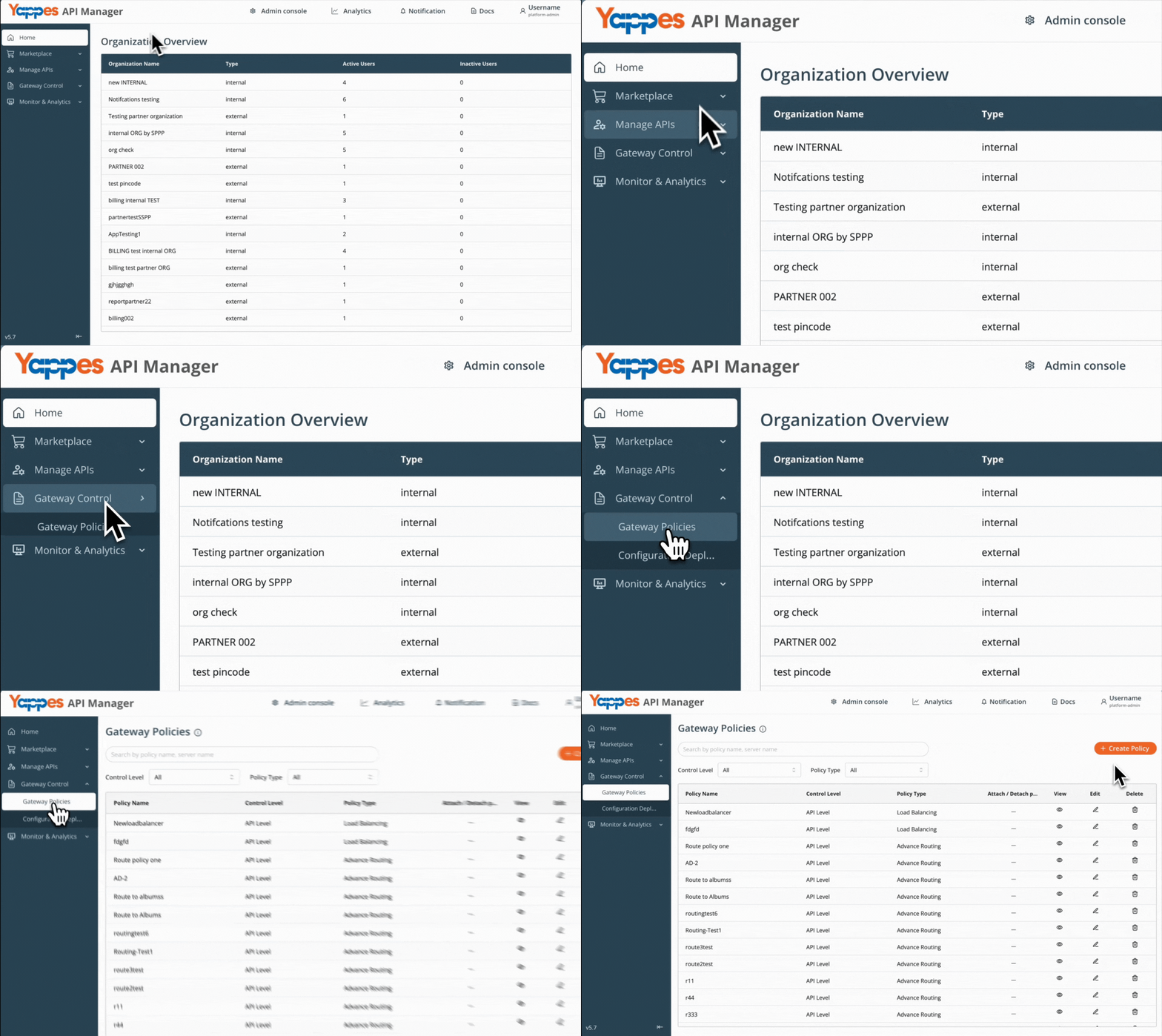
Step 2: Initialize New Policy Creation
- Click the
+ Create Policybutton. - The policy creation modal will open.
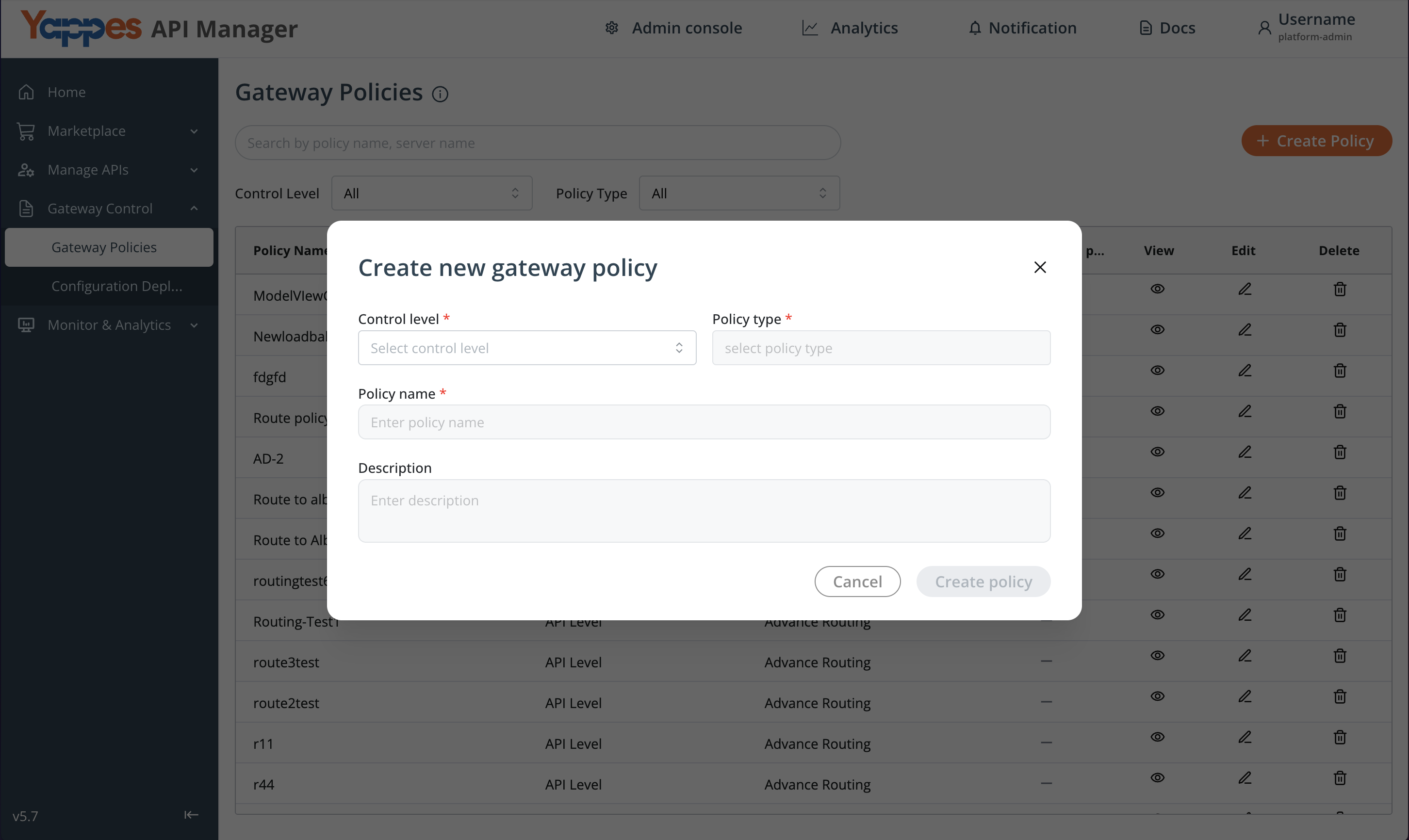
Step 3: Configure Policy Settings
- Select the
Control LevelasSubscription Level. - In the
Policy Typedropdown, selectmTLS Configuration.
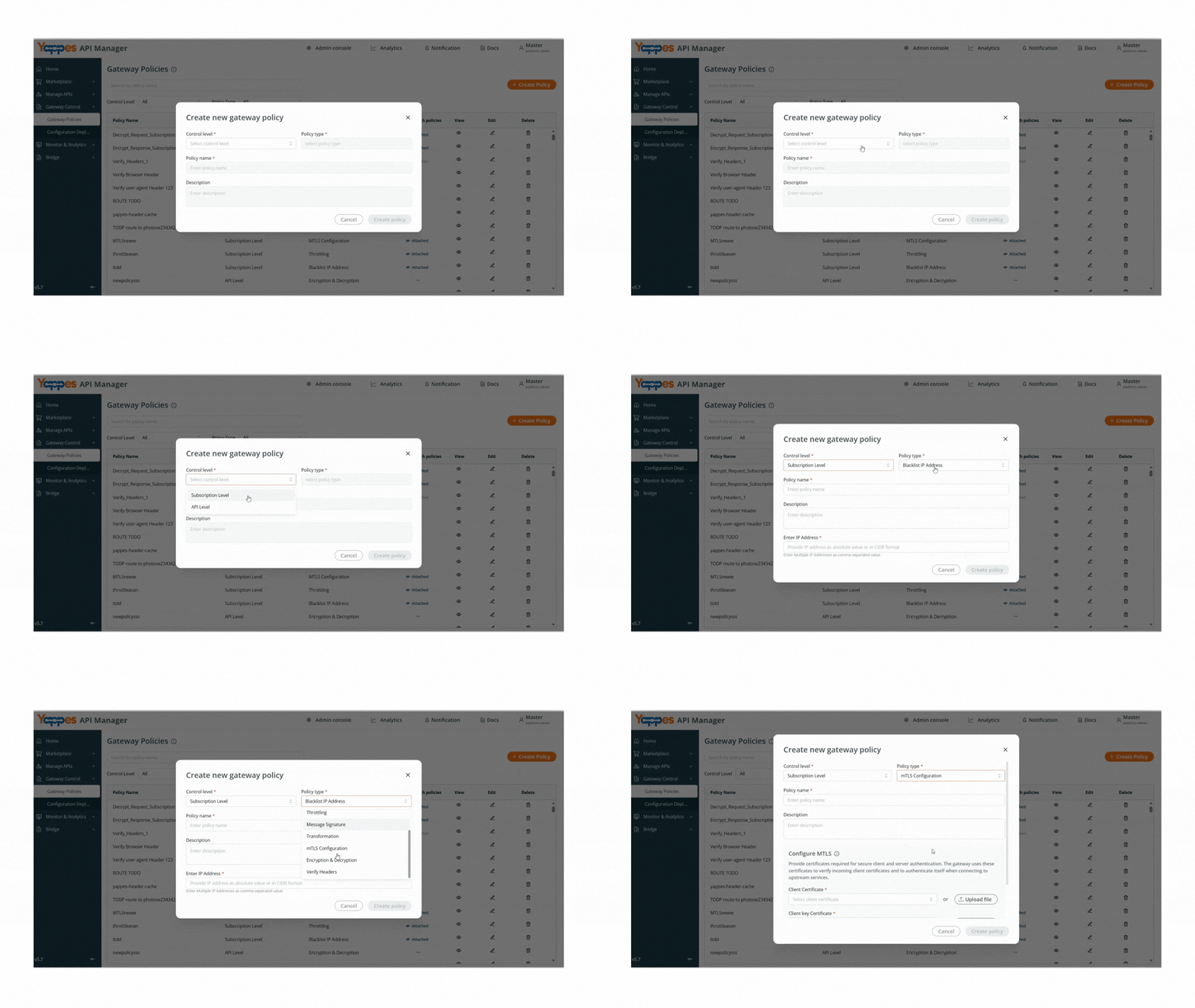
Step 4: Define Policy Details
- Enter a unique
Policy Namefor identification. - Add a detailed description in the text area field to document the policy purpose.
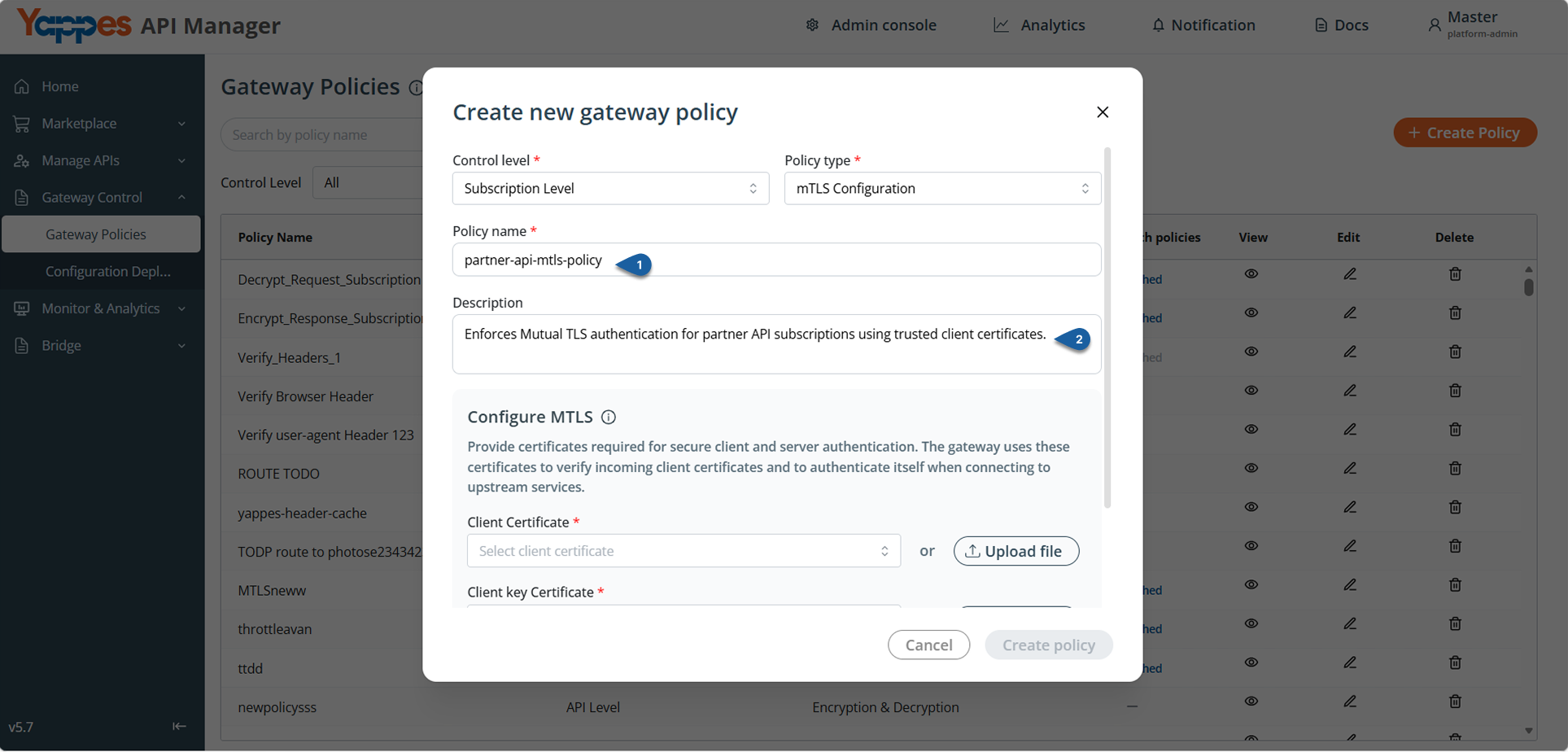
Step 5: Configure mTLS
Configure the following mandatory certificates:
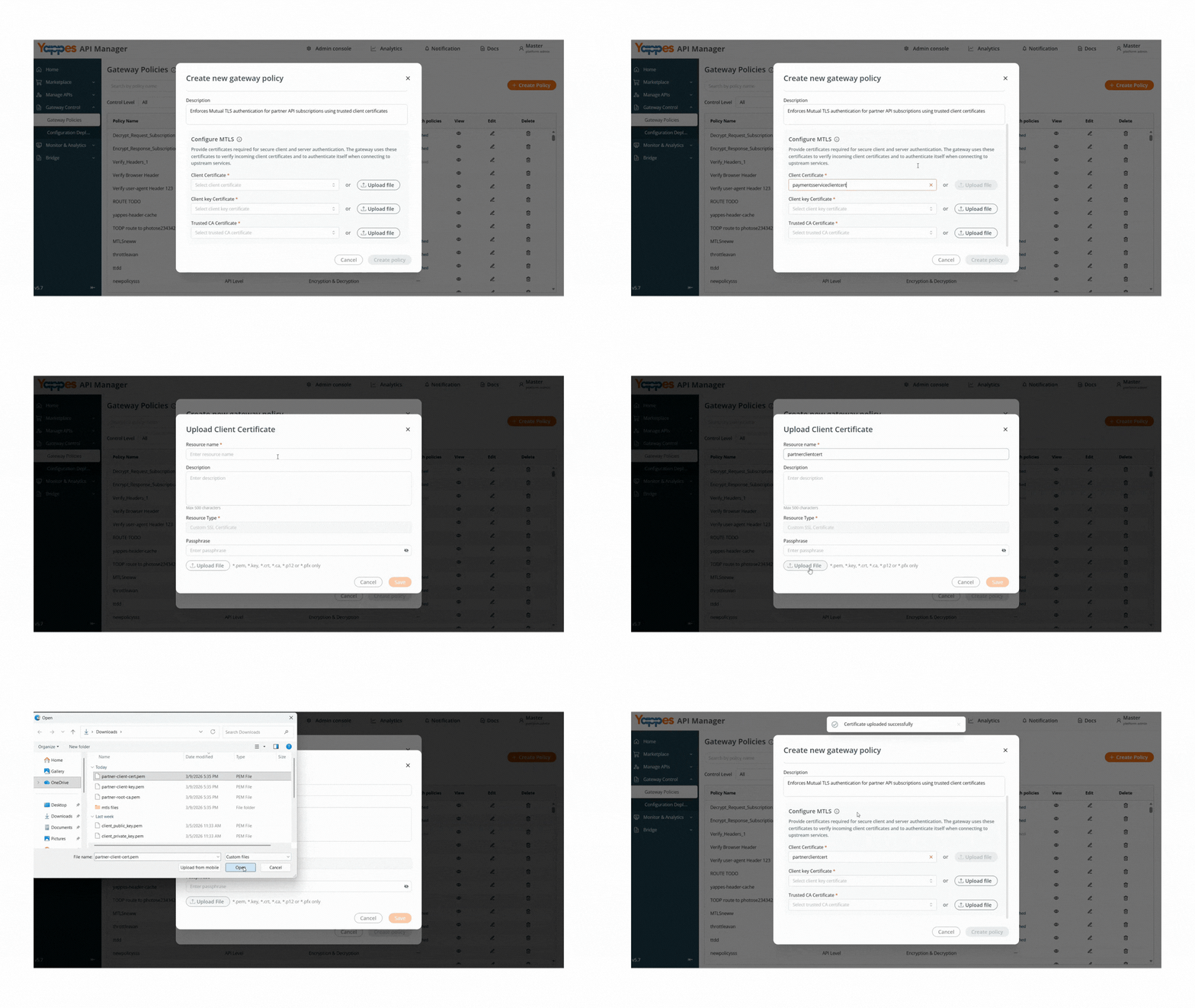
5.1 Client Certificate
- Select an existing
Client Certificatefrom the dropdown
or - Click
Upload Fileto create a new certificate resource
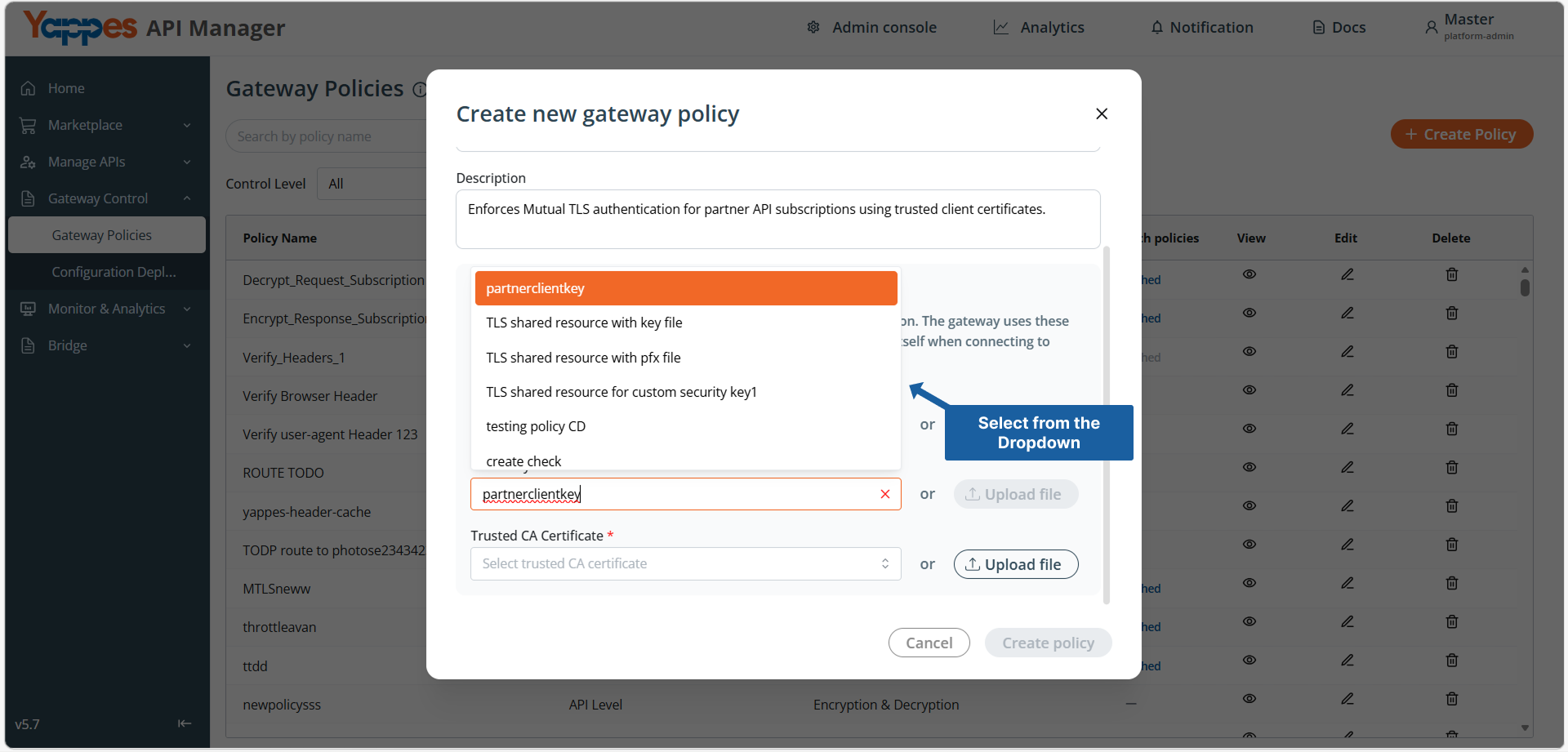
5.2 Client Key Certificate
- Select the associated
Client Key Certificate
or - Upload a new key file
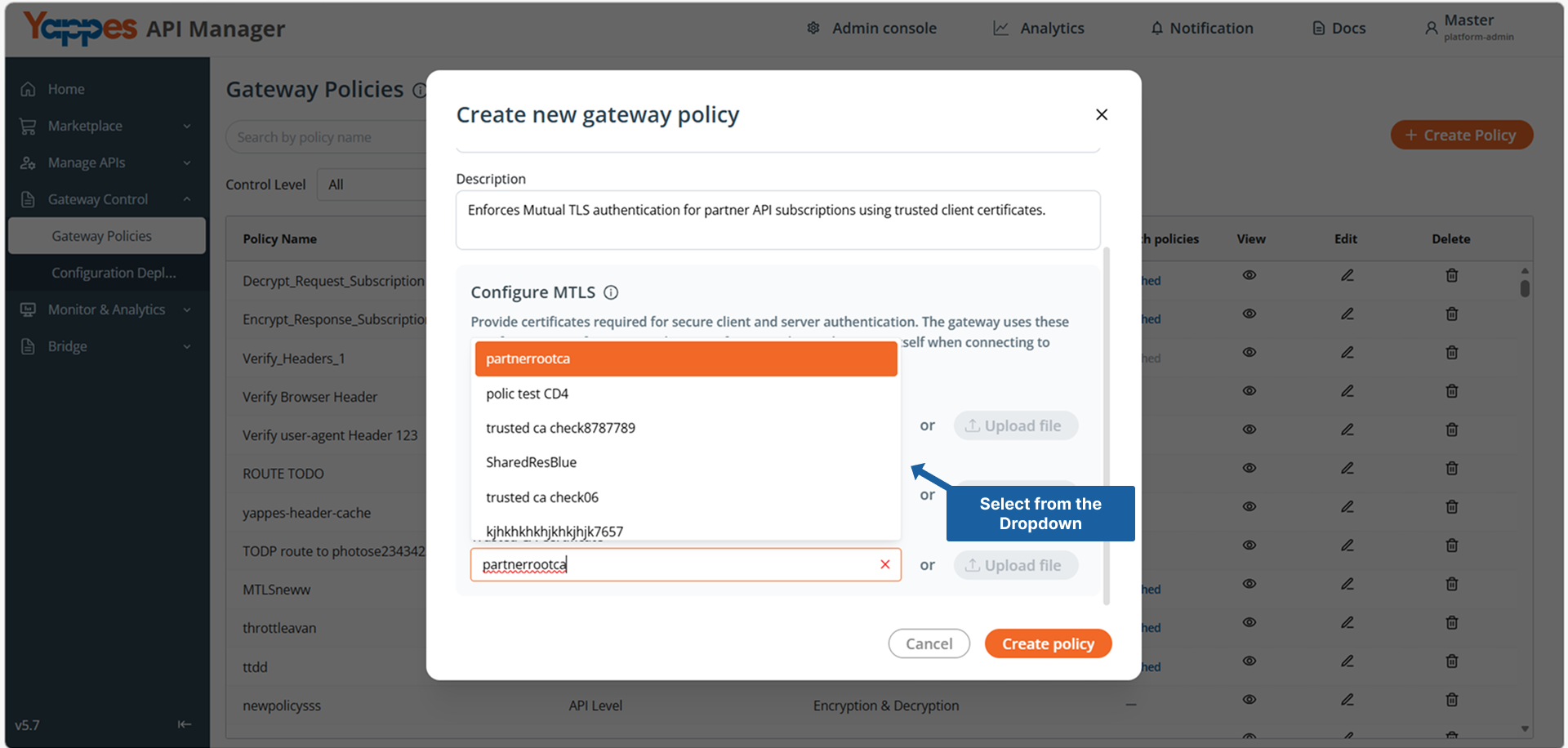
5.3 Trusted CA Certificate
- Select a
Trusted CA Certificate
or - Upload a new CA certificate
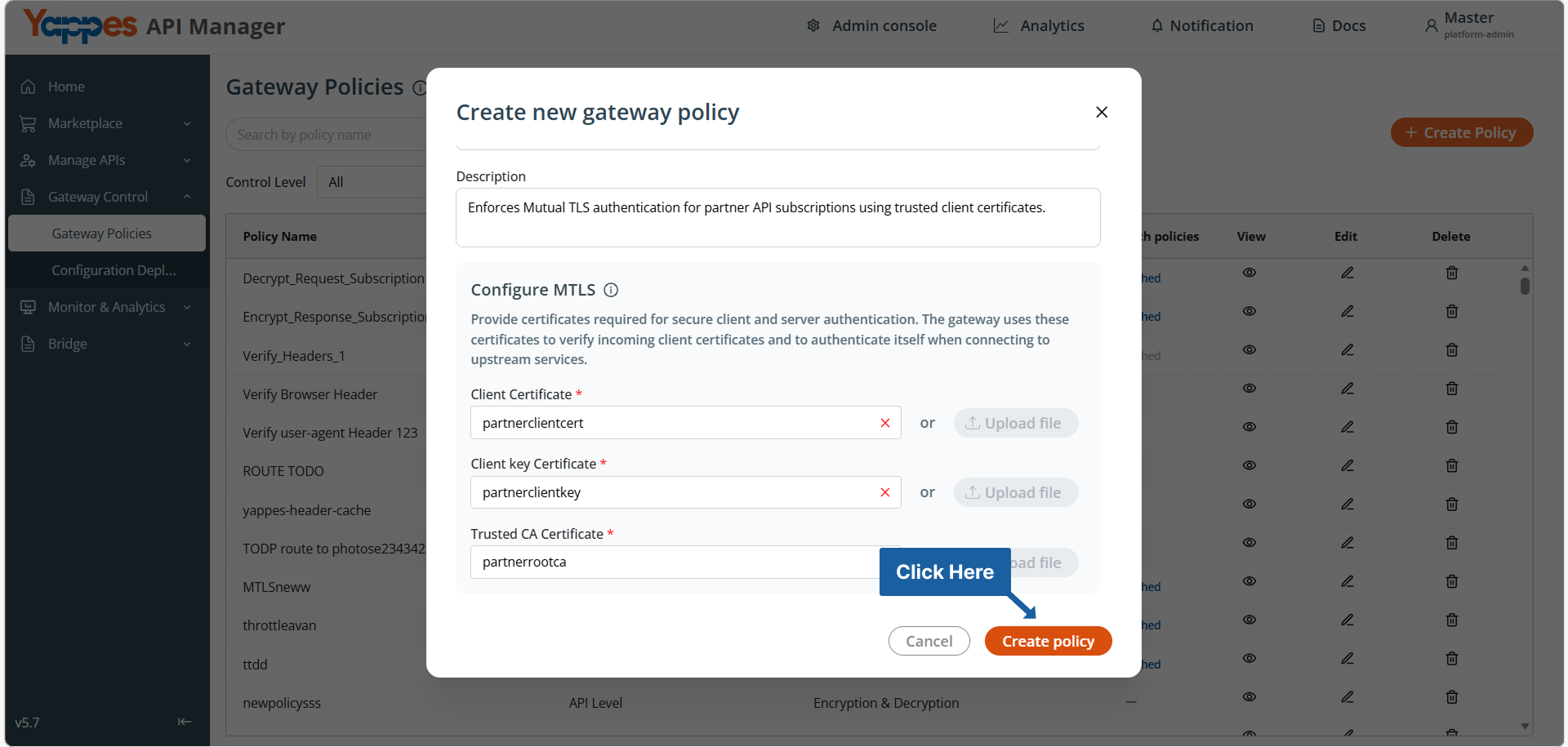
Step 6: Create the Policy
- Review all configured certificate details.
- Click
Create Policy.
Success
The mTLS Configuration policy has been successfully created.
Attaching mTLS Policy to Subscriptions
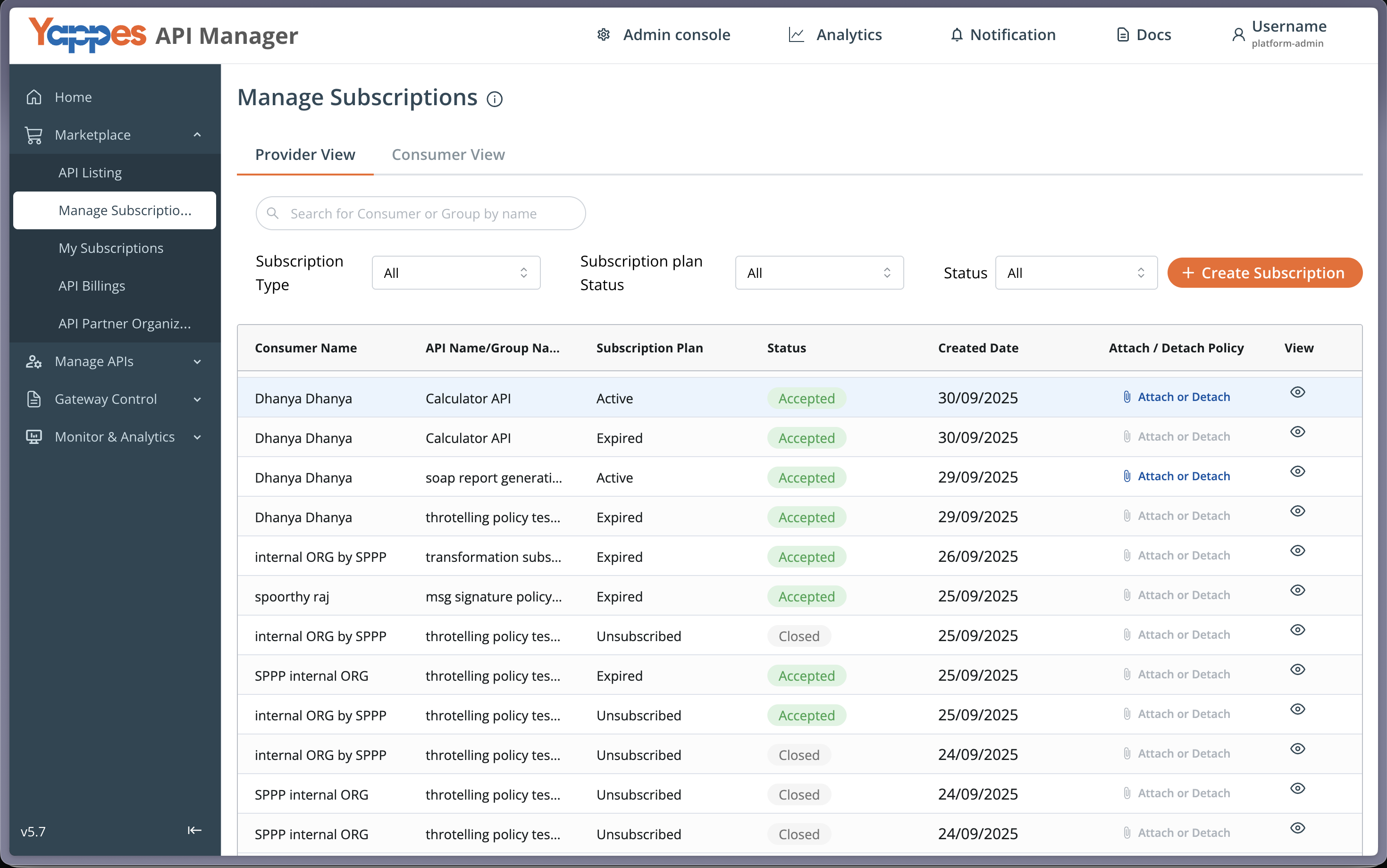
Step 1: Navigate to Manage Subscriptions
- From the main menu, click on
Manage Subscriptions. - The
Manage Subscriptionspage will display a list of all API subscriptions. - Locate the subscription(s) where you want to apply the
Encryption & Decryptionpolicy.
Step 2: Open the Policy Attachment Dialog
- Click the
Attach or Detachbutton for the relevant subscription. - The policy attachment dialog will open.
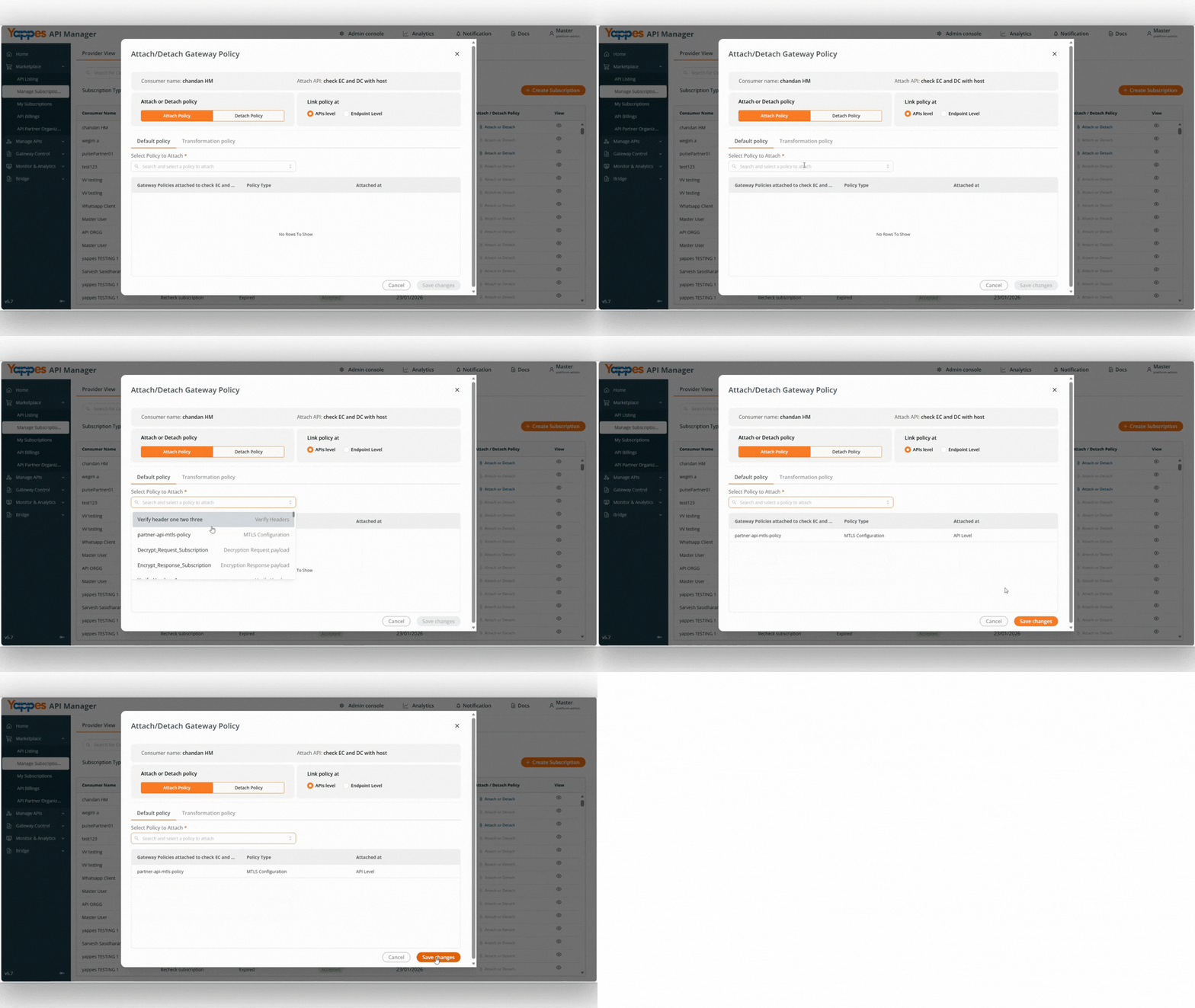
Step 3: Select and Attach the Policy
-
In the
Select Policy to Attachdropdown field, choose your newly createdmTLS Configurationpolicy. -
Choose the attachment level:
API Level:Applies the mTLS policy to all endpoints of the selected API.-
Endpoint Level:Applies the mTLS policy to specific endpoints only. -
Click
Save Changesto apply the policy to the subscription.
Viewing mTLS Certificates in My Subscriptions
Once the mTLS Configuration policy is attached to a subscription, users can view the associated certificates in the My Subscriptions module and download them for client-side configuration.
Step 1: Navigate to My Subscriptions
- Go to
Marketplace → My Subscriptions. - The list of subscribed APIs will be displayed.
- The
mTLS Enabledcolumn indicates whether mTLS is configured for the subscription.
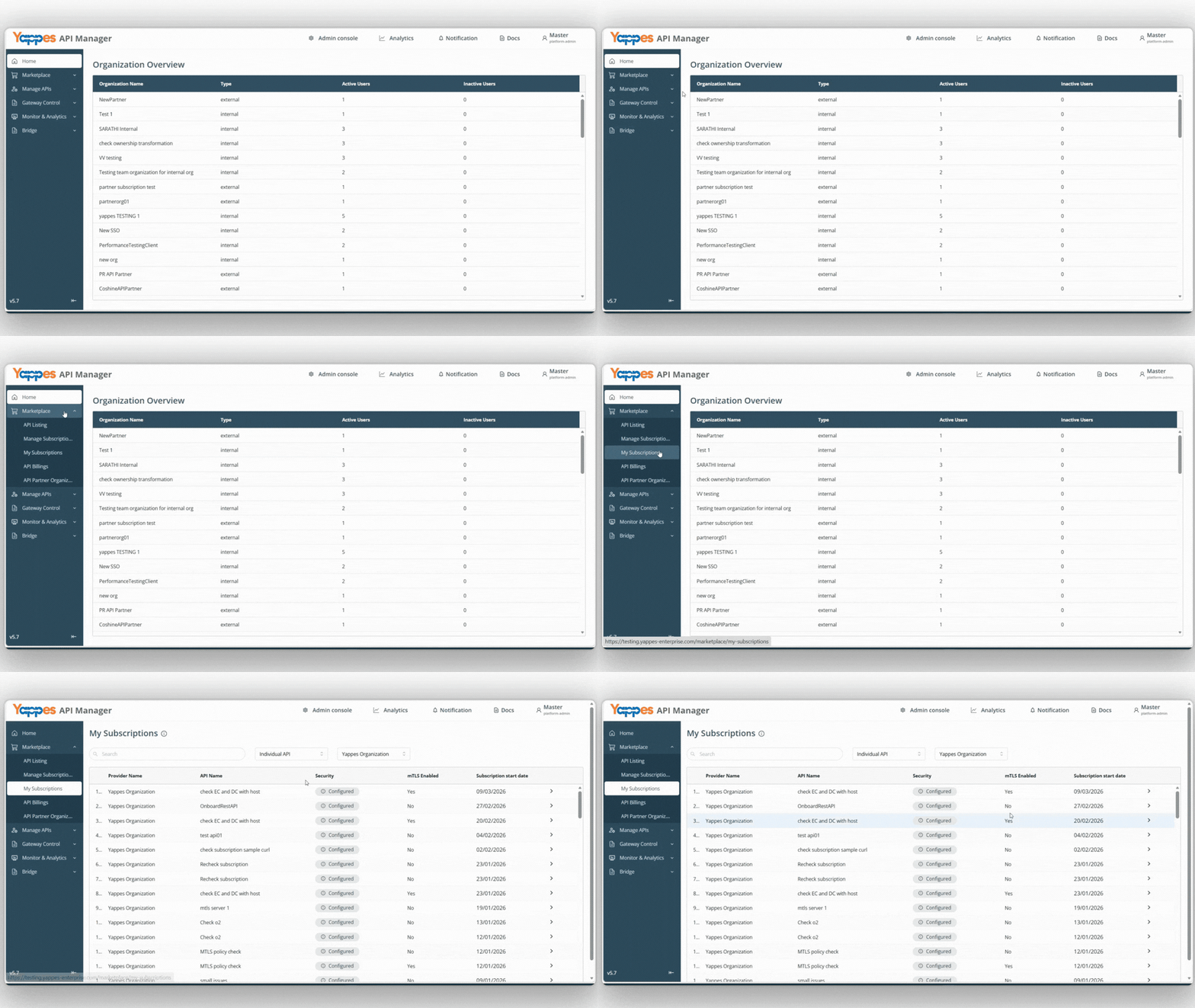
Step 2: View Security Details
- Click the arrow ( > ) icon for the relevant subscription.
- Navigate to the
Securitytab. - Under the mTLS Enabled section, the attached certificate names will be displayed.
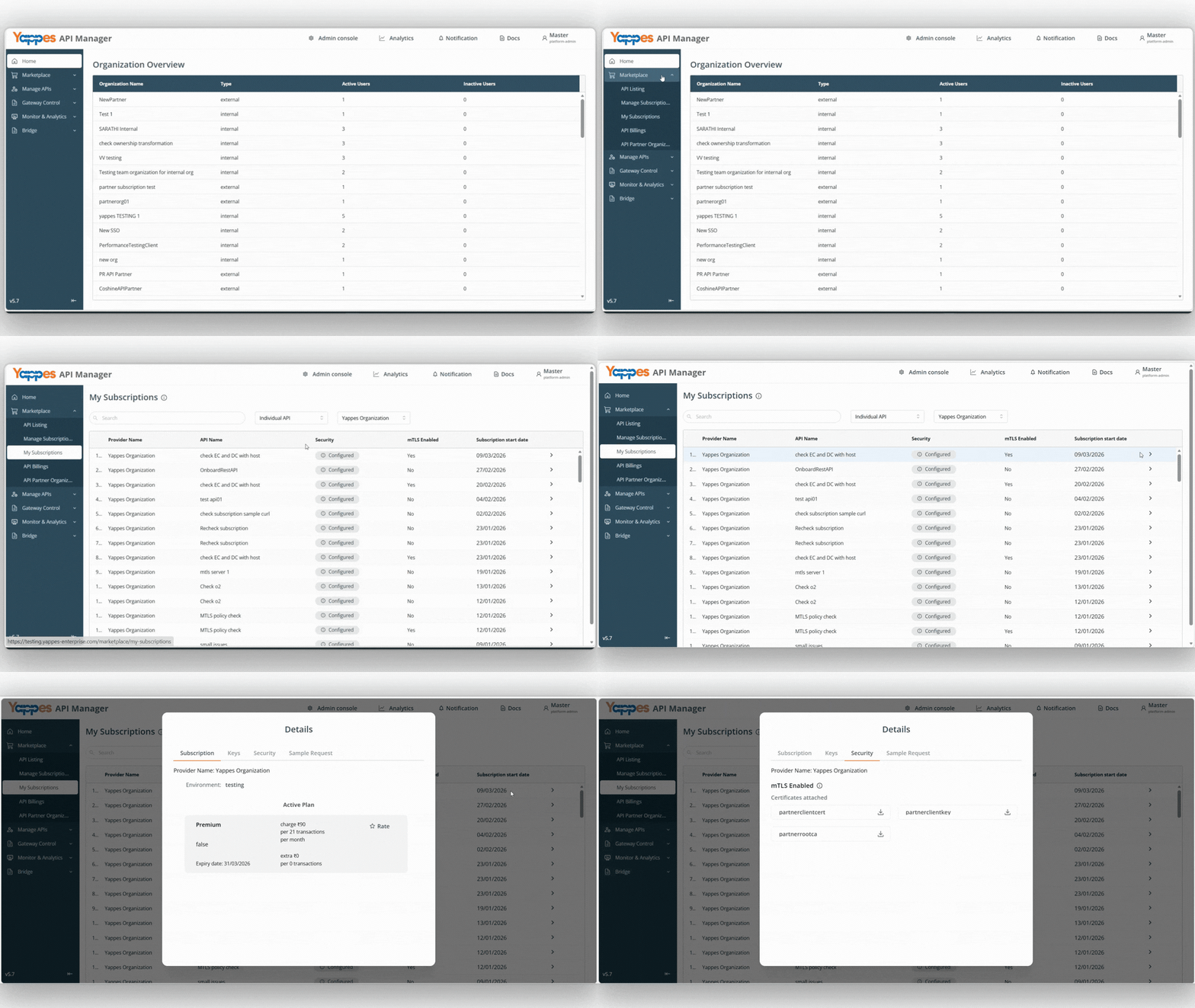
The following certificate names will be visible:
- Client Certificate
- Client Key Certificate
- Trusted CA Certificate
Note
Only the certificate names are displayed in the interface. The certificate content can be accessed by downloading the respective file.
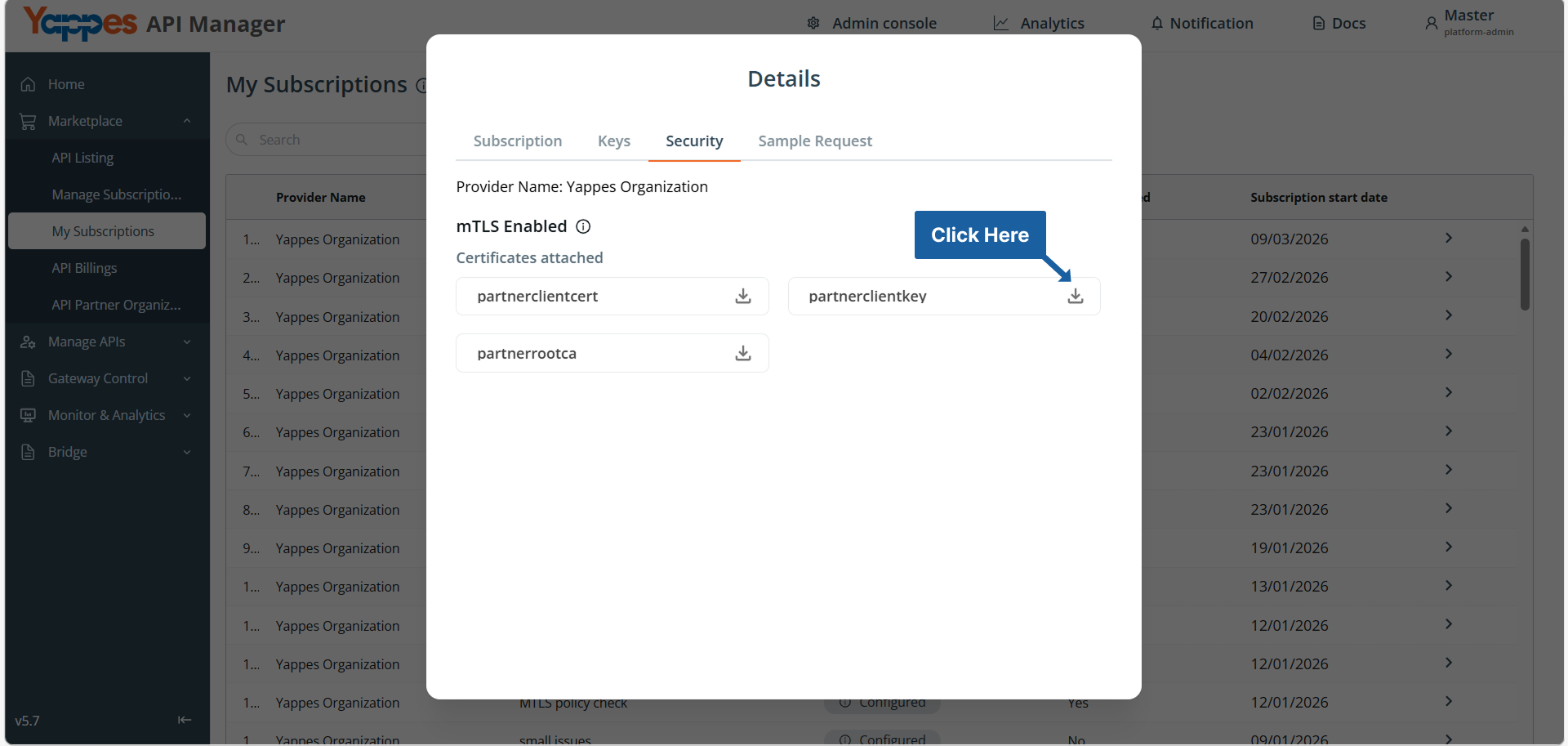
Step 3: Download Certificates
- Click the download icon next to the respective certificate name.
- The certificate file will be downloaded for client-side configuration.
Understanding the Interface
| Section | Description |
|---|---|
| Gateway Policies | Lists all configured policies by control level. |
| Create Policy | Opens the policy configuration dialog. |
| Control Level | For mTLS, this must be set to Subscription Level. |
| Policy Type | Select mTLS Configuration to enable certificate-based authentication. |
| Marketplace | Manages subscriptions and consumer access. |
| Attach or Detach | Links policies to specific subscriptions. |
| My Subscriptions | Allows subscribers to view and download attached mTLS certificate resources. |
Configuration and Settings
Required Configuration Fields
| Field | Required | Description |
|---|---|---|
| Control Level | Yes | Must be set to Subscription Level. |
| Policy Type | Yes | Select mTLS Configuration. |
| Policy Name | Yes | Unique identifier for the policy. |
| Client Certificate | Yes | Certificate used for client authentication. |
| Client Key Certificate | Yes | Private key corresponding to the client certificate. |
| Trusted CA Certificate | Yes | Certificate Authority (CA) used to validate the client certificate. |
Key Configuration Requirements
- Client certificate and private key must match.
- Certificates must not be expired.
- The Trusted CA must match the issuing authority of the client certificate.
- The policy name must be unique within the environment.
- Certificates must follow a valid
X.509format.
Best Practices for Configuration
| Practice | Recommendation |
|---|---|
| Certificate Rotation | Implement a periodic renewal schedule. |
| Naming Convention | Include the environment (e.g., prod, test) in the policy name. |
| Access Restriction | Limit policy editing permissions to administrators. |
| Documentation | Clearly describe the intended subscription usage. |
What Happens If Validation Fails
If mTLS validation fails:
- The TLS handshake is terminated immediately.
- The request does not reach the backend service.
- The client receives an SSL handshake failure response.
- The failure is logged in the Gateway audit logs.
- No API execution occurs.
Example Requests
Valid Scenario
- The client presents a valid certificate.
- The certificate is signed by the configured CA.
- The certificate is not expired.
- The private key matches the certificate.
Result: The request is processed successfully.
Invalid Scenario
- The certificate is expired.
- The certificate is not signed by a trusted CA.
- The private key does not match the certificate.
Result: The TLS handshake fails, and the request is rejected.
Policy Evaluation Order
- TLS handshake begins.
- The client certificate is requested.
- The Gateway validates the certificate against the Trusted CA.
- The Gateway validates the certificate–key pairing.
- If valid → The API request proceeds.
- If invalid → The connection is terminated.
Note
mTLS validation occurs before any other policy evaluation.
Verification and Testing
To verify the configuration:
- Use a client configured with the correct certificate and private key.
- Send a request to the protected API.
- Confirm a successful API response.
- Test with an invalid or expired certificate.
- Confirm that the request fails.
Success Indicators
- A valid client receives a
200or expected response. - An invalid client receives a TLS handshake error.
Troubleshooting
| Issue | Possible Cause | Resolution |
|---|---|---|
| Handshake failure | Expired certificate | Renew the certificate. |
| Certificate not trusted | Incorrect CA configured | Update the Trusted CA Certificate. |
| Policy not applied | Not attached to the subscription | Re-attach the policy and save changes. |
| Client error during request | Missing private key | Configure the correct key pair. |
Best Practices
- Always test in staging before production rollout.
- Maintain certificate expiration monitoring.
- Avoid sharing private keys insecurely.
- Document certificate ownership and renewal contacts.
- Limit mTLS policies to only required subscriptions.
Impact of Policy Changes
- Updating certificates immediately affects all attached subscriptions.
- Removing the Trusted CA may block all existing clients.
- Changing key pairs can break client integrations.
- Always validate changes in staging before production deployment.
Rollback Strategy
- Keep previous certificates available.
- Detach the new policy and reattach the previous version if needed.
❓ Frequently Asked Questions
Can one mTLS policy be reused across subscriptions?
Yes, if the certificates and CA requirements are identical.
Does mTLS replace OAuth?
mTLS provides authentication at the transport level. It can complement OAuth but does not replace application-level authorization.
What happens if a certificate expires?
All API calls from that client will fail immediately until the certificate is renewed and updated.
Pro Tip
Mutual TLS (mTLS) enforces certificate-based client authentication at the subscription level, ensuring that only trusted systems can securely access protected APIs through the Yappes Gateway.