API Quota Check
Overview
API Quota Check in Yappes enforces transaction limits at the API Gateway over Daily, Weekly, and/or Monthly periods.
This feature helps organizations to:
- Cap how many transactions an endpoint or operation can process per calendar period
- Enforce usage limits at the gateway before traffic reaches backend services
- Enforce daily, weekly, and monthly limits together on the same endpoint or operation
- Complement rate-based controls with period-based transaction counting
When to Use API Quota Check
Use API Quota Check when:
- You need to limit total transactions per day, week, or month on a specific endpoint or operation
- Usage caps should be enforced at the gateway without backend changes
- Endpoints or operations require period-based transaction limits
- You want to combine multiple period limits (for example Daily and Monthly) on one endpoint
When Not to Use API Quota Check
Avoid using API Quota Check in the following scenarios:
- You need pre-subscription tryout limits for marketplace consumers (use Tryout Quota)
- You need burst or per-second rate control (use Throttling Policy)
- You need subscription-level monetization thresholds (use Monetization Limit Check at subscription level)
- You need subscription-wide attachment across consumer endpoints (API Quota Check is API Level only)
Prerequisites
Before configuring API Quota Check policies, ensure the following requirements are met.
Required Access and Permissions
Common Requirements
- Active Yappes platform account
API Manageraccess- Permission to create and manage Gateway Policies
- At least one API created under
My APIs
System Requirements
- Supported web browser:
Chrome,Edge, orFirefox
Transaction Quota Configuration
API Quota Check is configured in the API Quota Check section. Use Add Transaction to add limit rows. Each row defines a Transaction Period and Transaction Limit.
Transaction Period Options
| UI Label | Config Value | Description |
|---|---|---|
| Daily | daily |
Resets every calendar day |
| Weekly | weekly |
Resets every calendar week |
| Monthly | monthly |
Resets every calendar month |
Configuration Fields
| Field | Required | Description |
|---|---|---|
| Transaction Period | Yes | Daily, Weekly, or Monthly — each period can appear only once per policy |
| Transaction Limit | Yes | Maximum number of transactions allowed for that period (positive integer) |
Example Configuration
| Transaction Period | Transaction Limit |
|---|---|
| Daily | 1000 |
| Weekly | 5000 |
| Monthly | 20000 |
You can configure one, two, or all three periods. The default first row is Monthly.
For how multiple periods interact when configured together, see How Multiple Period Limits Work.
Validation Rules
| Rule | Description |
|---|---|
| Period required | Each row must have a Transaction Period selected |
| Limit required | Each row must have a Transaction Limit |
| Positive integer | Transaction Limit must be a positive whole number |
| No duplicate periods | The same period cannot be selected twice in one policy |
| Add Transaction | Enabled when all current rows are valid and not all three periods are already configured |
| Remove row | Available when more than one transaction row exists |
Note
Add Transaction is disabled until an API is selected in Gateway Policies. On the endpoint tab, API and endpoint (or operation) fields are read-only.
How Multiple Period Limits Work
When Daily, Weekly, and Monthly limits are all configured, the gateway enforces every configured period on each request. A request is allowed only if it is within all configured limits. Each successful transaction increments the counter for each configured period.
If any configured limit is reached, further requests are blocked until that period resets on its calendar schedule.
Worked scenario
Using the example configuration above:
| Period | Limit |
|---|---|
| Daily | 1000 |
| Weekly | 5000 |
| Monthly | 20000 |
If the monthly limit of 20000 is consumed within the first two weeks of a calendar month, the API is blocked for the rest of that month — even when a new calendar week or day begins and the weekly or daily counter resets. Access resumes only when the monthly period resets.
Daily and weekly resets do not restore access while the monthly limit remains exhausted.
Custom error and message
For error scenarios, you can override the default HTTP status code, error code, and message. See Custom Error and Message.
Step-by-Step Implementation
Method 1: Creating API Quota Check from the Endpoint Tab
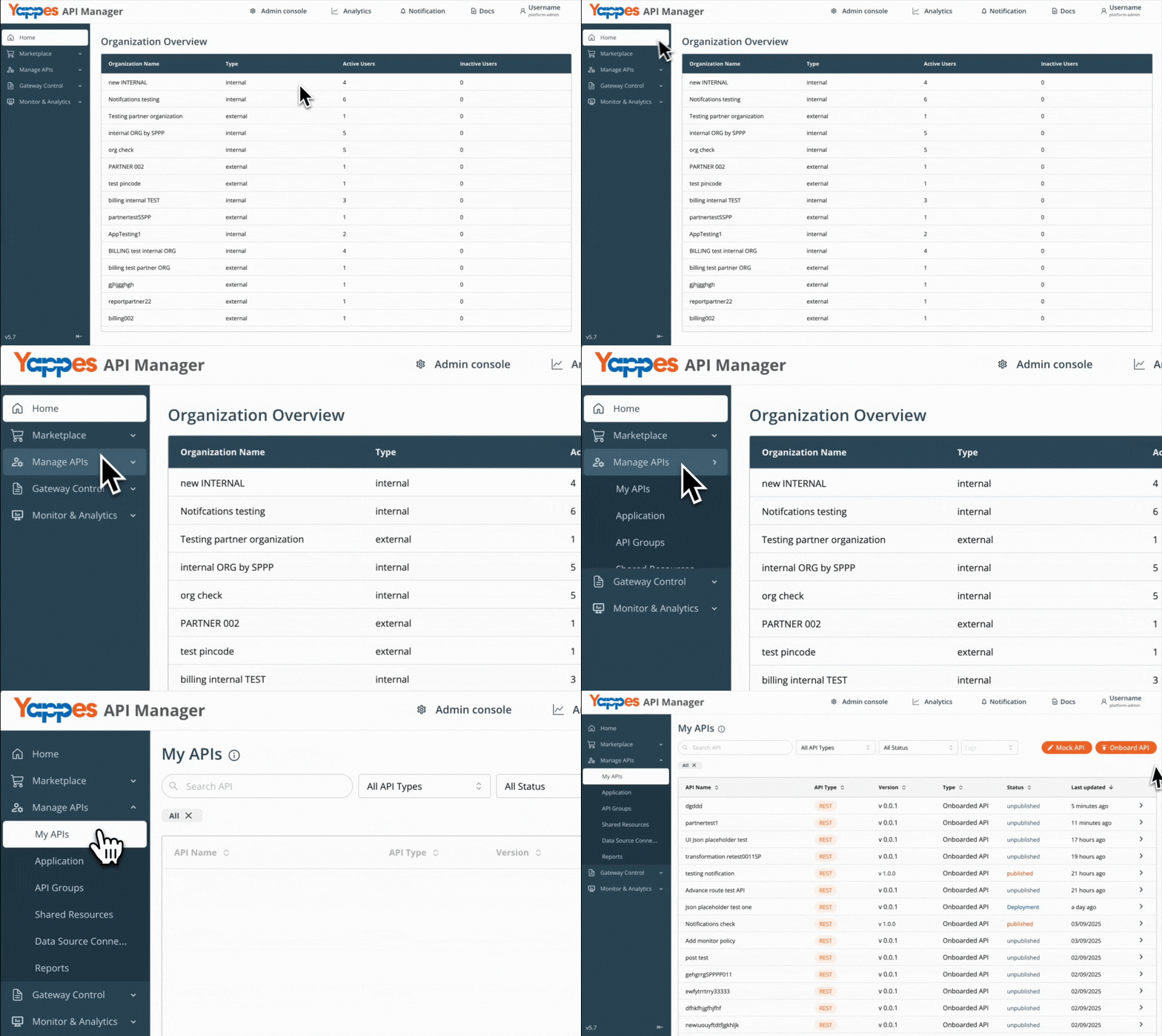
Step 1: Navigate to API Manager
- Click on
Manage APIsin the main dashboard. - Select
My APIsfrom the submenu.
Step 2: Open Your API and Select an Endpoint or Operation
- For a new API, onboard from My APIs using the guide for your API type, then open endpoint details.
- For an existing API, select it from
My APIsand click the target endpoint or operation.
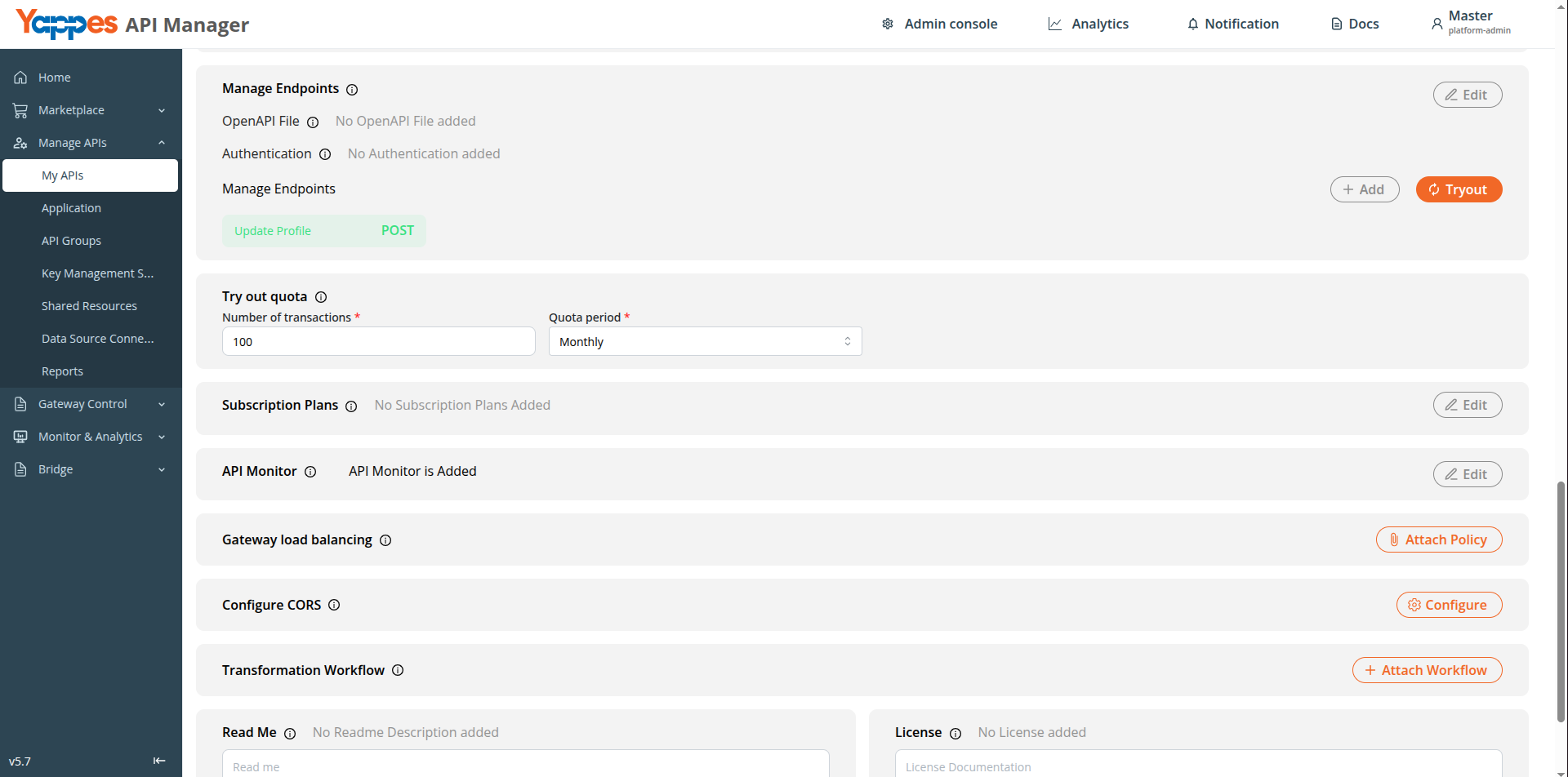
Step 3: Open API Quota Check Tab
- Click the
API Quota Checktab on the endpoint details panel. - Click
API Quota Checkto create a new policy, orEdit/Viewon an existing attached policy.
Step 4: Enter Policy Details
- Enter a descriptive
Policy name(e.g.OrdersEndpointMonthlyQuota). - Add a
Description(max 500 characters). Select APIand endpoint (or operation) fields are read-only.
Step 5: Configure Transaction Quota
- Click
Add Transactionto add additional period rows if needed. - For each row, select
Transaction Periodand enterTransaction Limit. - Refer to Transaction Quota Configuration for period options and validation rules.
Step 6: Create the Policy
- Review the configuration.
- Click
Create policy(orSavewhen editing). Expected Result: The policy is attached to the endpoint or operation.
Info
Each endpoint or operation can have one API Quota Check policy attached.
Method 2: Creating API Quota Check from Gateway Policies Page
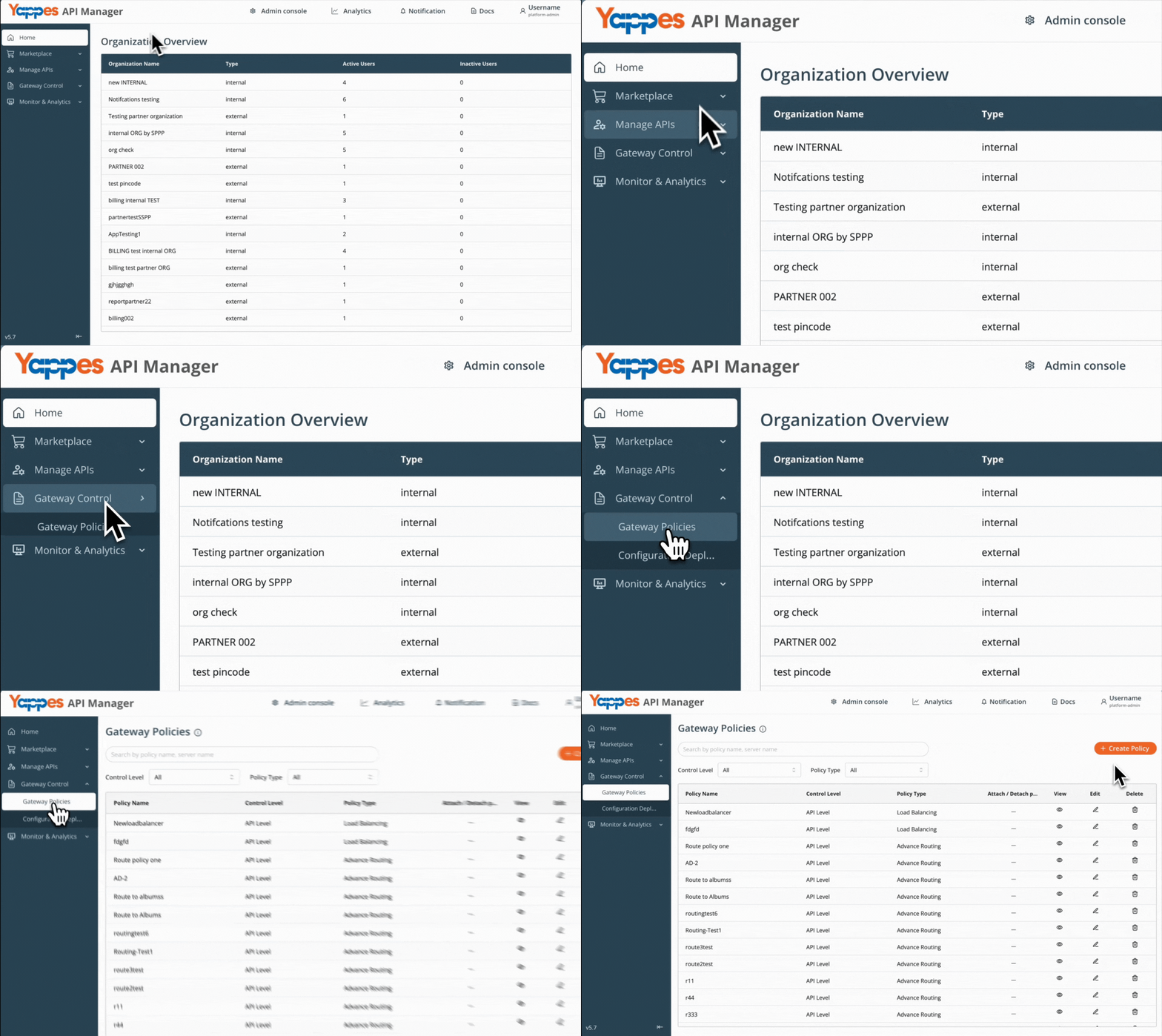
Step 1: Navigate to Gateway Policies
- Locate
Gateway Control → Gateway Policiesin the main navigation menu.
Step 2: Initialize New Policy Creation
- Click
Create Policy. - The policy creation modal opens.
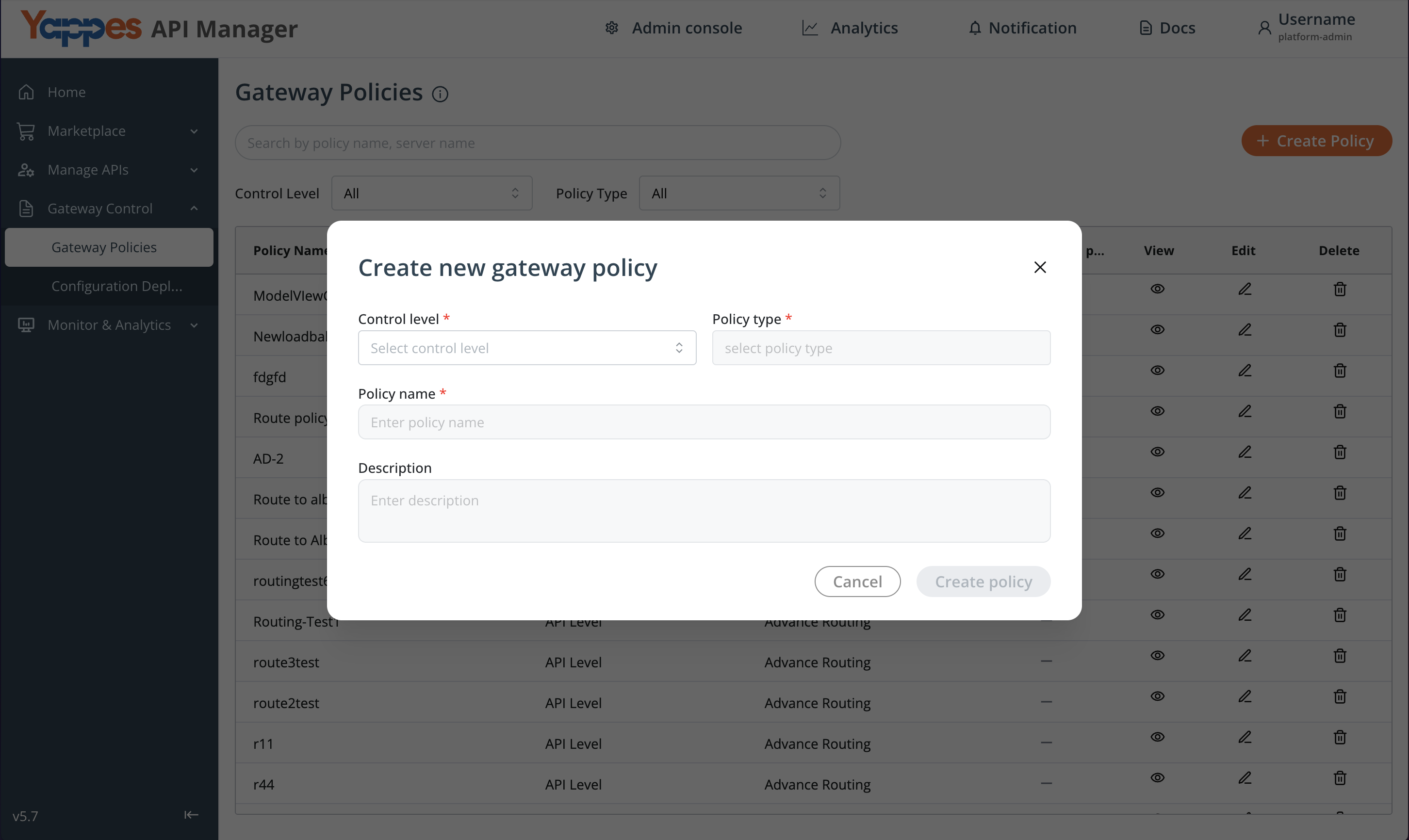
Step 3: Configure Policy Settings
- Set
Control LeveltoAPI Level. - In
Policy Type, selectAPI Quota Check.
For general policy creation guidance, see Creating a policy (w/edit and delete).
Step 4: Define Policy Details
- Enter
Policy NameandDescription.
Step 5: Select Target API and Endpoint or Operation
- Select the target
API. - Select the
Source endpointorOperation.
Step 6: Configure Transaction Quota
- Click
Add Transactionto add period rows as needed. - For each row, select
Transaction Periodand enterTransaction Limit. - Refer to Transaction Quota Configuration for details.
Step 7: Create the Policy
- Review all settings.
- Click
Create Policy.
Success
The API Quota Check policy is successfully created.
Understanding the Interface
| Component | Description |
|---|---|
| Policy Name | Identifies the API Quota Check policy |
| Description | Documents the policy purpose |
| Transaction Period | Daily, Weekly, or Monthly limit window |
| Transaction Limit | Maximum transactions allowed for the selected period |
| Add Transaction | Adds a row for the next unused period |
| Control Level | API Level — enforced per endpoint or operation |
Configuration and Settings
Required Configuration Fields
| Field | Requirement | Description |
|---|---|---|
| Policy Name | Mandatory | Min 3 characters; must start with a letter |
| Description | Optional | Max 500 characters |
| Control Level | Mandatory | API Level only |
| API Selection | Mandatory | Target API |
| Endpoint / Operation Selection | Mandatory | Target endpoint or operation for enforcement |
| Transaction Quota | Mandatory | At least one valid Transaction Period and Transaction Limit pair |
Info
Each endpoint or operation supports at most one API Quota Check policy.
Best Practices for Configuration
| Best Practice | Benefit |
|---|---|
| Align limits with expected subscription or business usage | Reduces unexpected blocks for legitimate traffic |
| Use Daily, Weekly, and Monthly together when tiered enforcement is needed | Finer control across short and long periods |
| Start with conservative limits and tune using monitor data | Balances protection with availability |
| Test quota thresholds in non-production before rollout | Confirms blocking behavior before production |
| Use Throttling Policy alongside API Quota Check | Rate control plus period-based transaction caps |
What Happens When Quota Is Exceeded
If API Quota Check detects that a transaction limit has been reached:
- The request is blocked at the API Gateway
- The backend service is not invoked for blocked requests
- The client receives a quota exceeded error response
- The failure is logged for monitoring and audit purposes
- When multiple periods are configured, exceeding any one limit blocks requests until that period resets — for example, exhausting the monthly cap blocks access for the remainder of the calendar month even if daily or weekly counters have reset
Verification and Testing
After configuring API Quota Check:
- Send requests within configured limits and confirm the API responds successfully.
- Reach or exceed a configured limit and confirm the gateway blocks further requests for that period.
- Confirm that exhausting the monthly limit blocks access for the rest of the month, even after daily or weekly counters reset.
Troubleshooting
| Issue | Possible Cause | Resolution |
|---|---|---|
| API Quota Check create button disabled | API is published or policy already attached | Use Gateway Policies to edit, or detach/replace the existing policy |
| Add Transaction disabled | Current rows invalid or all three periods already added | Complete period and limit for each row, or remove a row to change periods |
| Save fails on limit field | Non-positive or non-integer value | Enter a positive whole number for Transaction Limit |
| Cannot add duplicate period | Same period selected twice | Use a different Transaction Period per row |
| Policy not applied | Wrong API, endpoint, or operation selected | Verify selections in policy configuration |
Impact of Policy Changes
- Lowering limits may cause previously accepted traffic to be blocked sooner.
- Raising limits may allow more transactions through the gateway per period.
- Adding or removing period rows changes which limits are enforced.
- Always test updates in non-production before deploying to production.
Frequently Asked Questions
How many API Quota Check policies can I attach per endpoint or operation?
One policy per endpoint or operation.
Is API Quota Check available at subscription level?
No. API Quota Check is API Level only and cannot be created or attached via Manage Subscriptions.
What is the difference between API Quota Check and Tryout Quota?
Tryout Quota limits how many times consumers can try an API before subscribing. API Quota Check enforces gateway transaction limits per daily, weekly, or monthly period on a specific endpoint or operation.
What is the difference between API Quota Check and Throttling?
Throttling Policy limits request rate by hours, minutes, or seconds. API Quota Check counts total transactions over Daily, Weekly, or Monthly calendar periods.
Must I configure all three periods?
No. You can configure one or more of Daily, Weekly, and Monthly as needed.
How do Daily, Weekly, and Monthly limits work together?
All configured limits are enforced together. A request must be within every configured period. If the monthly limit is reached early in the month, access remains blocked until the monthly period resets, even if daily or weekly limits would otherwise allow more traffic.
Pro Tip
API Quota Check in Yappes enforces period-based transaction limits at the API Gateway. Start with the default Monthly row, add Daily and Weekly limits when tiered control is needed, and pair with Throttling Policy for burst protection.